Main build
Step 1
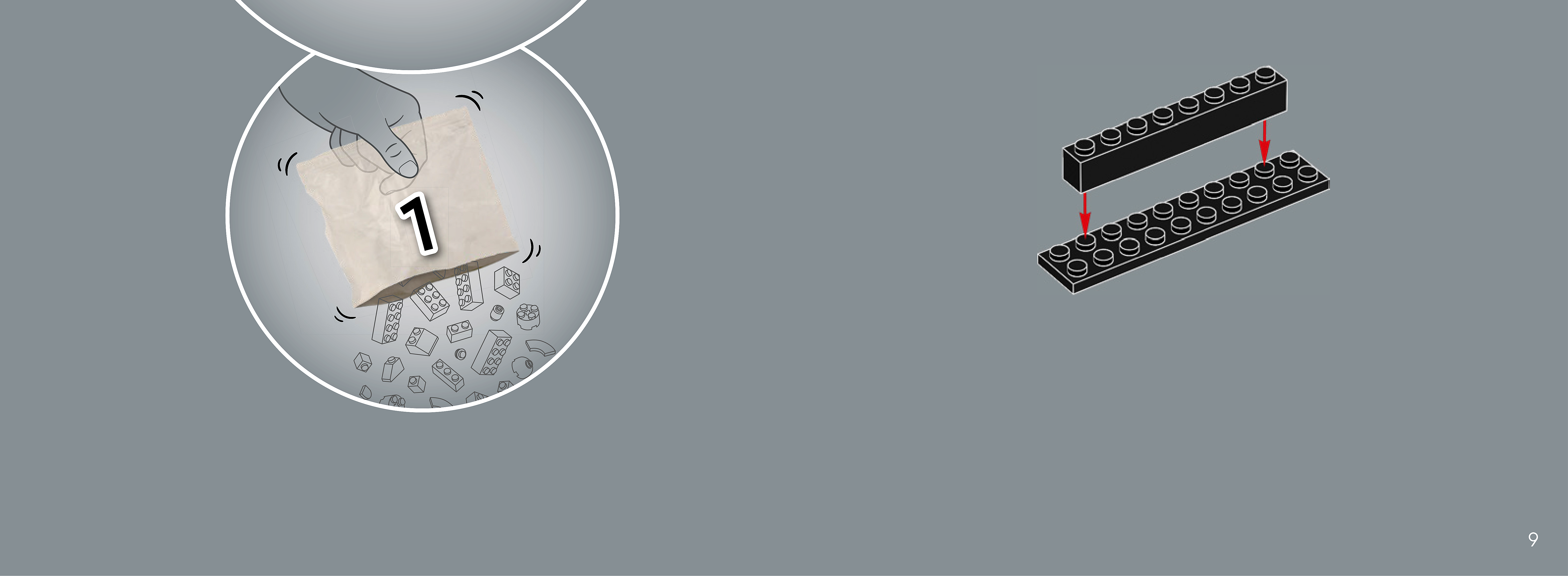
Assembly — page 9
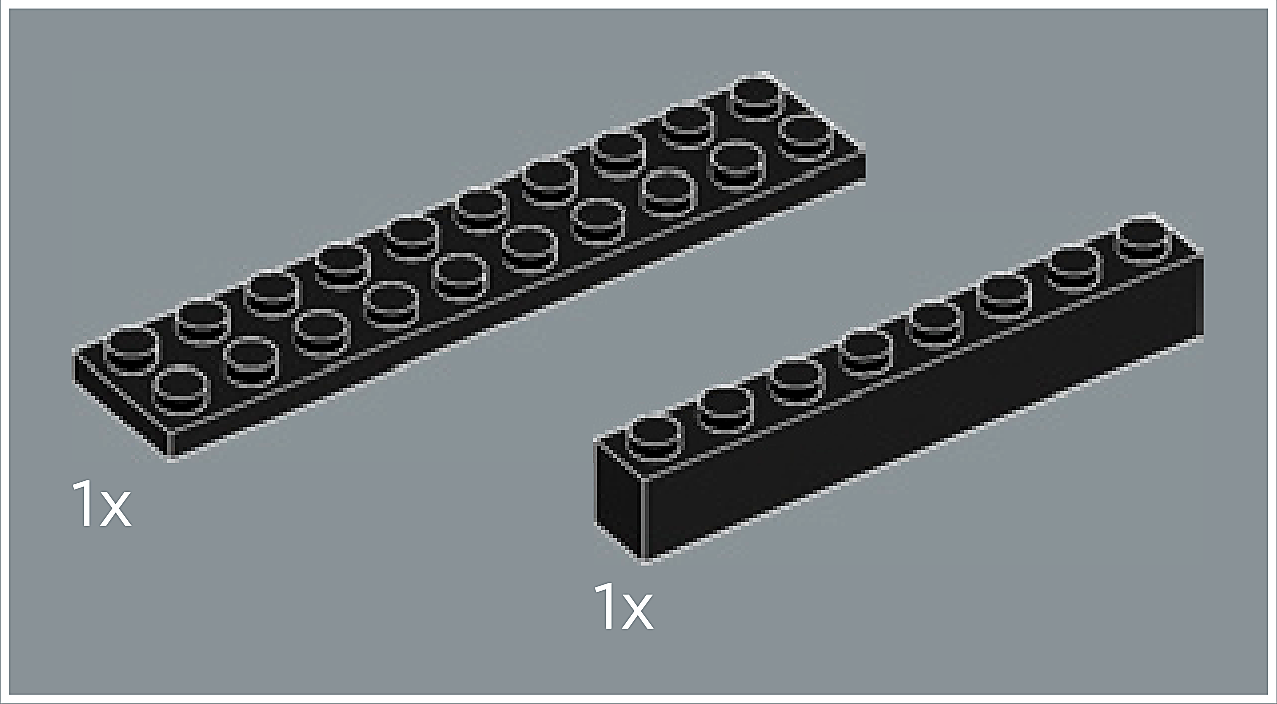
Inset — page 9
Phase 2 — Pieces
What do I do here?
Look at the inset image above. Check that the AI has correctly identified each piece — colour, quantity, and part name. If anything is wrong, edit the table directly. Add any missing pieces using the + row button, or remove incorrect ones with ✕.
When you are satisfied that all pieces are correct, click Save Pieces. This enables Phase 3 to run for this step.
| Qty | Colour | Part name | Part # | |
|---|---|---|---|---|
Phase 3 — Spatial placement
What do I do here?
The AI has described where each piece was placed by comparing the before and after images. Read every description carefully. Check that directions (left, right, front, back) are correct from the builder's perspective, and that stud counts are accurate.
If a description is vague, wrong, or uses the wrong direction — click Edit in that row and correct it. Once every placement description for this step is accurate, click Approve. Approval is required before the accessible prose can be generated.
This is the most important phase — a blind builder will follow these descriptions precisely.
| Piece | Qty | Placement description | |
|---|---|---|---|
Phase 4 — Accessible prose
What do I do here?
This step is completed by the builder, not the sighted reviewer. The app generates an accessible prose paragraph from the approved Phase 3 descriptions. No action is needed from you here — your work is done once Phase 3 is approved.
Step 2
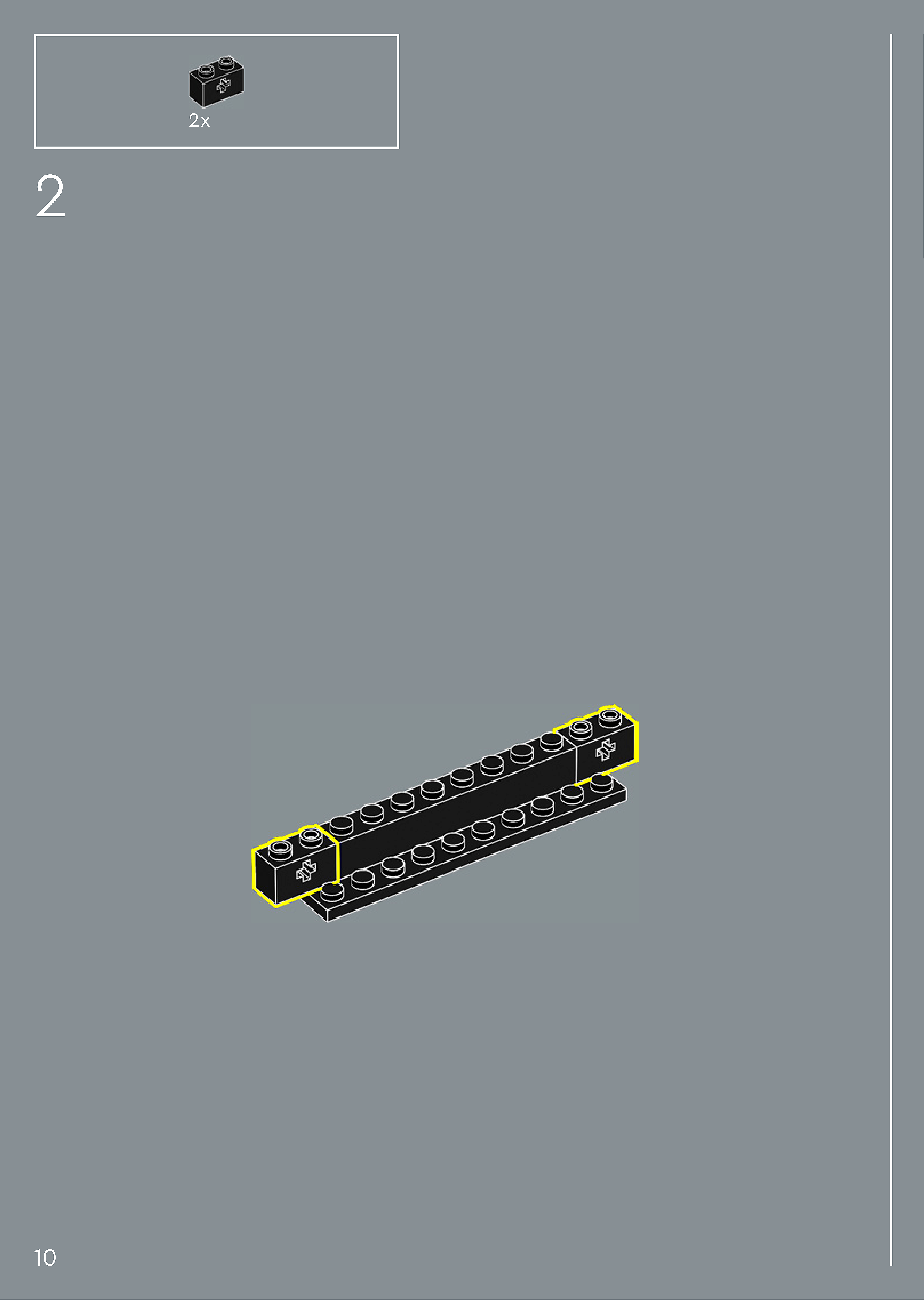
Assembly — page 10

Inset — page 10
Phase 2 — Pieces
What do I do here?
Look at the inset image above. Check that the AI has correctly identified each piece — colour, quantity, and part name. If anything is wrong, edit the table directly. Add any missing pieces using the + row button, or remove incorrect ones with ✕.
When you are satisfied that all pieces are correct, click Save Pieces. This enables Phase 3 to run for this step.
| Qty | Colour | Part name | Part # | |
|---|---|---|---|---|
Phase 3 — Spatial placement
What do I do here?
The AI has described where each piece was placed by comparing the before and after images. Read every description carefully. Check that directions (left, right, front, back) are correct from the builder's perspective, and that stud counts are accurate.
If a description is vague, wrong, or uses the wrong direction — click Edit in that row and correct it. Once every placement description for this step is accurate, click Approve. Approval is required before the accessible prose can be generated.
This is the most important phase — a blind builder will follow these descriptions precisely.
| Piece | Qty | Placement description | |
|---|---|---|---|
Phase 4 — Accessible prose
What do I do here?
This step is completed by the builder, not the sighted reviewer. The app generates an accessible prose paragraph from the approved Phase 3 descriptions. No action is needed from you here — your work is done once Phase 3 is approved.
Step 3
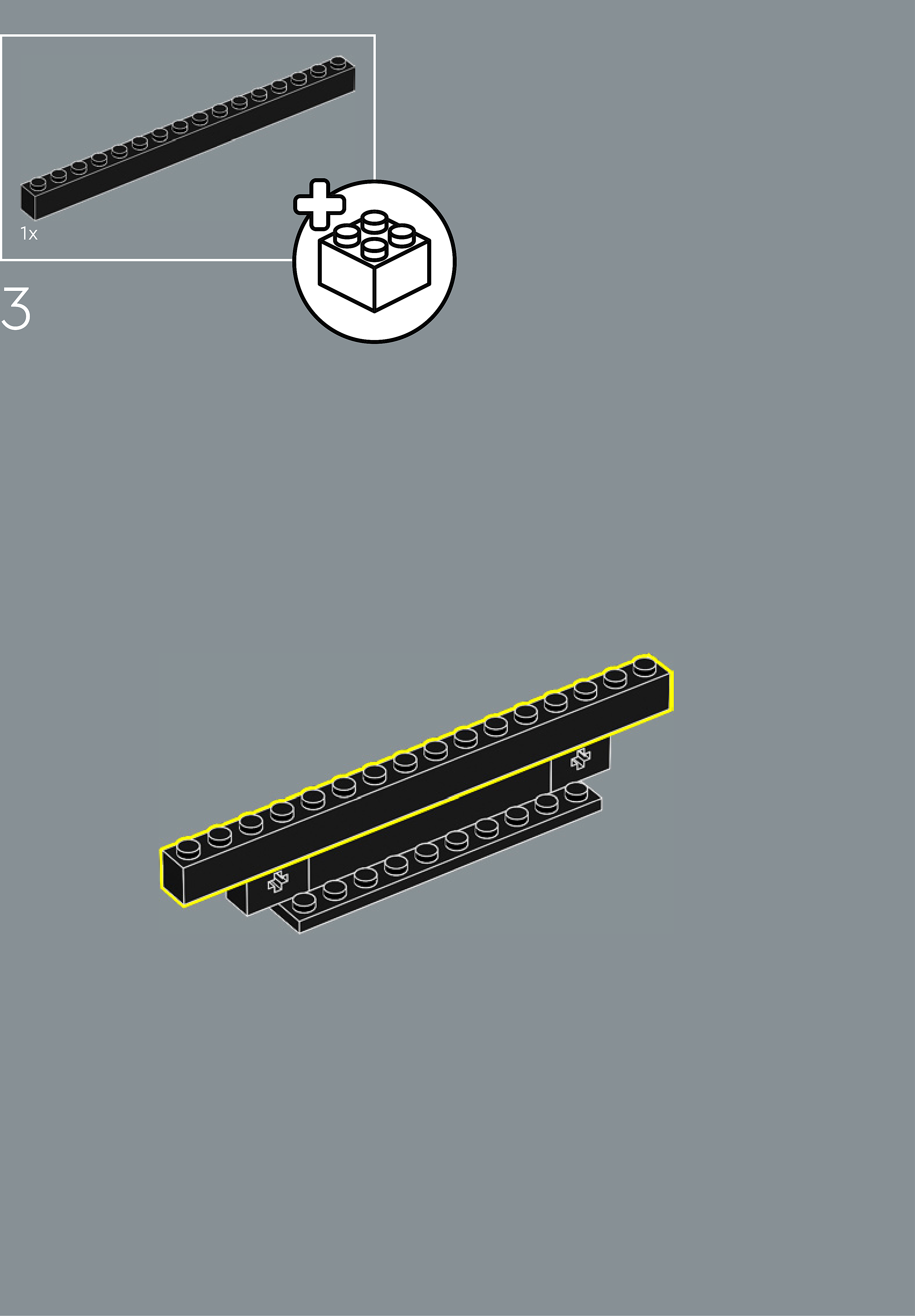
Assembly — page 10
Inset — page 10
Phase 2 — Pieces
What do I do here?
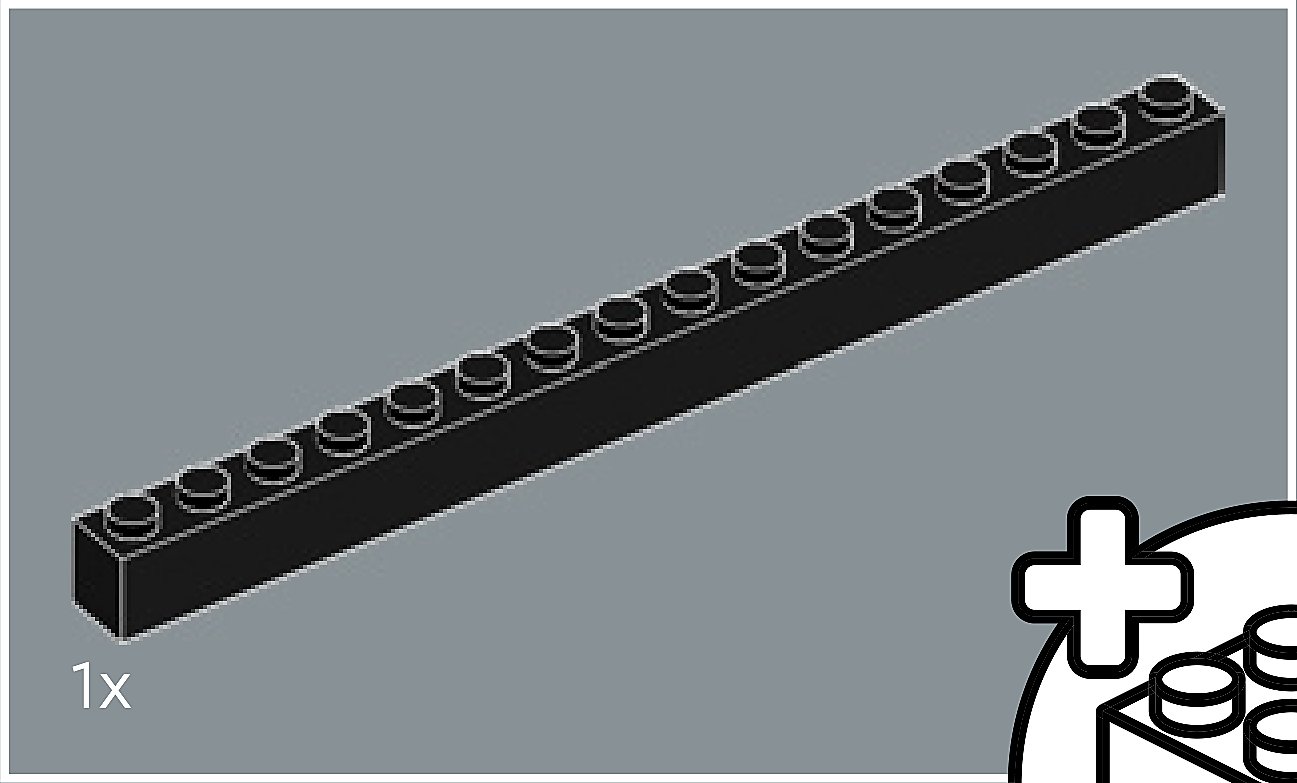
Look at the inset image above. Check that the AI has correctly identified each piece — colour, quantity, and part name. If anything is wrong, edit the table directly. Add any missing pieces using the + row button, or remove incorrect ones with ✕.
When you are satisfied that all pieces are correct, click Save Pieces. This enables Phase 3 to run for this step.
| Qty | Colour | Part name | Part # | |
|---|---|---|---|---|
Phase 3 — Spatial placement
What do I do here?
The AI has described where each piece was placed by comparing the before and after images. Read every description carefully. Check that directions (left, right, front, back) are correct from the builder's perspective, and that stud counts are accurate.
If a description is vague, wrong, or uses the wrong direction — click Edit in that row and correct it. Once every placement description for this step is accurate, click Approve. Approval is required before the accessible prose can be generated.
This is the most important phase — a blind builder will follow these descriptions precisely.
| Piece | Qty | Placement description | |
|---|---|---|---|
Phase 4 — Accessible prose
What do I do here?
This step is completed by the builder, not the sighted reviewer. The app generates an accessible prose paragraph from the approved Phase 3 descriptions. No action is needed from you here — your work is done once Phase 3 is approved.
Step 4
Assembly — page 11
Inset — page 11
Phase 2 — Pieces
What do I do here?
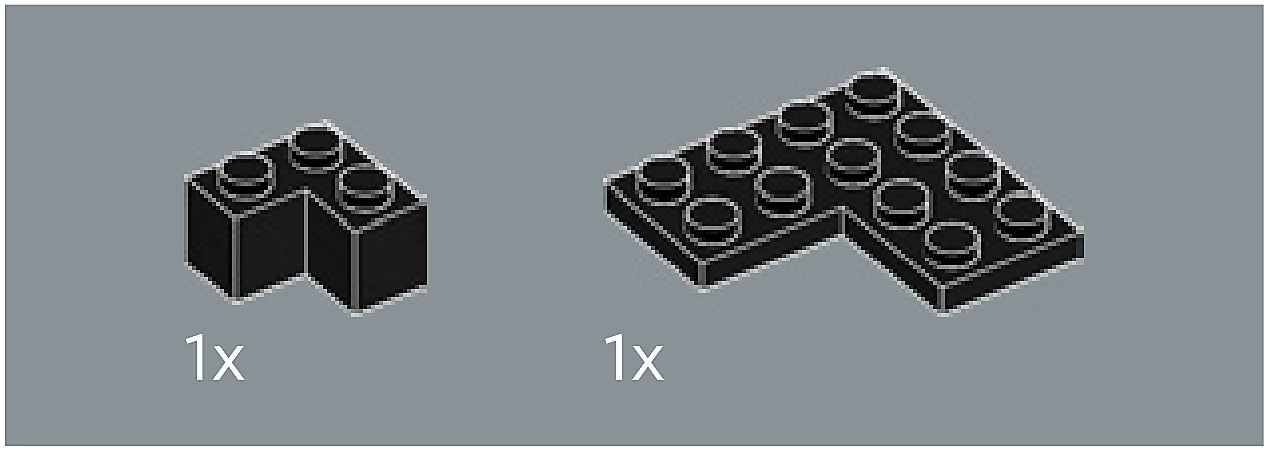
Look at the inset image above. Check that the AI has correctly identified each piece — colour, quantity, and part name. If anything is wrong, edit the table directly. Add any missing pieces using the + row button, or remove incorrect ones with ✕.
When you are satisfied that all pieces are correct, click Save Pieces. This enables Phase 3 to run for this step.
| Qty | Colour | Part name | Part # | |
|---|---|---|---|---|
Phase 3 — Spatial placement
What do I do here?
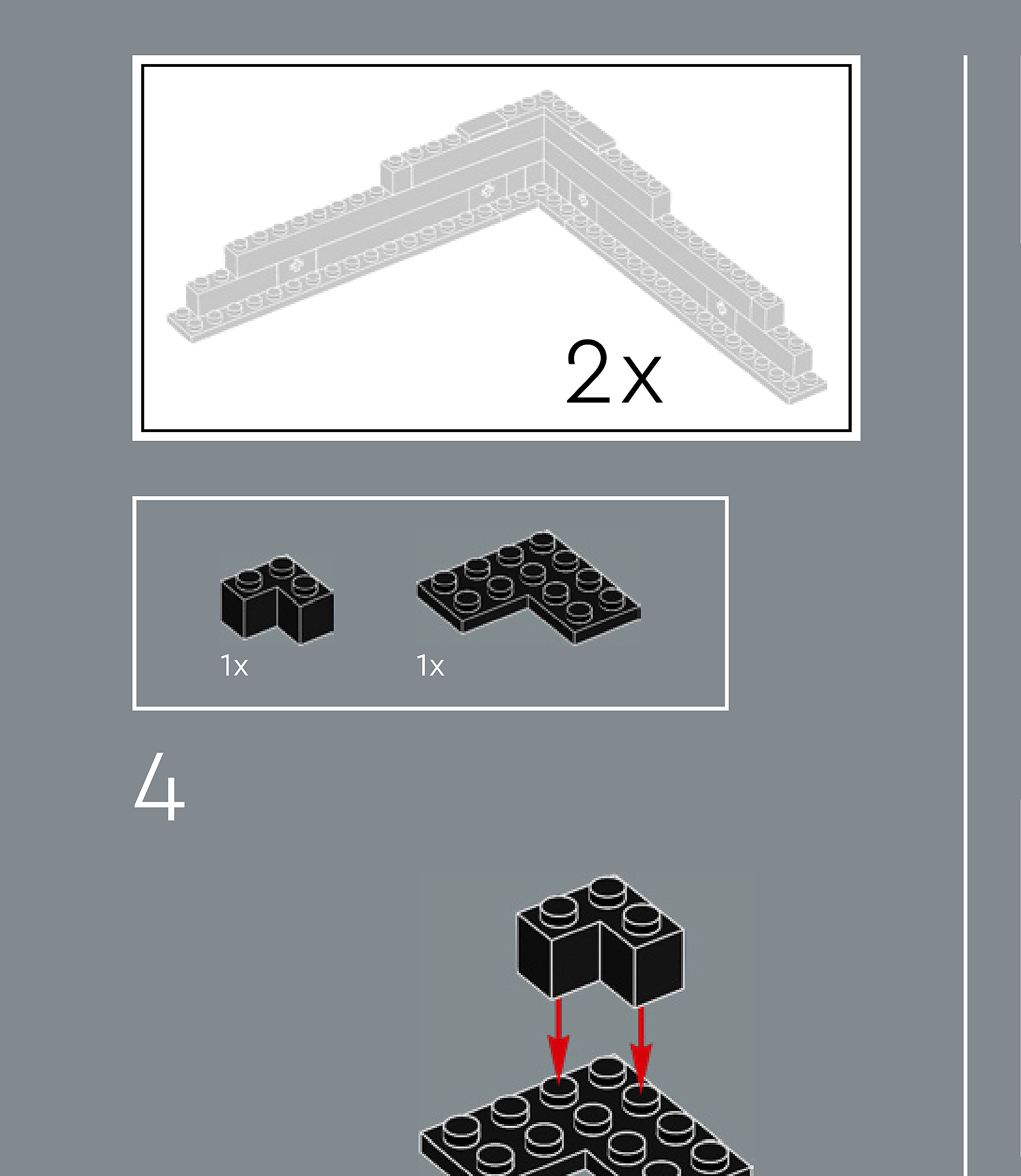
The AI has described where each piece was placed by comparing the before and after images. Read every description carefully. Check that directions (left, right, front, back) are correct from the builder's perspective, and that stud counts are accurate.
If a description is vague, wrong, or uses the wrong direction — click Edit in that row and correct it. Once every placement description for this step is accurate, click Approve. Approval is required before the accessible prose can be generated.
This is the most important phase — a blind builder will follow these descriptions precisely.
| Piece | Qty | Placement description | |
|---|---|---|---|
Phase 4 — Accessible prose
What do I do here?
This step is completed by the builder, not the sighted reviewer. The app generates an accessible prose paragraph from the approved Phase 3 descriptions. No action is needed from you here — your work is done once Phase 3 is approved.
Step 5
Assembly — page 11

Inset — page 11
Phase 2 — Pieces
What do I do here?
Look at the inset image above. Check that the AI has correctly identified each piece — colour, quantity, and part name. If anything is wrong, edit the table directly. Add any missing pieces using the + row button, or remove incorrect ones with ✕.
When you are satisfied that all pieces are correct, click Save Pieces. This enables Phase 3 to run for this step.
| Qty | Colour | Part name | Part # | |
|---|---|---|---|---|
Phase 3 — Spatial placement
What do I do here?
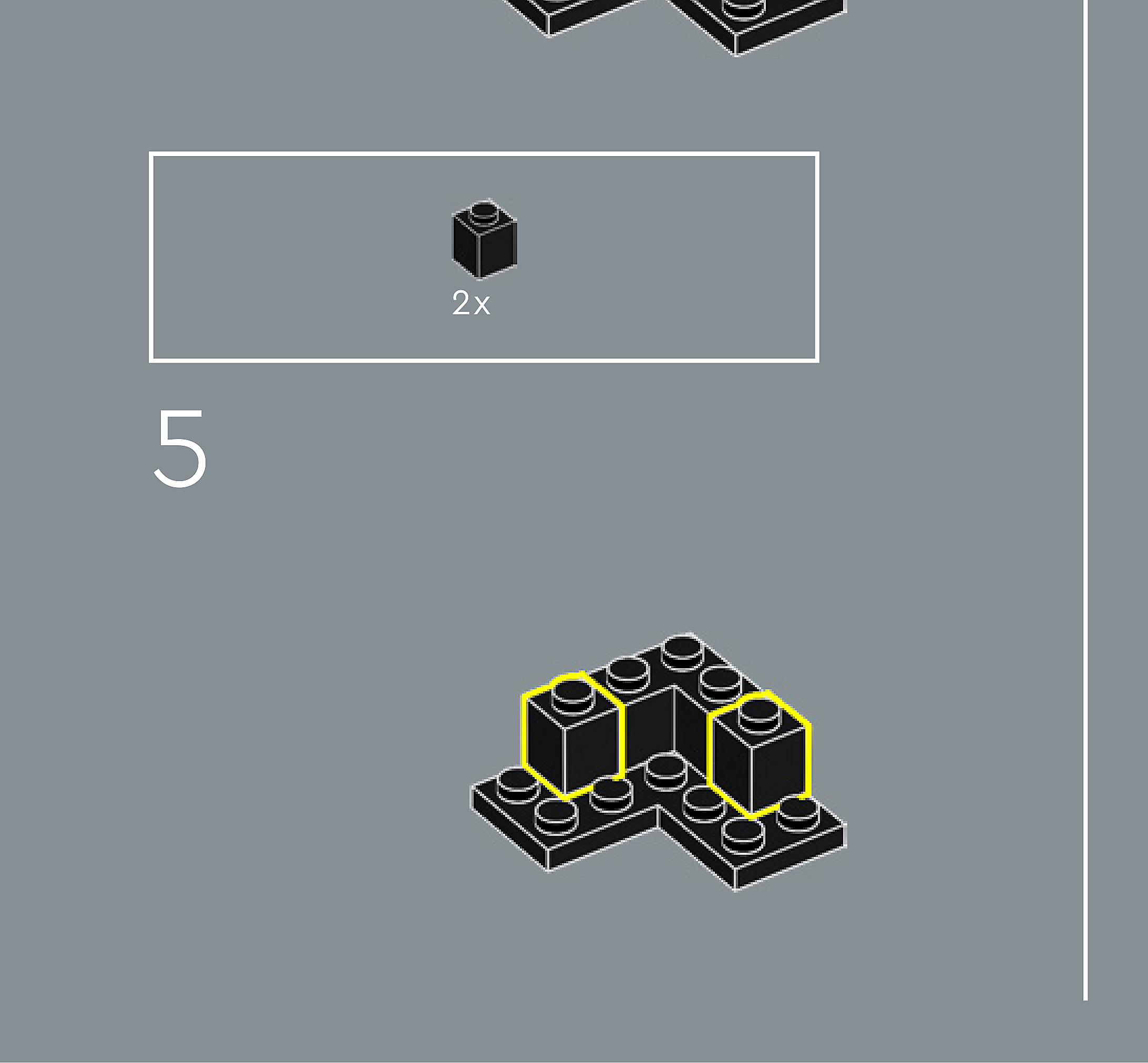
The AI has described where each piece was placed by comparing the before and after images. Read every description carefully. Check that directions (left, right, front, back) are correct from the builder's perspective, and that stud counts are accurate.
If a description is vague, wrong, or uses the wrong direction — click Edit in that row and correct it. Once every placement description for this step is accurate, click Approve. Approval is required before the accessible prose can be generated.
This is the most important phase — a blind builder will follow these descriptions precisely.
| Piece | Qty | Placement description | |
|---|---|---|---|
Phase 4 — Accessible prose
What do I do here?
This step is completed by the builder, not the sighted reviewer. The app generates an accessible prose paragraph from the approved Phase 3 descriptions. No action is needed from you here — your work is done once Phase 3 is approved.
Not yet generated. Complete Phase 3 and approve placement first.
Step 6
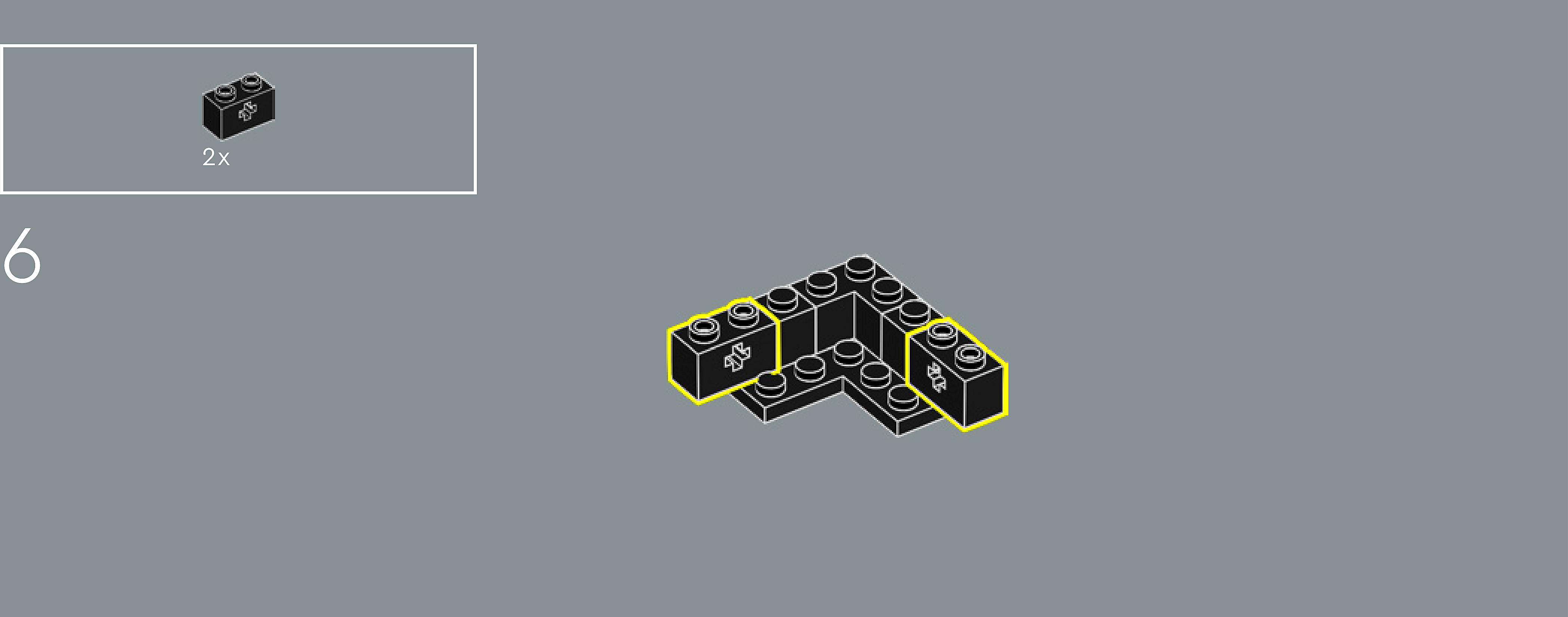
Assembly — page 11

Inset — page 11
Phase 2 — Pieces
What do I do here?
Look at the inset image above. Check that the AI has correctly identified each piece — colour, quantity, and part name. If anything is wrong, edit the table directly. Add any missing pieces using the + row button, or remove incorrect ones with ✕.
When you are satisfied that all pieces are correct, click Save Pieces. This enables Phase 3 to run for this step.
| Qty | Colour | Part name | Part # | |
|---|---|---|---|---|
Phase 3 — Spatial placement
What do I do here?
The AI has described where each piece was placed by comparing the before and after images. Read every description carefully. Check that directions (left, right, front, back) are correct from the builder's perspective, and that stud counts are accurate.
If a description is vague, wrong, or uses the wrong direction — click Edit in that row and correct it. Once every placement description for this step is accurate, click Approve. Approval is required before the accessible prose can be generated.
This is the most important phase — a blind builder will follow these descriptions precisely.
Not yet extracted.
Phase 4 — Accessible prose
What do I do here?
This step is completed by the builder, not the sighted reviewer. The app generates an accessible prose paragraph from the approved Phase 3 descriptions. No action is needed from you here — your work is done once Phase 3 is approved.
Not yet generated. Complete Phase 3 and approve placement first.
Step 7
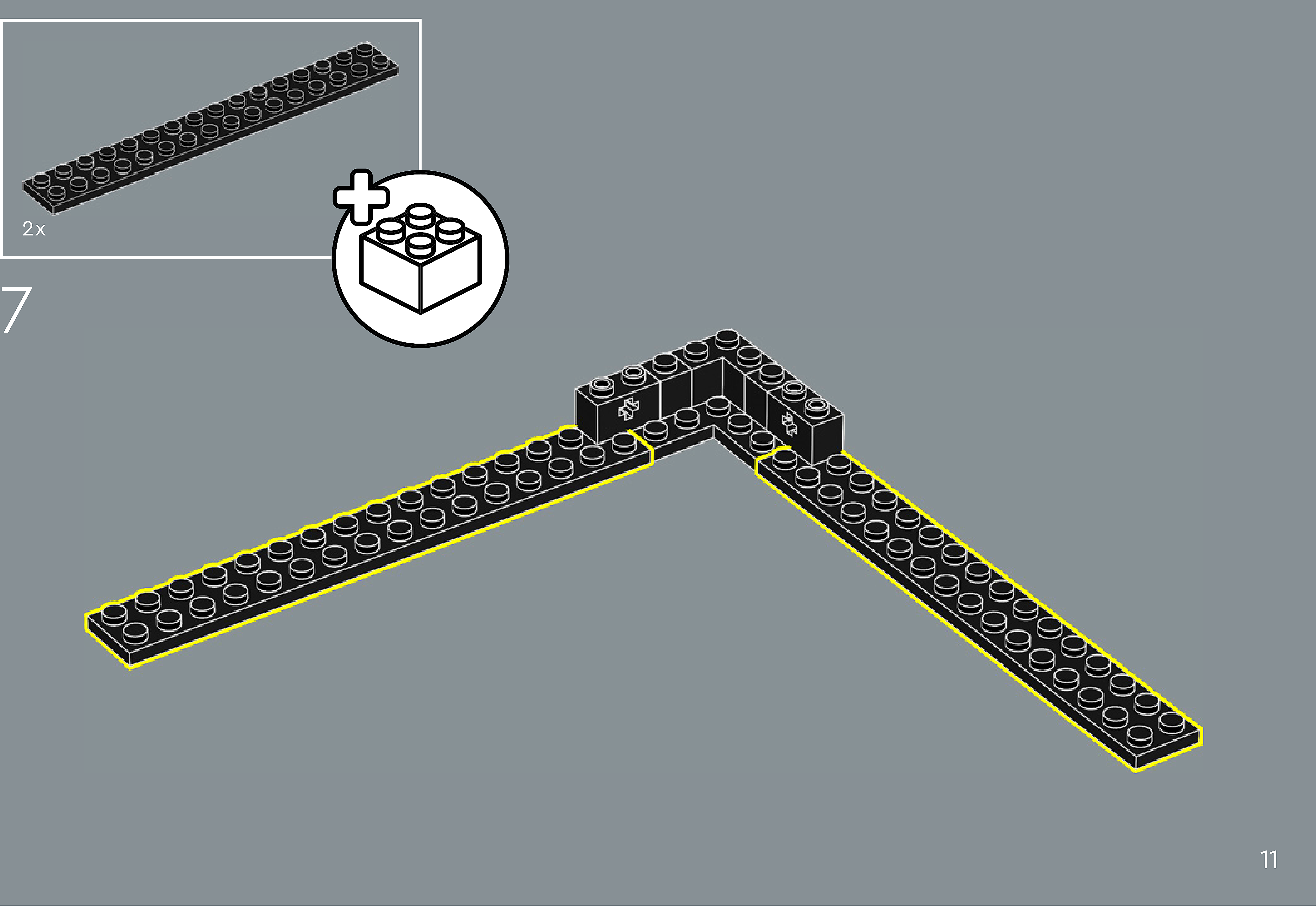
Assembly — page 11
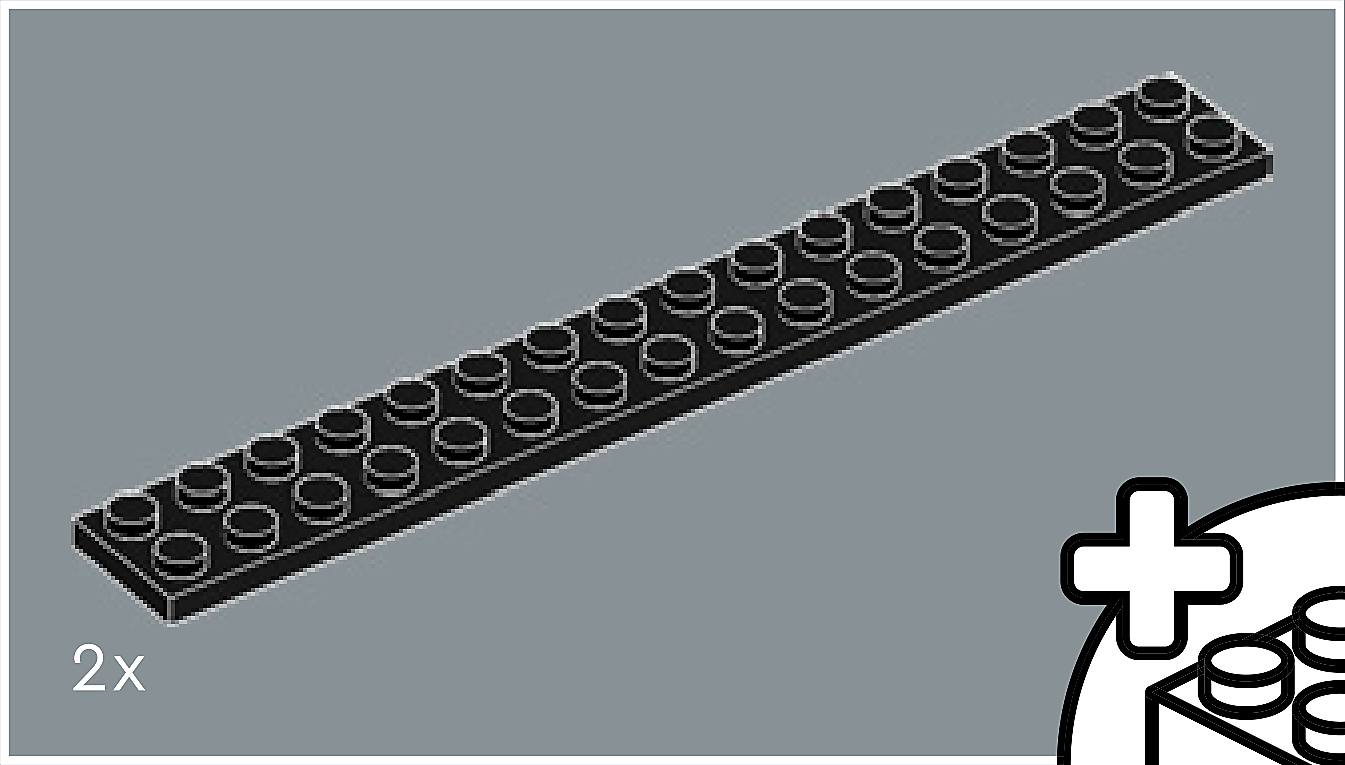
Inset — page 11
Phase 2 — Pieces
What do I do here?
Look at the inset image above. Check that the AI has correctly identified each piece — colour, quantity, and part name. If anything is wrong, edit the table directly. Add any missing pieces using the + row button, or remove incorrect ones with ✕.
When you are satisfied that all pieces are correct, click Save Pieces. This enables Phase 3 to run for this step.
| Qty | Colour | Part name | Part # | |
|---|---|---|---|---|
Phase 3 — Spatial placement
What do I do here?
The AI has described where each piece was placed by comparing the before and after images. Read every description carefully. Check that directions (left, right, front, back) are correct from the builder's perspective, and that stud counts are accurate.
If a description is vague, wrong, or uses the wrong direction — click Edit in that row and correct it. Once every placement description for this step is accurate, click Approve. Approval is required before the accessible prose can be generated.
This is the most important phase — a blind builder will follow these descriptions precisely.
Not yet extracted.
Phase 4 — Accessible prose
What do I do here?
This step is completed by the builder, not the sighted reviewer. The app generates an accessible prose paragraph from the approved Phase 3 descriptions. No action is needed from you here — your work is done once Phase 3 is approved.
Not yet generated. Complete Phase 3 and approve placement first.
Step 8
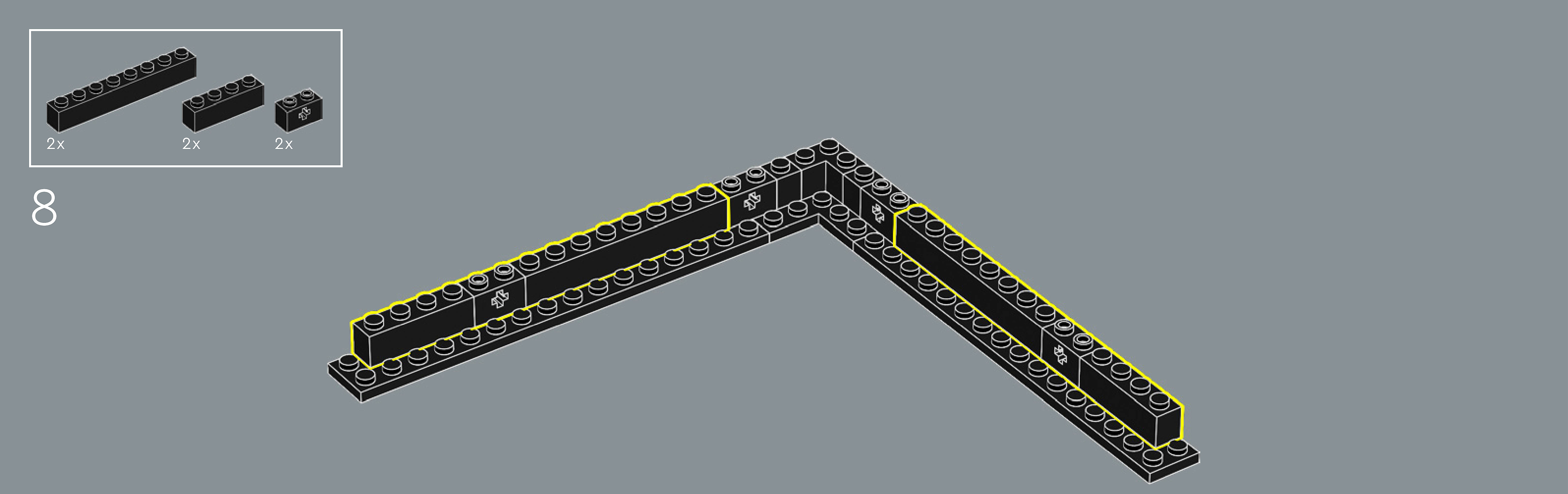
Assembly — page 12
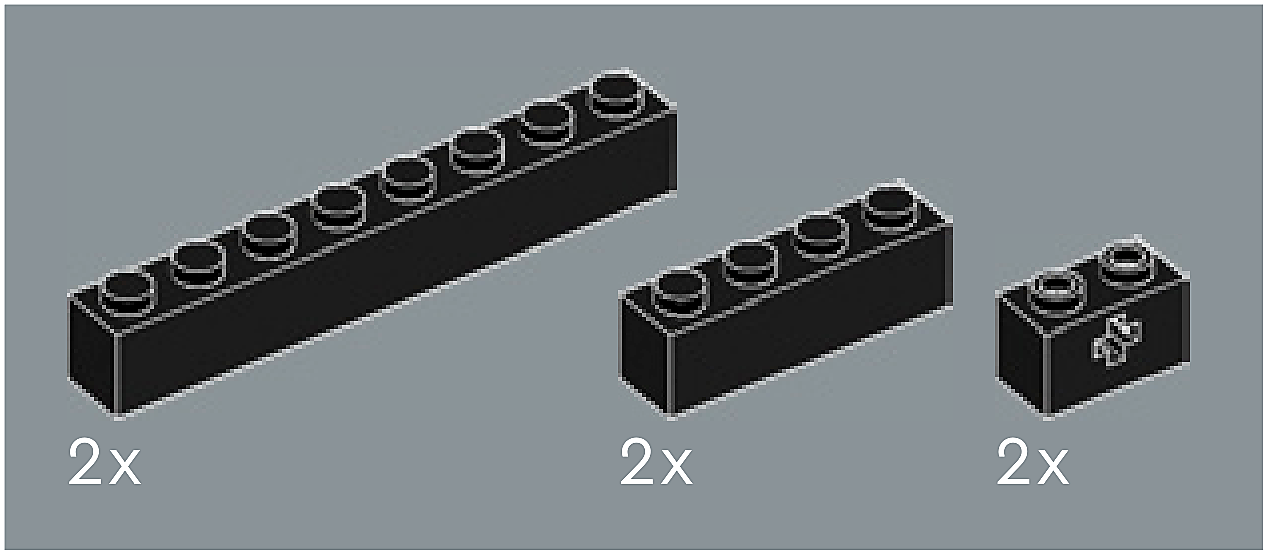
Inset — page 12
Phase 2 — Pieces
What do I do here?
Look at the inset image above. Check that the AI has correctly identified each piece — colour, quantity, and part name. If anything is wrong, edit the table directly. Add any missing pieces using the + row button, or remove incorrect ones with ✕.
When you are satisfied that all pieces are correct, click Save Pieces. This enables Phase 3 to run for this step.
| Qty | Colour | Part name | Part # | |
|---|---|---|---|---|
Phase 3 — Spatial placement
What do I do here?
The AI has described where each piece was placed by comparing the before and after images. Read every description carefully. Check that directions (left, right, front, back) are correct from the builder's perspective, and that stud counts are accurate.
If a description is vague, wrong, or uses the wrong direction — click Edit in that row and correct it. Once every placement description for this step is accurate, click Approve. Approval is required before the accessible prose can be generated.
This is the most important phase — a blind builder will follow these descriptions precisely.
Not yet extracted.
Phase 4 — Accessible prose
What do I do here?
This step is completed by the builder, not the sighted reviewer. The app generates an accessible prose paragraph from the approved Phase 3 descriptions. No action is needed from you here — your work is done once Phase 3 is approved.
Not yet generated. Complete Phase 3 and approve placement first.
Step 9
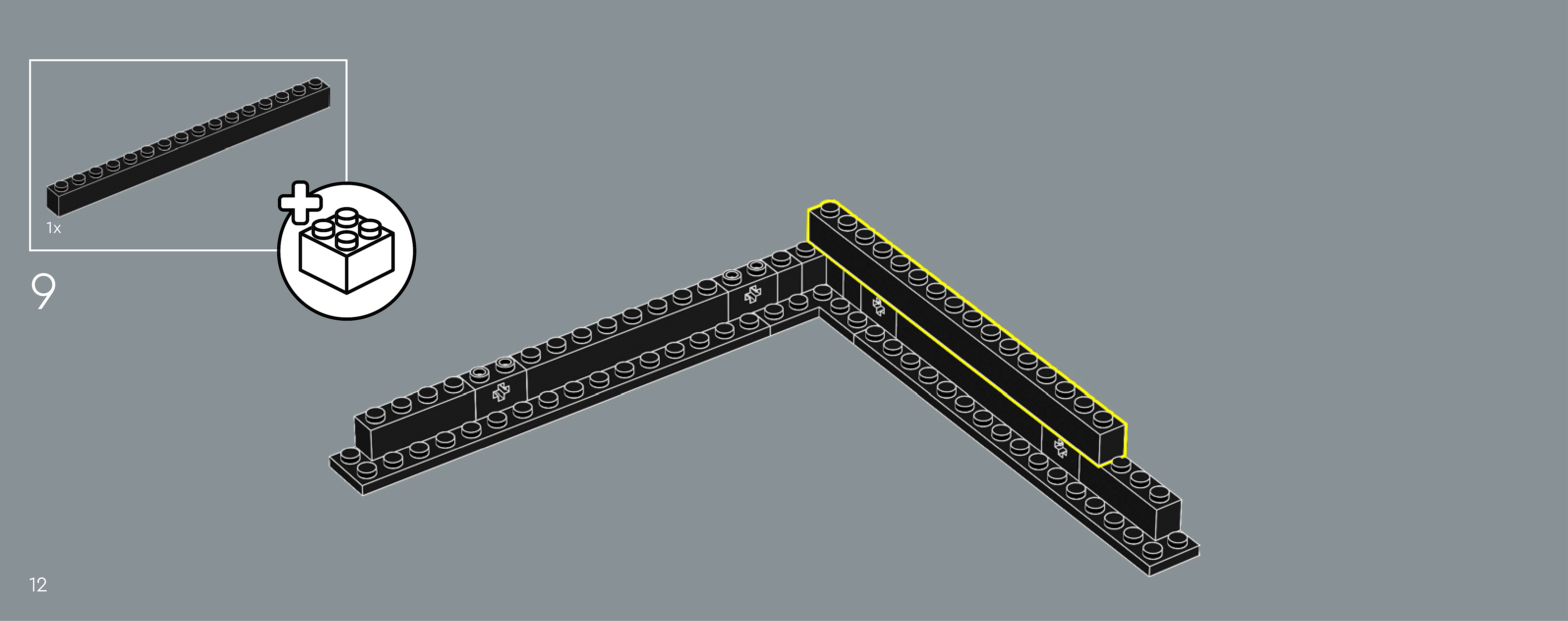
Assembly — page 12
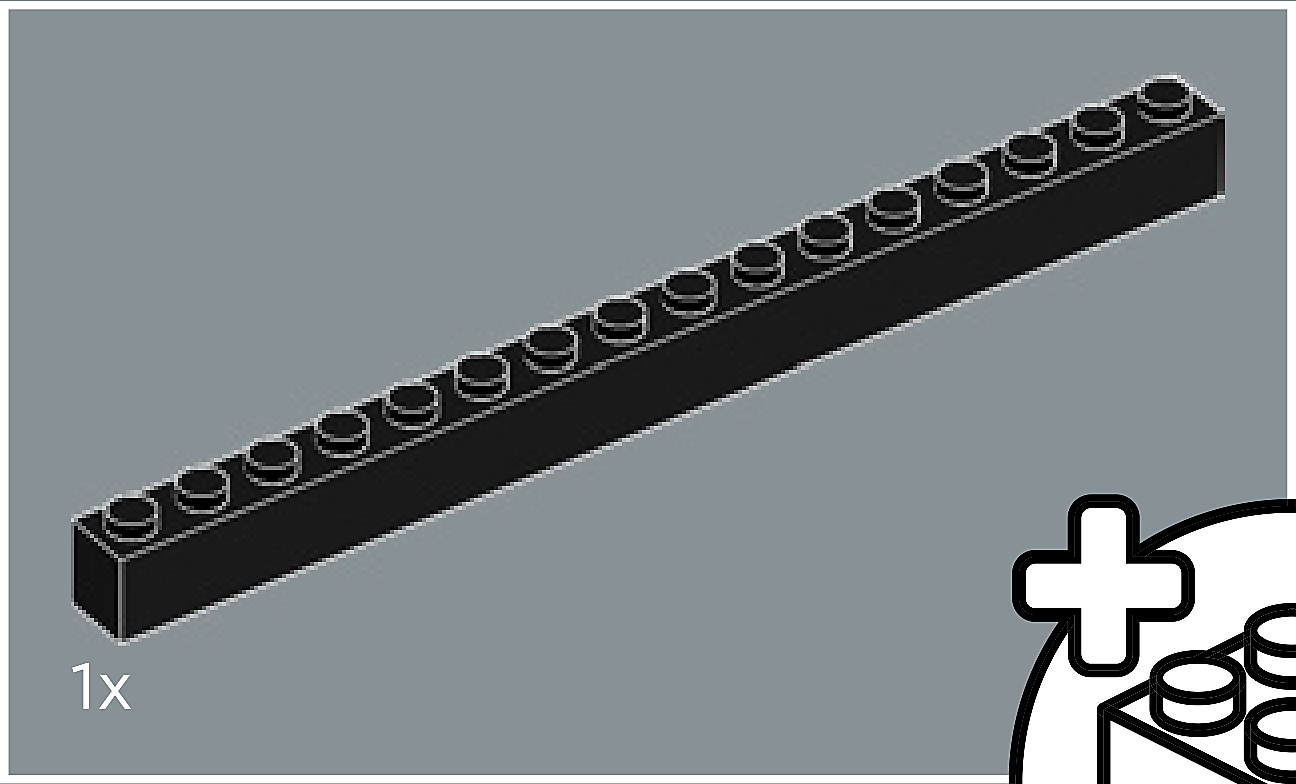
Inset — page 12
Phase 2 — Pieces
What do I do here?
Look at the inset image above. Check that the AI has correctly identified each piece — colour, quantity, and part name. If anything is wrong, edit the table directly. Add any missing pieces using the + row button, or remove incorrect ones with ✕.
When you are satisfied that all pieces are correct, click Save Pieces. This enables Phase 3 to run for this step.
| Qty | Colour | Part name | Part # | |
|---|---|---|---|---|
Phase 3 — Spatial placement
What do I do here?
The AI has described where each piece was placed by comparing the before and after images. Read every description carefully. Check that directions (left, right, front, back) are correct from the builder's perspective, and that stud counts are accurate.
If a description is vague, wrong, or uses the wrong direction — click Edit in that row and correct it. Once every placement description for this step is accurate, click Approve. Approval is required before the accessible prose can be generated.
This is the most important phase — a blind builder will follow these descriptions precisely.
Not yet extracted.
Phase 4 — Accessible prose
What do I do here?
This step is completed by the builder, not the sighted reviewer. The app generates an accessible prose paragraph from the approved Phase 3 descriptions. No action is needed from you here — your work is done once Phase 3 is approved.
Not yet generated. Complete Phase 3 and approve placement first.
Step 10
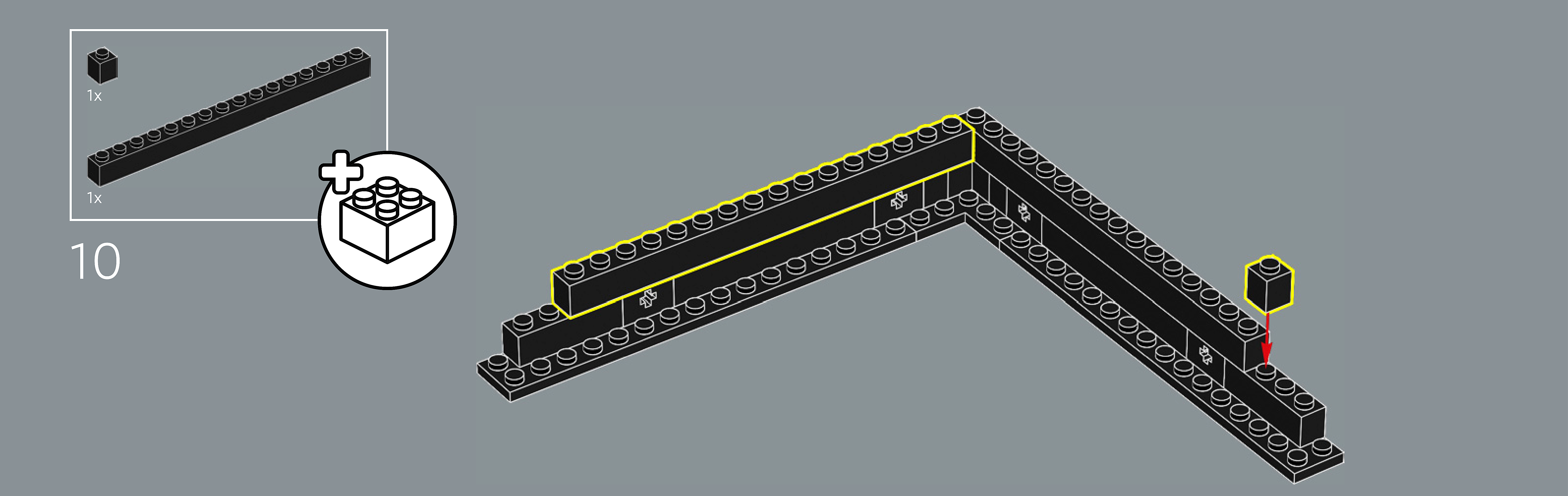
Assembly — page 13
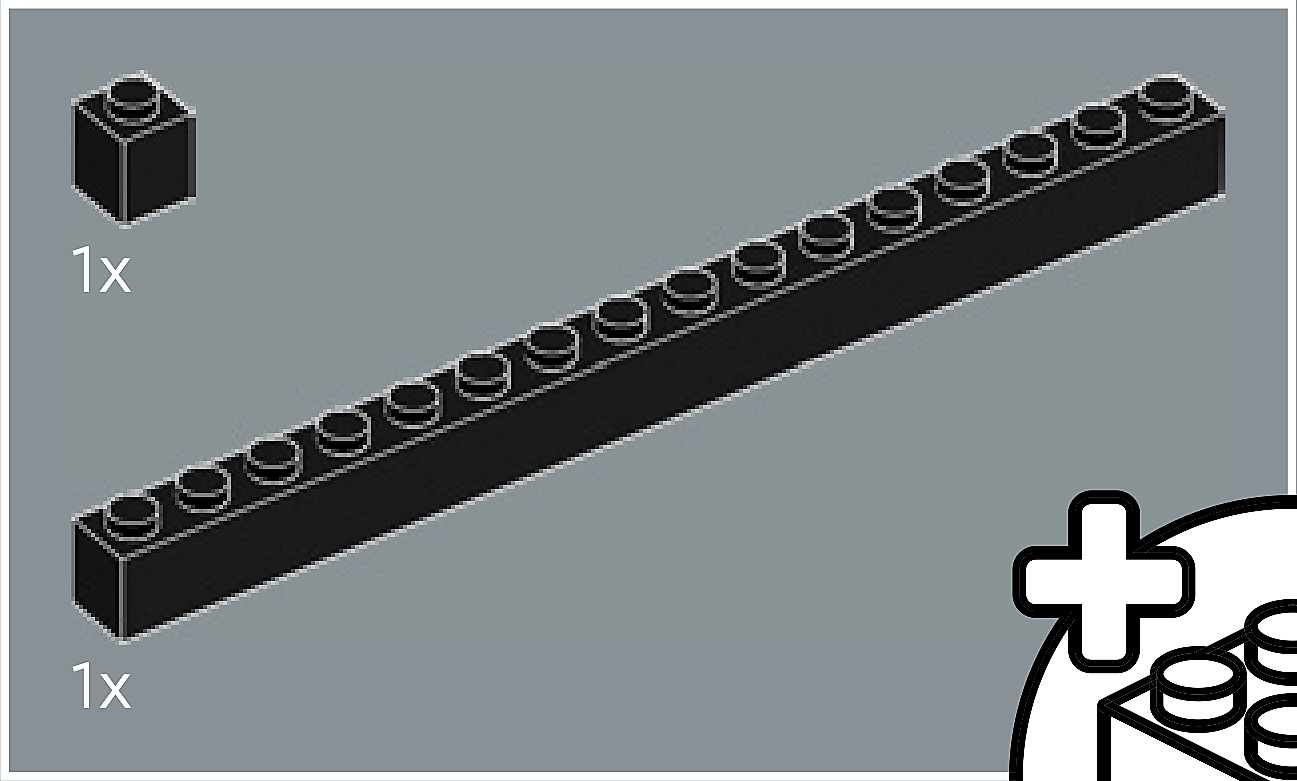
Inset — page 13
Phase 2 — Pieces
What do I do here?
Look at the inset image above. Check that the AI has correctly identified each piece — colour, quantity, and part name. If anything is wrong, edit the table directly. Add any missing pieces using the + row button, or remove incorrect ones with ✕.
When you are satisfied that all pieces are correct, click Save Pieces. This enables Phase 3 to run for this step.
| Qty | Colour | Part name | Part # | |
|---|---|---|---|---|
Phase 3 — Spatial placement
What do I do here?
The AI has described where each piece was placed by comparing the before and after images. Read every description carefully. Check that directions (left, right, front, back) are correct from the builder's perspective, and that stud counts are accurate.
If a description is vague, wrong, or uses the wrong direction — click Edit in that row and correct it. Once every placement description for this step is accurate, click Approve. Approval is required before the accessible prose can be generated.
This is the most important phase — a blind builder will follow these descriptions precisely.
Not yet extracted.
Phase 4 — Accessible prose
What do I do here?
This step is completed by the builder, not the sighted reviewer. The app generates an accessible prose paragraph from the approved Phase 3 descriptions. No action is needed from you here — your work is done once Phase 3 is approved.
Not yet generated. Complete Phase 3 and approve placement first.
Step 11
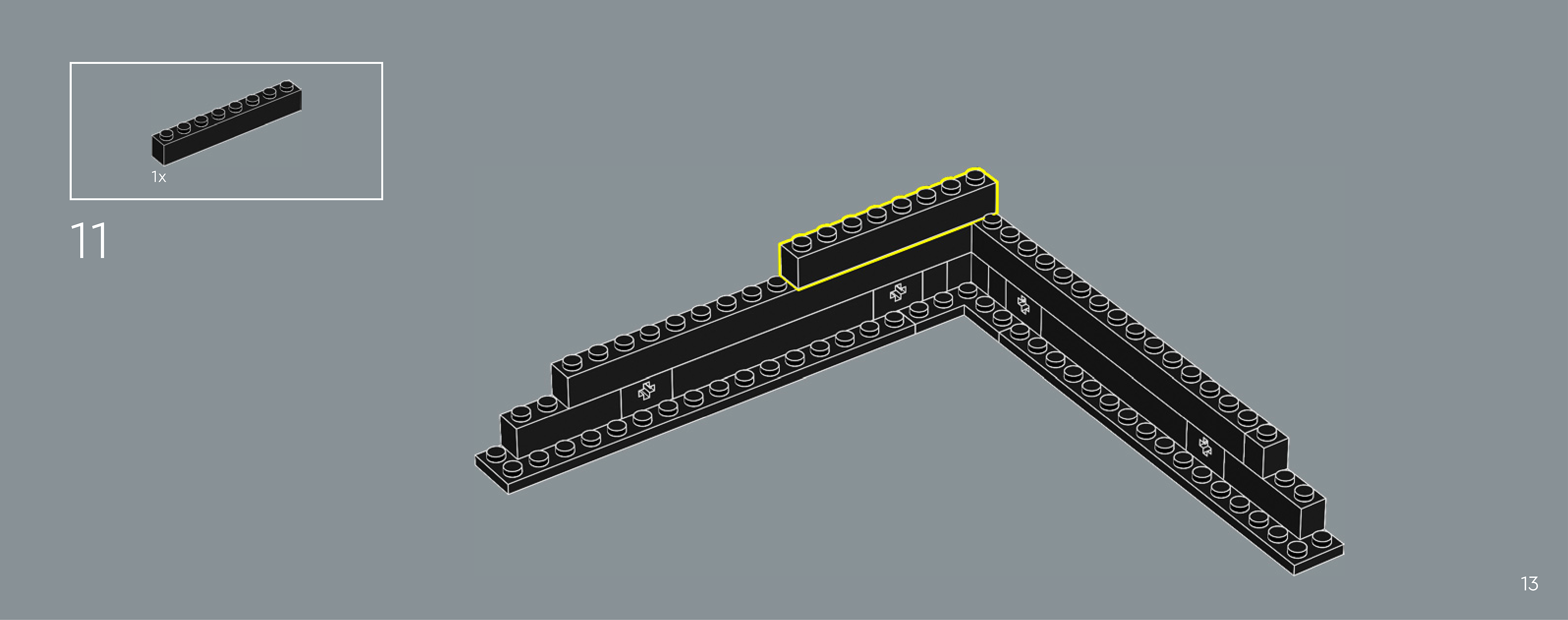
Assembly — page 13
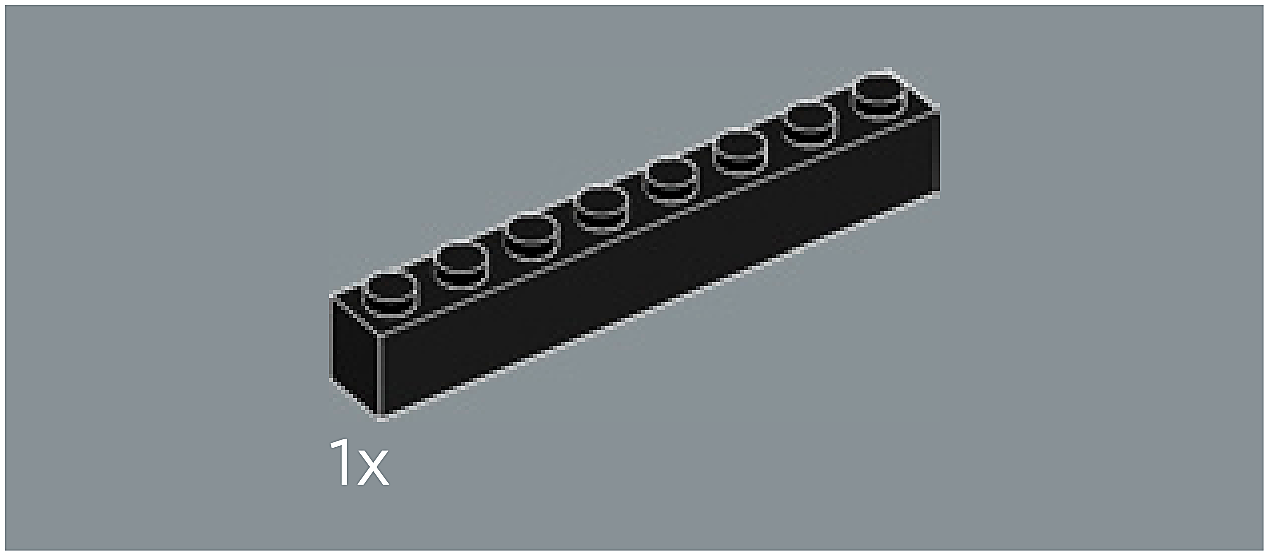
Inset — page 13
Phase 2 — Pieces
What do I do here?
Look at the inset image above. Check that the AI has correctly identified each piece — colour, quantity, and part name. If anything is wrong, edit the table directly. Add any missing pieces using the + row button, or remove incorrect ones with ✕.
When you are satisfied that all pieces are correct, click Save Pieces. This enables Phase 3 to run for this step.
| Qty | Colour | Part name | Part # | |
|---|---|---|---|---|
Phase 3 — Spatial placement
What do I do here?
The AI has described where each piece was placed by comparing the before and after images. Read every description carefully. Check that directions (left, right, front, back) are correct from the builder's perspective, and that stud counts are accurate.
If a description is vague, wrong, or uses the wrong direction — click Edit in that row and correct it. Once every placement description for this step is accurate, click Approve. Approval is required before the accessible prose can be generated.
This is the most important phase — a blind builder will follow these descriptions precisely.
Not yet extracted.
Phase 4 — Accessible prose
What do I do here?
This step is completed by the builder, not the sighted reviewer. The app generates an accessible prose paragraph from the approved Phase 3 descriptions. No action is needed from you here — your work is done once Phase 3 is approved.
Not yet generated. Complete Phase 3 and approve placement first.
Step 12
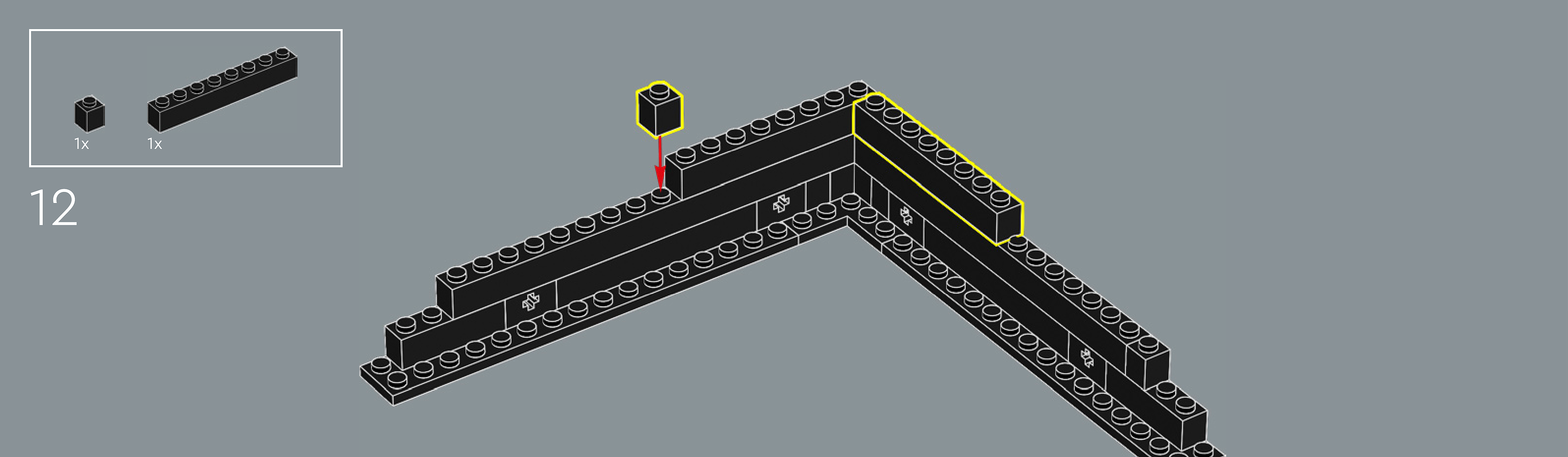
Assembly — page 14
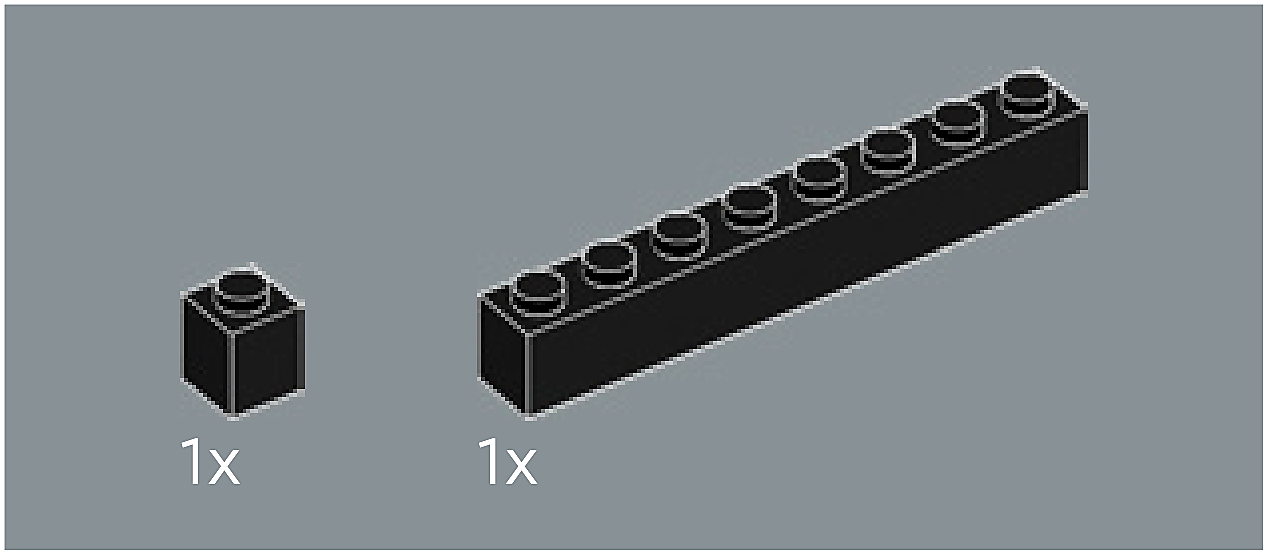
Inset — page 14
Phase 2 — Pieces
What do I do here?
Look at the inset image above. Check that the AI has correctly identified each piece — colour, quantity, and part name. If anything is wrong, edit the table directly. Add any missing pieces using the + row button, or remove incorrect ones with ✕.
When you are satisfied that all pieces are correct, click Save Pieces. This enables Phase 3 to run for this step.
| Qty | Colour | Part name | Part # | |
|---|---|---|---|---|
Phase 3 — Spatial placement
What do I do here?
The AI has described where each piece was placed by comparing the before and after images. Read every description carefully. Check that directions (left, right, front, back) are correct from the builder's perspective, and that stud counts are accurate.
If a description is vague, wrong, or uses the wrong direction — click Edit in that row and correct it. Once every placement description for this step is accurate, click Approve. Approval is required before the accessible prose can be generated.
This is the most important phase — a blind builder will follow these descriptions precisely.
Not yet extracted.
Phase 4 — Accessible prose
What do I do here?
This step is completed by the builder, not the sighted reviewer. The app generates an accessible prose paragraph from the approved Phase 3 descriptions. No action is needed from you here — your work is done once Phase 3 is approved.
Not yet generated. Complete Phase 3 and approve placement first.
Step 13
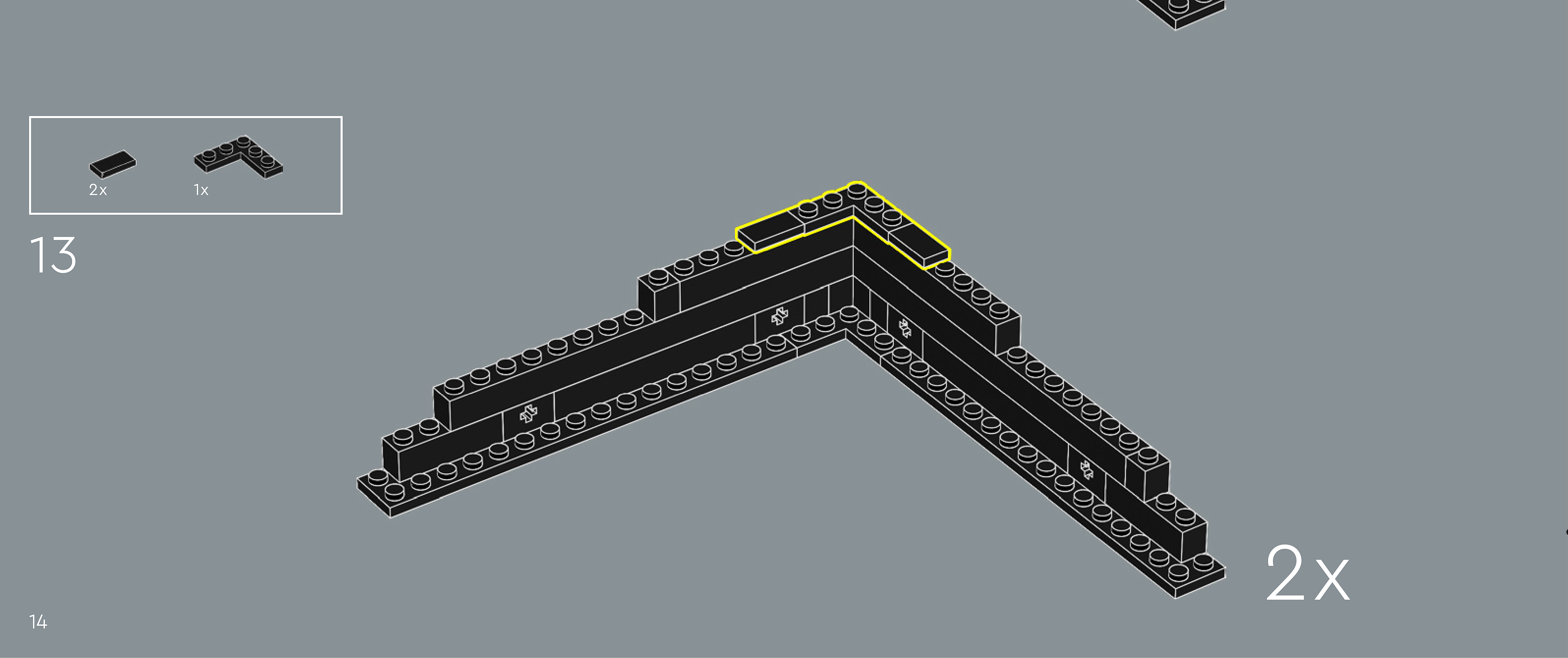
Assembly — page 14
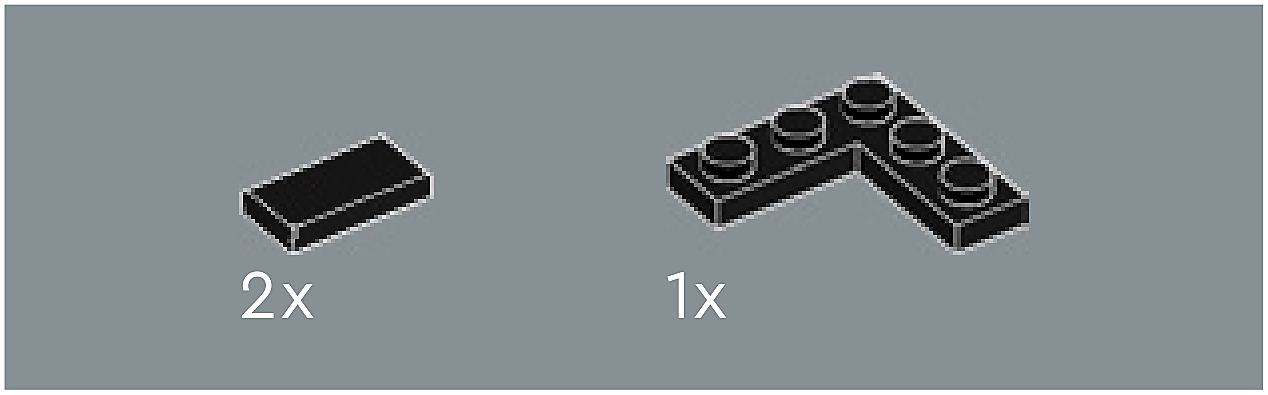
Inset — page 14
Phase 2 — Pieces
What do I do here?
Look at the inset image above. Check that the AI has correctly identified each piece — colour, quantity, and part name. If anything is wrong, edit the table directly. Add any missing pieces using the + row button, or remove incorrect ones with ✕.
When you are satisfied that all pieces are correct, click Save Pieces. This enables Phase 3 to run for this step.
| Qty | Colour | Part name | Part # | |
|---|---|---|---|---|
Phase 3 — Spatial placement
What do I do here?
The AI has described where each piece was placed by comparing the before and after images. Read every description carefully. Check that directions (left, right, front, back) are correct from the builder's perspective, and that stud counts are accurate.
If a description is vague, wrong, or uses the wrong direction — click Edit in that row and correct it. Once every placement description for this step is accurate, click Approve. Approval is required before the accessible prose can be generated.
This is the most important phase — a blind builder will follow these descriptions precisely.
Not yet extracted.
Phase 4 — Accessible prose
What do I do here?
This step is completed by the builder, not the sighted reviewer. The app generates an accessible prose paragraph from the approved Phase 3 descriptions. No action is needed from you here — your work is done once Phase 3 is approved.
Not yet generated. Complete Phase 3 and approve placement first.
Step 14
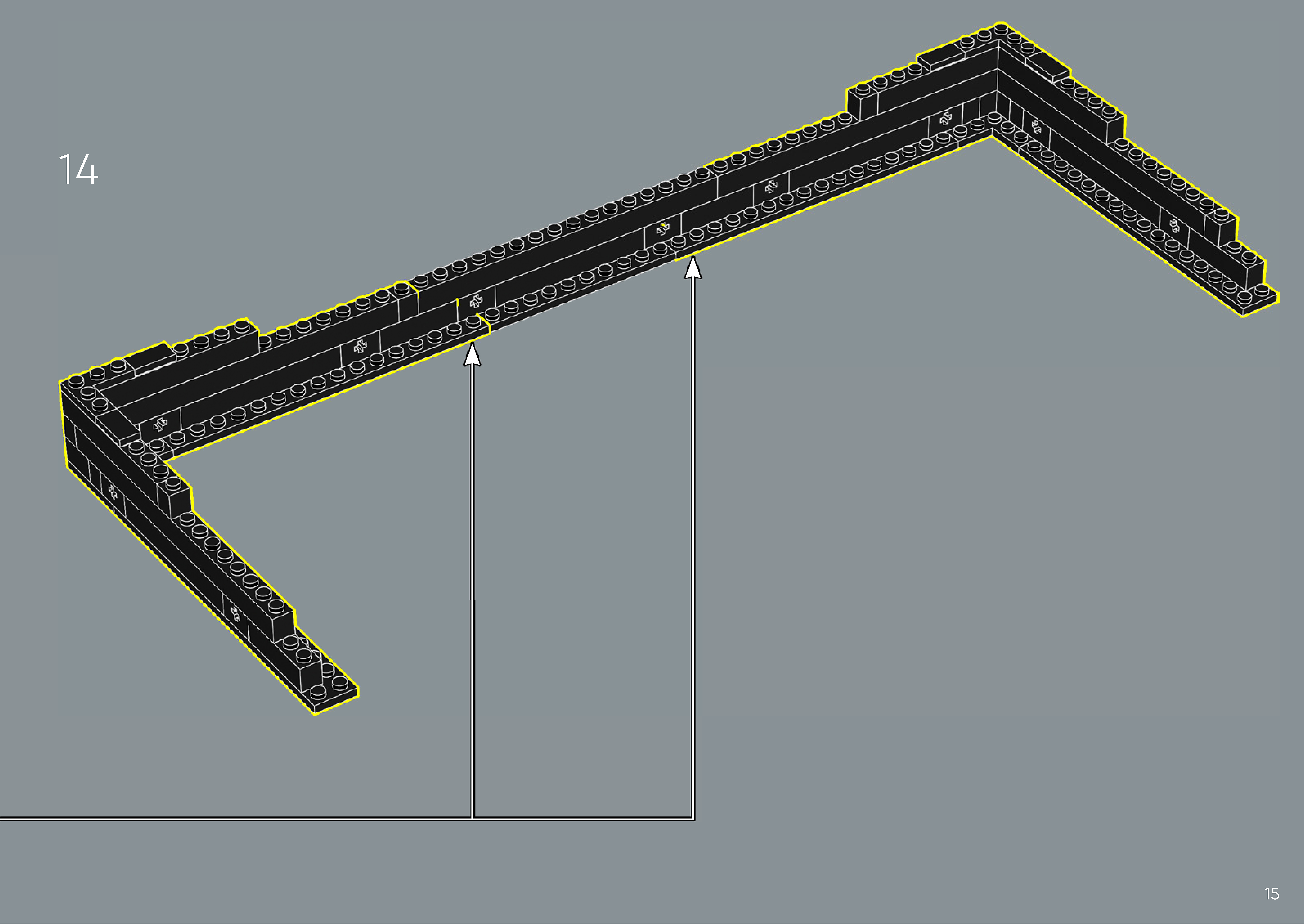
Assembly — page 15
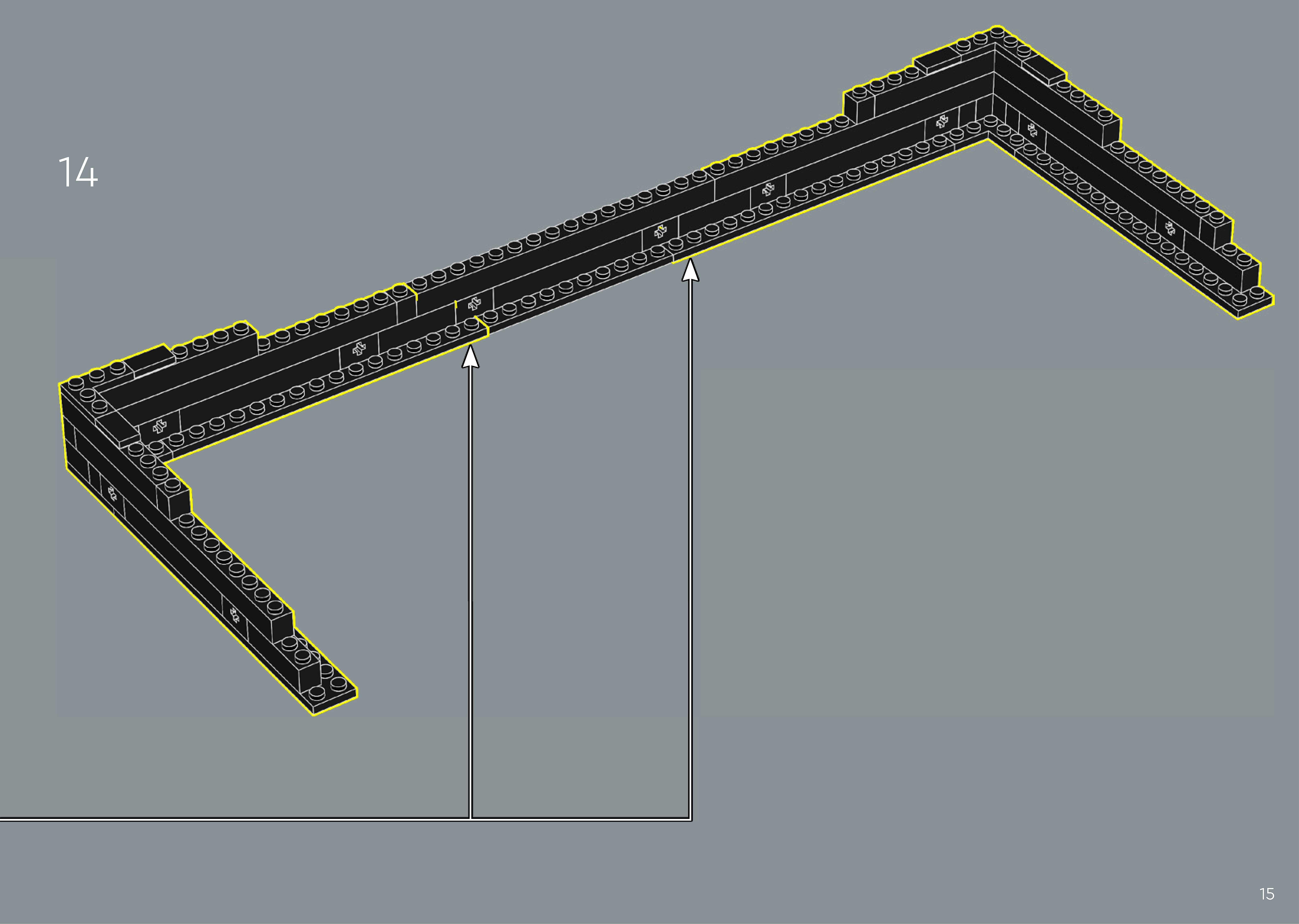
Inset — page 15
Phase 2 — Pieces
What do I do here?
Look at the inset image above. Check that the AI has correctly identified each piece — colour, quantity, and part name. If anything is wrong, edit the table directly. Add any missing pieces using the + row button, or remove incorrect ones with ✕.
When you are satisfied that all pieces are correct, click Save Pieces. This enables Phase 3 to run for this step.
| Qty | Colour | Part name | Part # | |
|---|---|---|---|---|
Phase 3 — Spatial placement
What do I do here?
The AI has described where each piece was placed by comparing the before and after images. Read every description carefully. Check that directions (left, right, front, back) are correct from the builder's perspective, and that stud counts are accurate.
If a description is vague, wrong, or uses the wrong direction — click Edit in that row and correct it. Once every placement description for this step is accurate, click Approve. Approval is required before the accessible prose can be generated.
This is the most important phase — a blind builder will follow these descriptions precisely.
Not yet extracted.
Phase 4 — Accessible prose
What do I do here?
This step is completed by the builder, not the sighted reviewer. The app generates an accessible prose paragraph from the approved Phase 3 descriptions. No action is needed from you here — your work is done once Phase 3 is approved.
Not yet generated. Complete Phase 3 and approve placement first.
Step 15
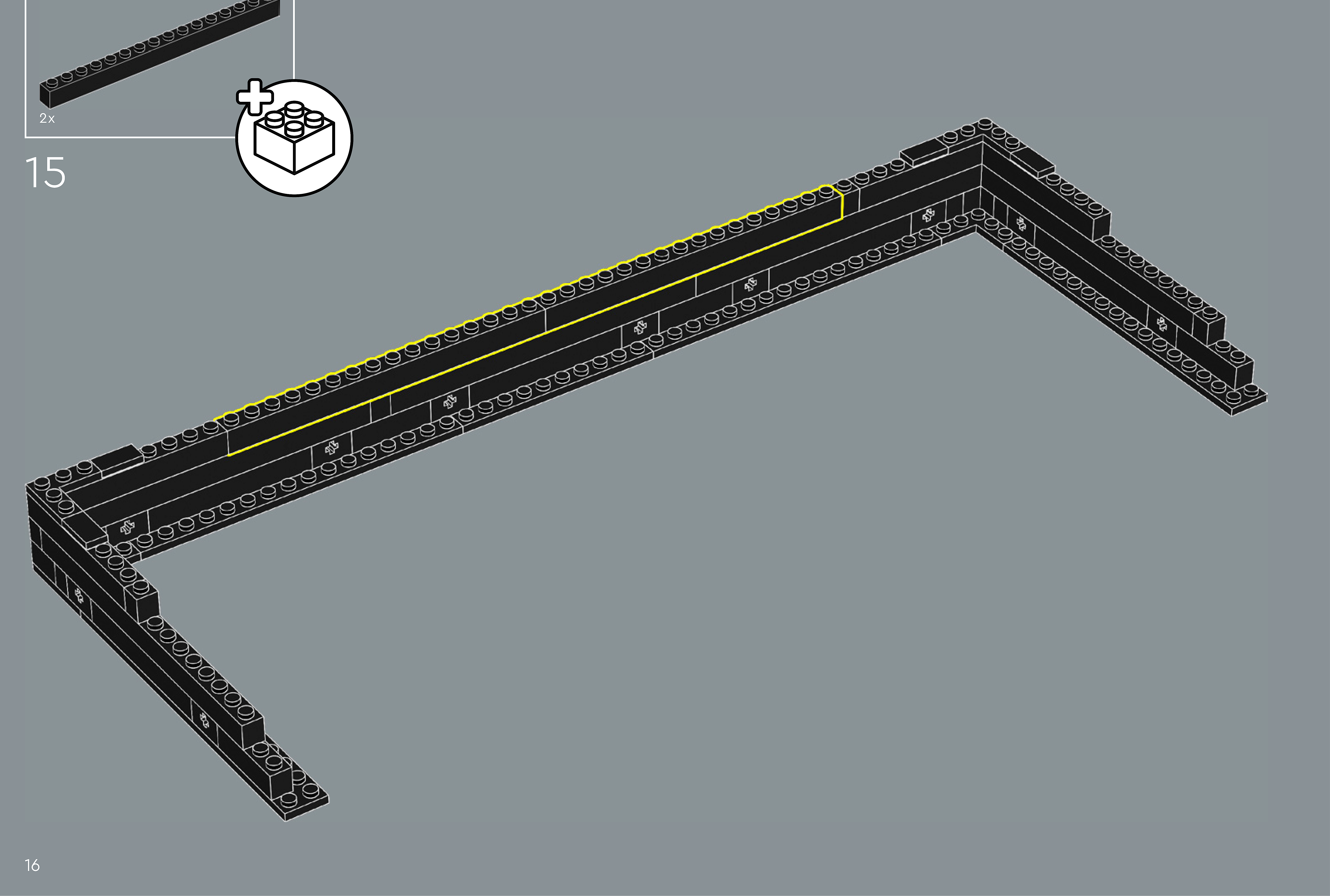
Assembly — page 16
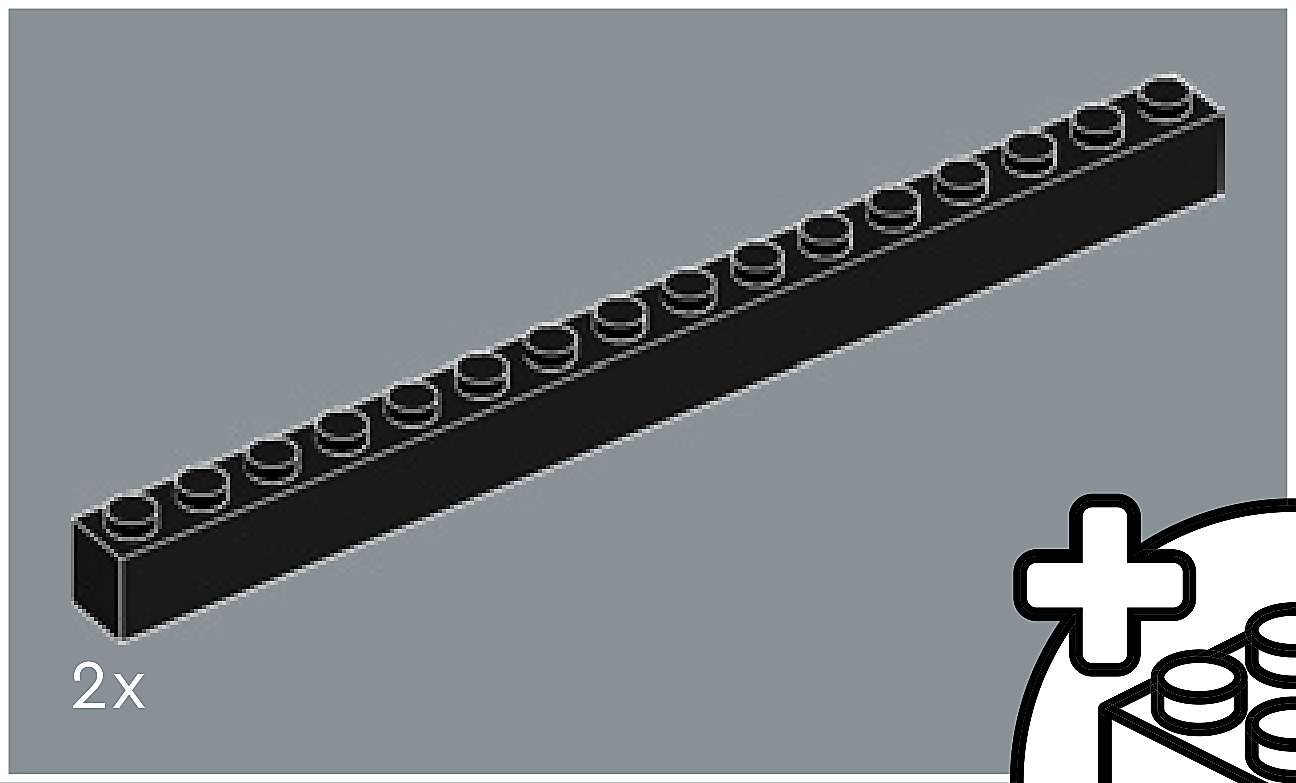
Inset — page 16
Phase 2 — Pieces
What do I do here?
Look at the inset image above. Check that the AI has correctly identified each piece — colour, quantity, and part name. If anything is wrong, edit the table directly. Add any missing pieces using the + row button, or remove incorrect ones with ✕.
When you are satisfied that all pieces are correct, click Save Pieces. This enables Phase 3 to run for this step.
| Qty | Colour | Part name | Part # | |
|---|---|---|---|---|
Phase 3 — Spatial placement
What do I do here?
The AI has described where each piece was placed by comparing the before and after images. Read every description carefully. Check that directions (left, right, front, back) are correct from the builder's perspective, and that stud counts are accurate.
If a description is vague, wrong, or uses the wrong direction — click Edit in that row and correct it. Once every placement description for this step is accurate, click Approve. Approval is required before the accessible prose can be generated.
This is the most important phase — a blind builder will follow these descriptions precisely.
Not yet extracted.
Phase 4 — Accessible prose
What do I do here?
This step is completed by the builder, not the sighted reviewer. The app generates an accessible prose paragraph from the approved Phase 3 descriptions. No action is needed from you here — your work is done once Phase 3 is approved.
Not yet generated. Complete Phase 3 and approve placement first.
Step 16
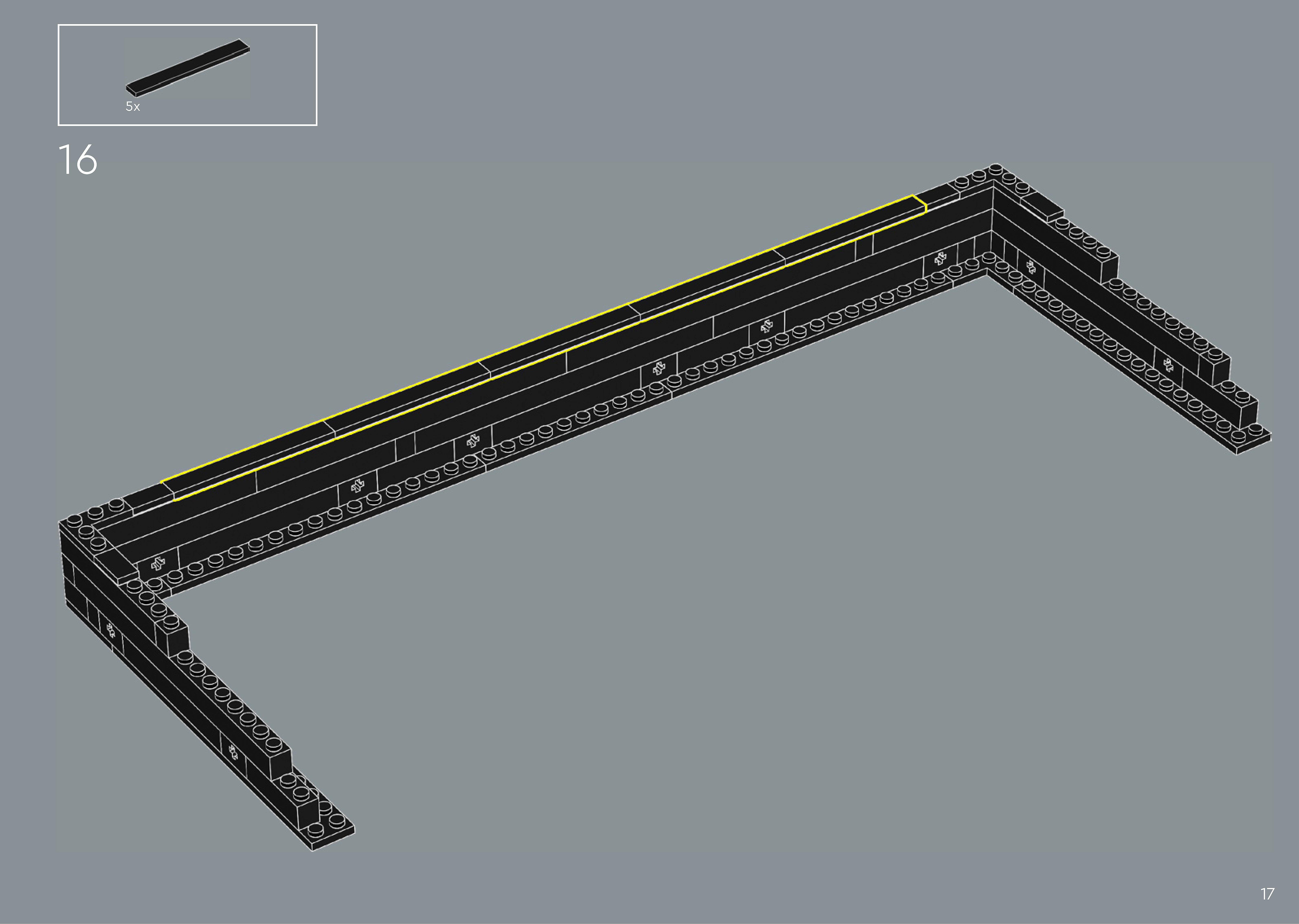
Assembly — page 17
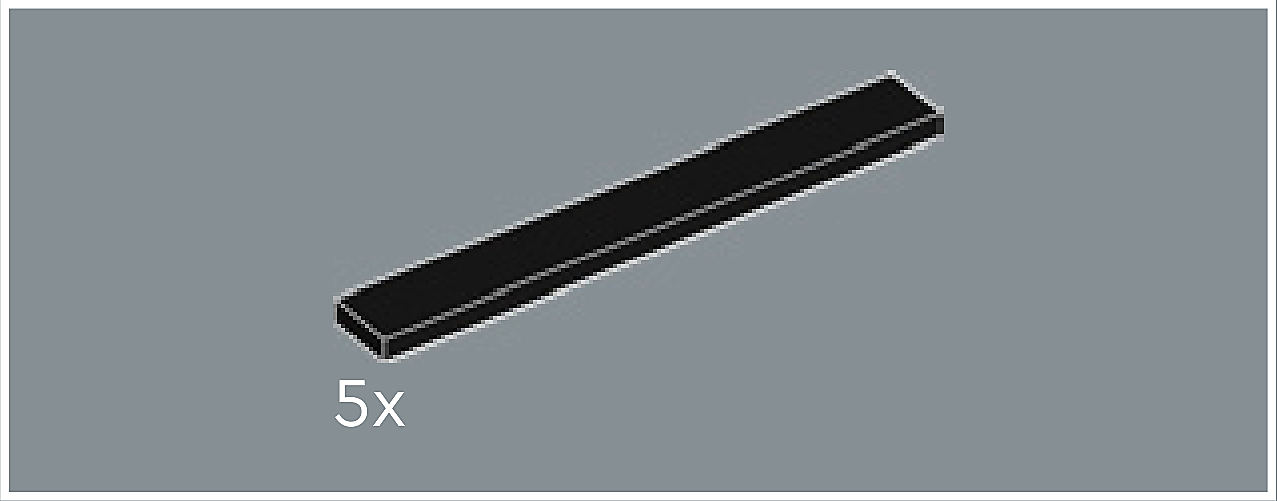
Inset — page 17
Phase 2 — Pieces
What do I do here?
Look at the inset image above. Check that the AI has correctly identified each piece — colour, quantity, and part name. If anything is wrong, edit the table directly. Add any missing pieces using the + row button, or remove incorrect ones with ✕.
When you are satisfied that all pieces are correct, click Save Pieces. This enables Phase 3 to run for this step.
| Qty | Colour | Part name | Part # | |
|---|---|---|---|---|
Phase 3 — Spatial placement
What do I do here?
The AI has described where each piece was placed by comparing the before and after images. Read every description carefully. Check that directions (left, right, front, back) are correct from the builder's perspective, and that stud counts are accurate.
If a description is vague, wrong, or uses the wrong direction — click Edit in that row and correct it. Once every placement description for this step is accurate, click Approve. Approval is required before the accessible prose can be generated.
This is the most important phase — a blind builder will follow these descriptions precisely.
Not yet extracted.
Phase 4 — Accessible prose
What do I do here?
This step is completed by the builder, not the sighted reviewer. The app generates an accessible prose paragraph from the approved Phase 3 descriptions. No action is needed from you here — your work is done once Phase 3 is approved.
Not yet generated. Complete Phase 3 and approve placement first.
Build 2
Step 2
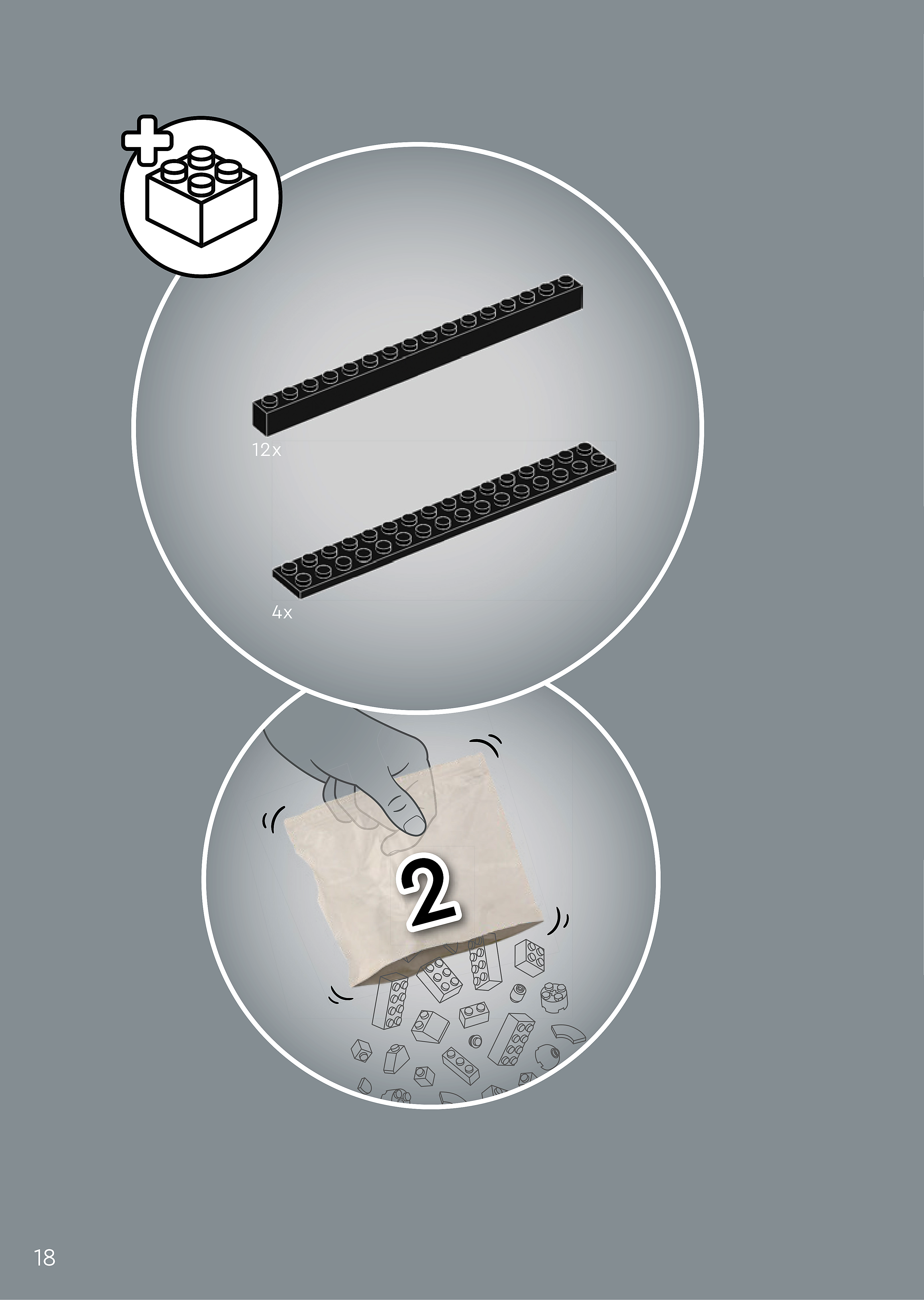
Assembly — page 18

Inset — page 18
Phase 2 — Pieces
What do I do here?
Look at the inset image above. Check that the AI has correctly identified each piece — colour, quantity, and part name. If anything is wrong, edit the table directly. Add any missing pieces using the + row button, or remove incorrect ones with ✕.
When you are satisfied that all pieces are correct, click Save Pieces. This enables Phase 3 to run for this step.
| Qty | Colour | Part name | Part # | |
|---|---|---|---|---|
Phase 3 — Spatial placement
What do I do here?
The AI has described where each piece was placed by comparing the before and after images. Read every description carefully. Check that directions (left, right, front, back) are correct from the builder's perspective, and that stud counts are accurate.
If a description is vague, wrong, or uses the wrong direction — click Edit in that row and correct it. Once every placement description for this step is accurate, click Approve. Approval is required before the accessible prose can be generated.
This is the most important phase — a blind builder will follow these descriptions precisely.
Not yet extracted.
Phase 4 — Accessible prose
What do I do here?
This step is completed by the builder, not the sighted reviewer. The app generates an accessible prose paragraph from the approved Phase 3 descriptions. No action is needed from you here — your work is done once Phase 3 is approved.
Not yet generated. Complete Phase 3 and approve placement first.
Step 17
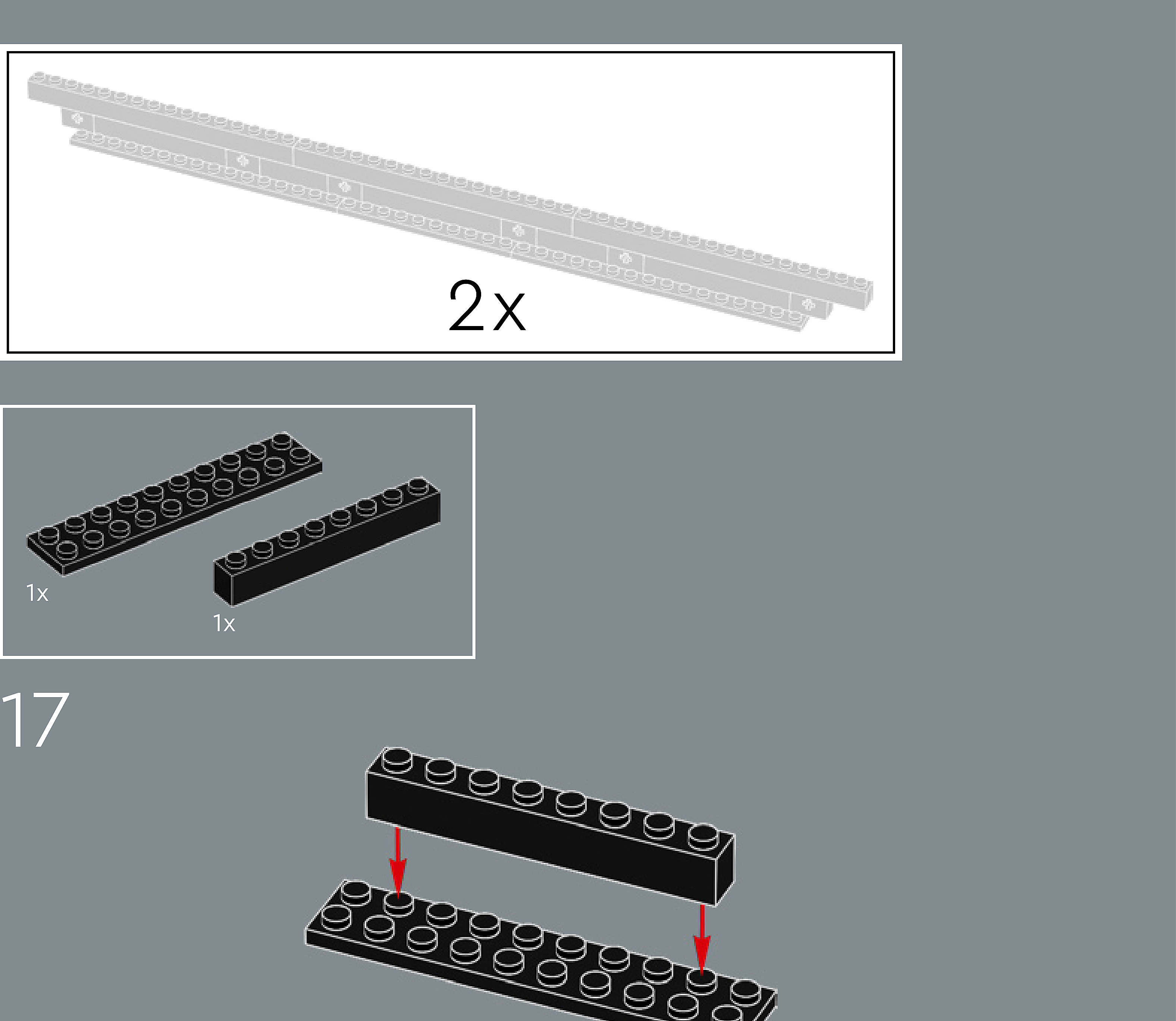
Assembly — page 18
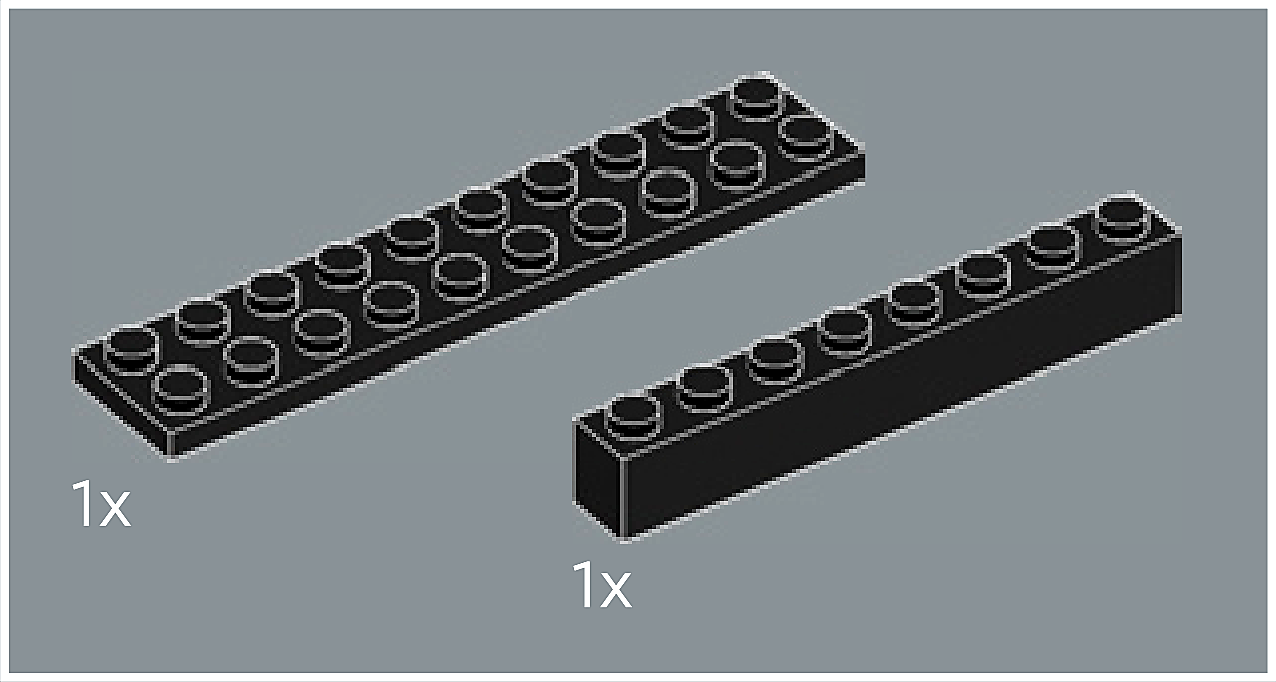
Inset — page 18
Phase 2 — Pieces
What do I do here?
Look at the inset image above. Check that the AI has correctly identified each piece — colour, quantity, and part name. If anything is wrong, edit the table directly. Add any missing pieces using the + row button, or remove incorrect ones with ✕.
When you are satisfied that all pieces are correct, click Save Pieces. This enables Phase 3 to run for this step.
| Qty | Colour | Part name | Part # | |
|---|---|---|---|---|
Phase 3 — Spatial placement
What do I do here?
The AI has described where each piece was placed by comparing the before and after images. Read every description carefully. Check that directions (left, right, front, back) are correct from the builder's perspective, and that stud counts are accurate.
If a description is vague, wrong, or uses the wrong direction — click Edit in that row and correct it. Once every placement description for this step is accurate, click Approve. Approval is required before the accessible prose can be generated.
This is the most important phase — a blind builder will follow these descriptions precisely.
Not yet extracted.
Phase 4 — Accessible prose
What do I do here?
This step is completed by the builder, not the sighted reviewer. The app generates an accessible prose paragraph from the approved Phase 3 descriptions. No action is needed from you here — your work is done once Phase 3 is approved.
Not yet generated. Complete Phase 3 and approve placement first.
Step 18
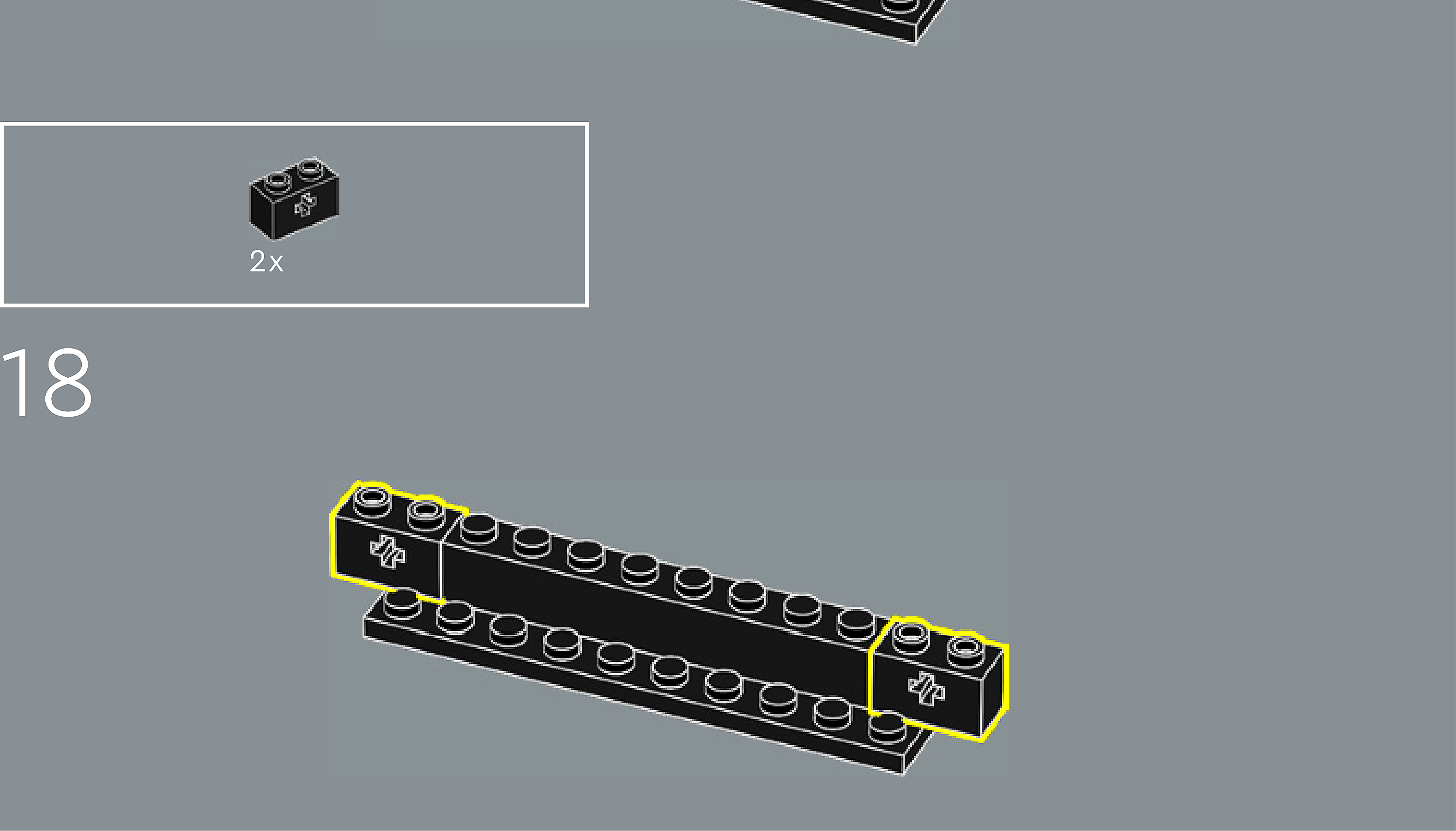
Assembly — page 18

Inset — page 18
Phase 2 — Pieces
What do I do here?
Look at the inset image above. Check that the AI has correctly identified each piece — colour, quantity, and part name. If anything is wrong, edit the table directly. Add any missing pieces using the + row button, or remove incorrect ones with ✕.
When you are satisfied that all pieces are correct, click Save Pieces. This enables Phase 3 to run for this step.
| Qty | Colour | Part name | Part # | |
|---|---|---|---|---|
Phase 3 — Spatial placement
What do I do here?
The AI has described where each piece was placed by comparing the before and after images. Read every description carefully. Check that directions (left, right, front, back) are correct from the builder's perspective, and that stud counts are accurate.
If a description is vague, wrong, or uses the wrong direction — click Edit in that row and correct it. Once every placement description for this step is accurate, click Approve. Approval is required before the accessible prose can be generated.
This is the most important phase — a blind builder will follow these descriptions precisely.
Not yet extracted.
Phase 4 — Accessible prose
What do I do here?
This step is completed by the builder, not the sighted reviewer. The app generates an accessible prose paragraph from the approved Phase 3 descriptions. No action is needed from you here — your work is done once Phase 3 is approved.
Not yet generated. Complete Phase 3 and approve placement first.
Step 19
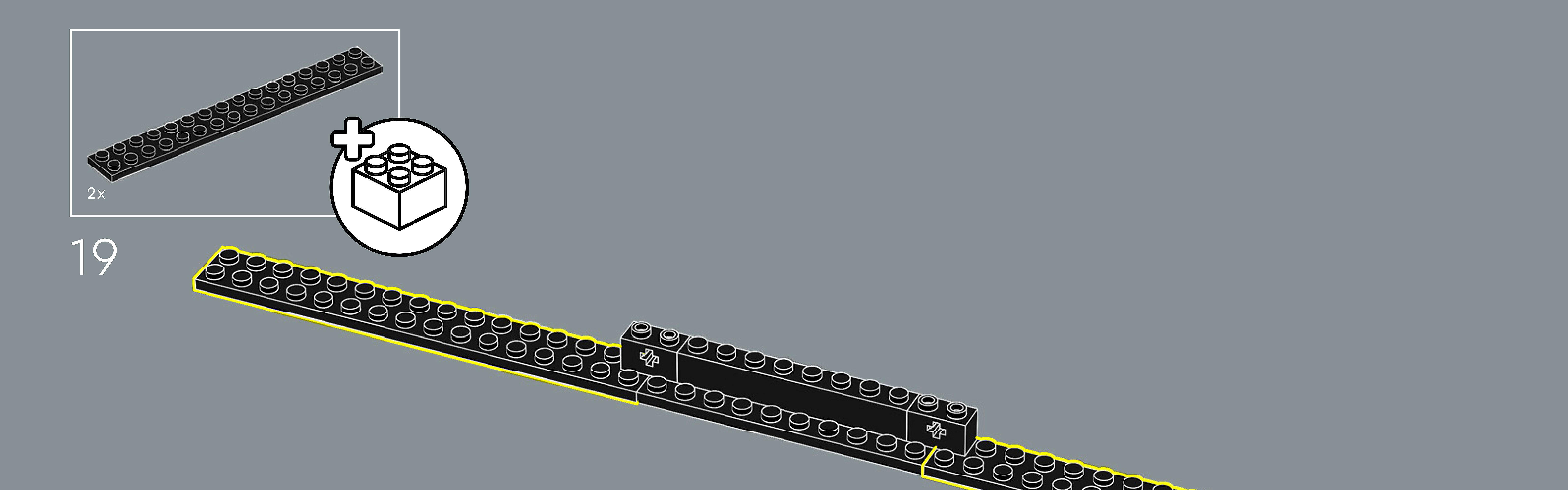
Assembly — page 19
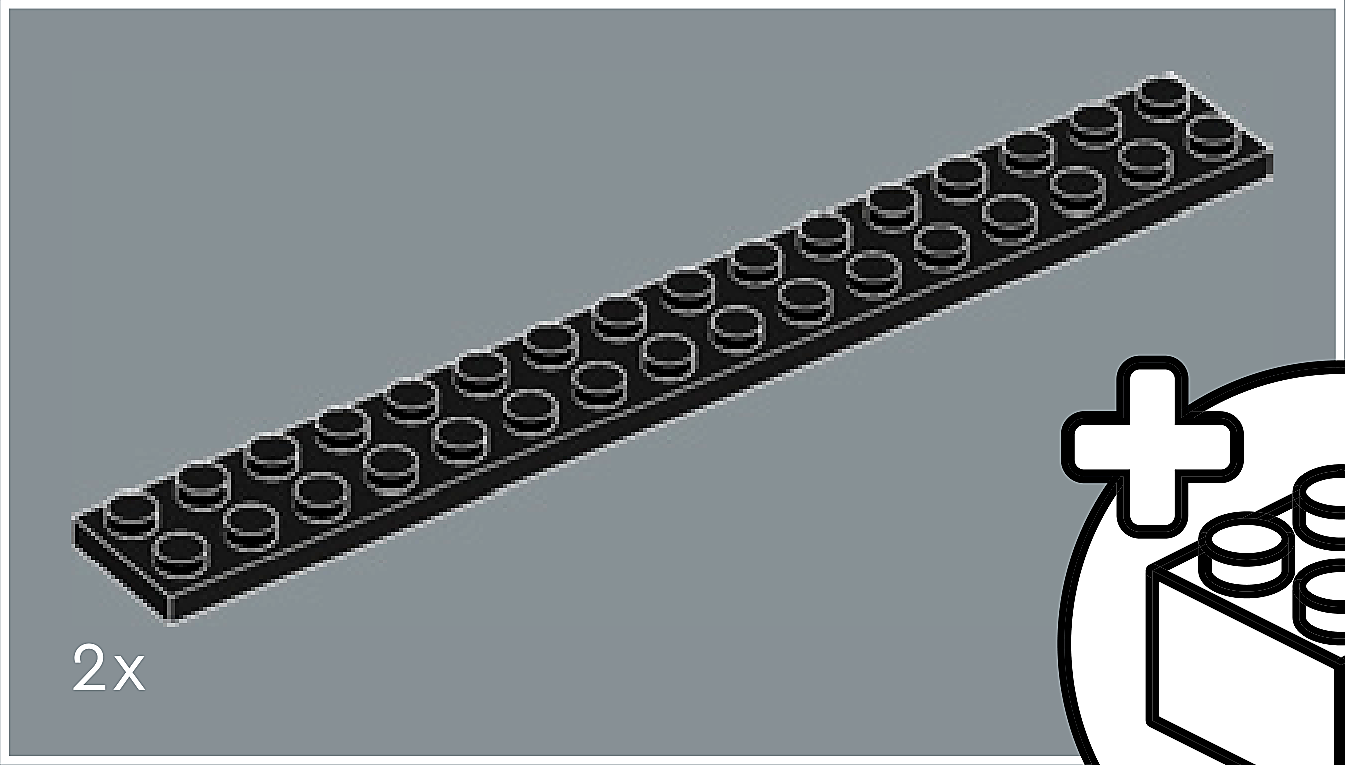
Inset — page 19
Phase 2 — Pieces
What do I do here?
Look at the inset image above. Check that the AI has correctly identified each piece — colour, quantity, and part name. If anything is wrong, edit the table directly. Add any missing pieces using the + row button, or remove incorrect ones with ✕.
When you are satisfied that all pieces are correct, click Save Pieces. This enables Phase 3 to run for this step.
| Qty | Colour | Part name | Part # | |
|---|---|---|---|---|
Phase 3 — Spatial placement
What do I do here?
The AI has described where each piece was placed by comparing the before and after images. Read every description carefully. Check that directions (left, right, front, back) are correct from the builder's perspective, and that stud counts are accurate.
If a description is vague, wrong, or uses the wrong direction — click Edit in that row and correct it. Once every placement description for this step is accurate, click Approve. Approval is required before the accessible prose can be generated.
This is the most important phase — a blind builder will follow these descriptions precisely.
Not yet extracted.
Phase 4 — Accessible prose
What do I do here?
This step is completed by the builder, not the sighted reviewer. The app generates an accessible prose paragraph from the approved Phase 3 descriptions. No action is needed from you here — your work is done once Phase 3 is approved.
Not yet generated. Complete Phase 3 and approve placement first.
Step 20
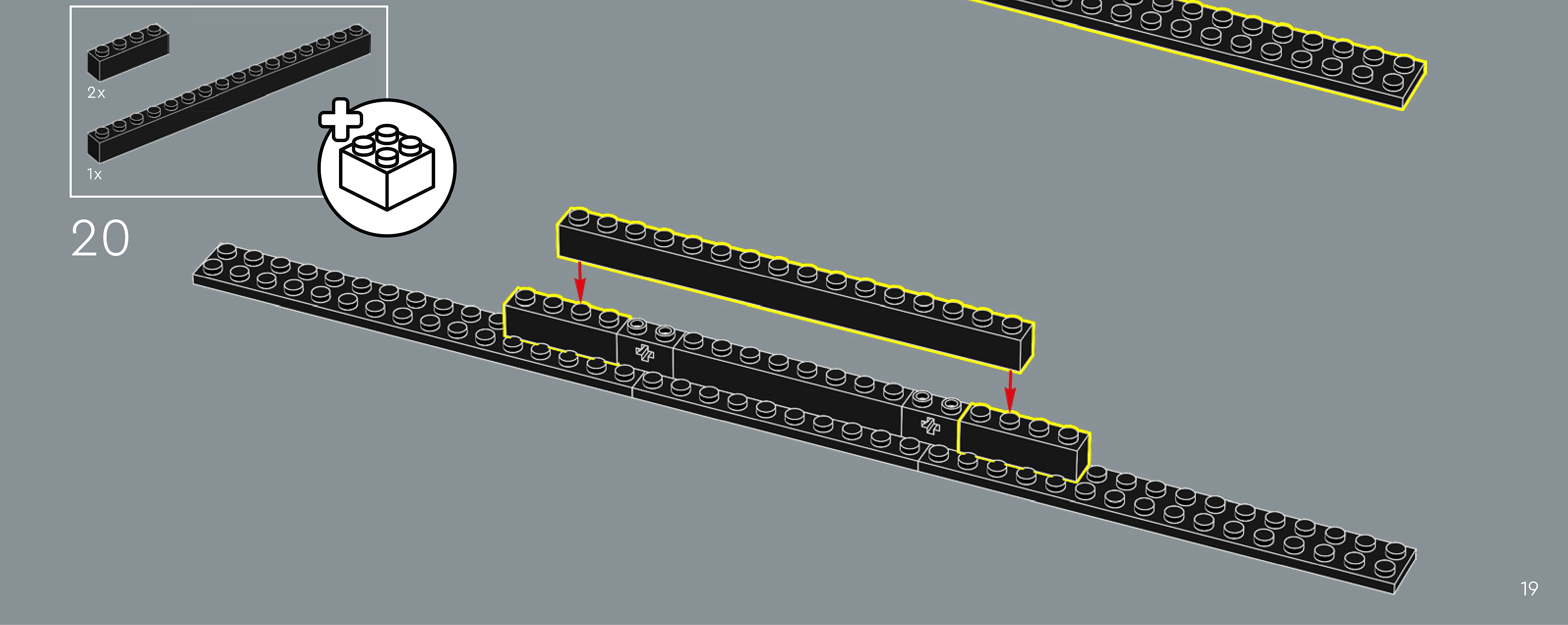
Assembly — page 19
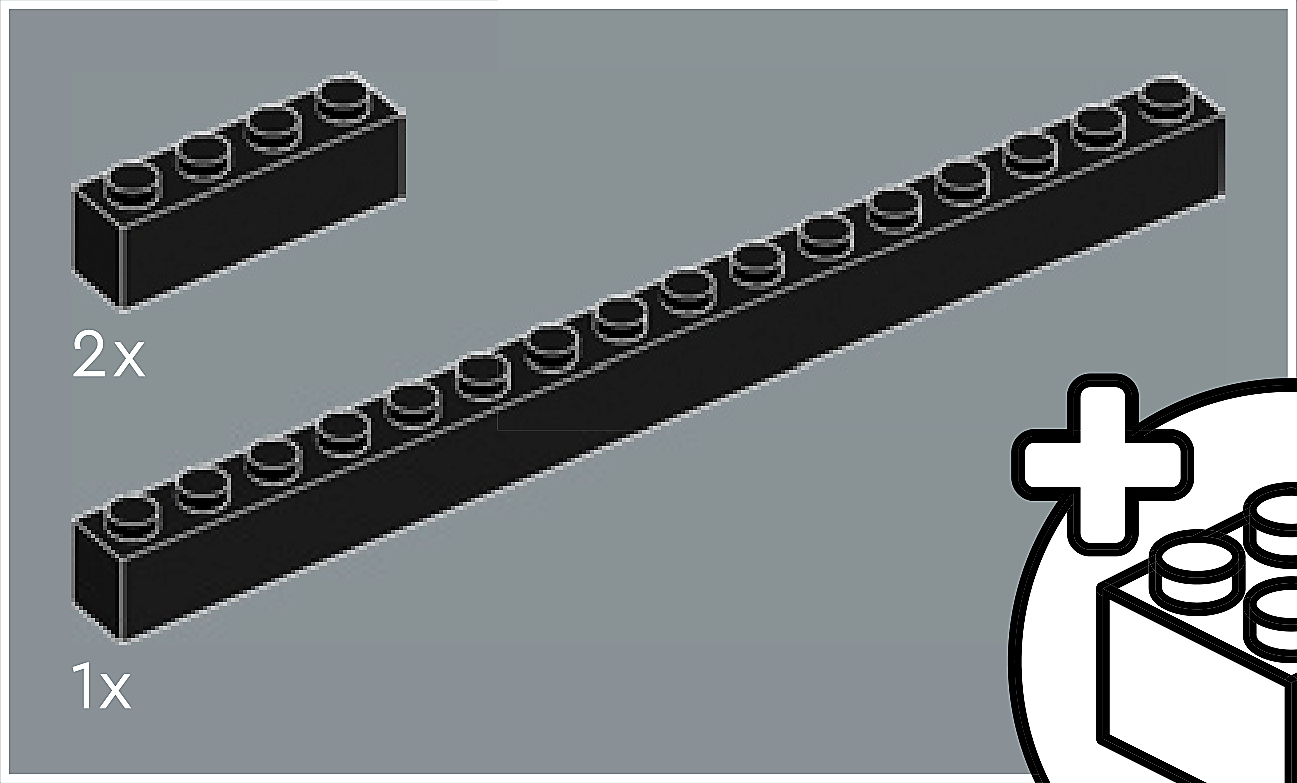
Inset — page 19
Phase 2 — Pieces
What do I do here?
Look at the inset image above. Check that the AI has correctly identified each piece — colour, quantity, and part name. If anything is wrong, edit the table directly. Add any missing pieces using the + row button, or remove incorrect ones with ✕.
When you are satisfied that all pieces are correct, click Save Pieces. This enables Phase 3 to run for this step.
| Qty | Colour | Part name | Part # | |
|---|---|---|---|---|
Phase 3 — Spatial placement
What do I do here?
The AI has described where each piece was placed by comparing the before and after images. Read every description carefully. Check that directions (left, right, front, back) are correct from the builder's perspective, and that stud counts are accurate.
If a description is vague, wrong, or uses the wrong direction — click Edit in that row and correct it. Once every placement description for this step is accurate, click Approve. Approval is required before the accessible prose can be generated.
This is the most important phase — a blind builder will follow these descriptions precisely.
Not yet extracted.
Phase 4 — Accessible prose
What do I do here?
This step is completed by the builder, not the sighted reviewer. The app generates an accessible prose paragraph from the approved Phase 3 descriptions. No action is needed from you here — your work is done once Phase 3 is approved.
Not yet generated. Complete Phase 3 and approve placement first.
Step 21
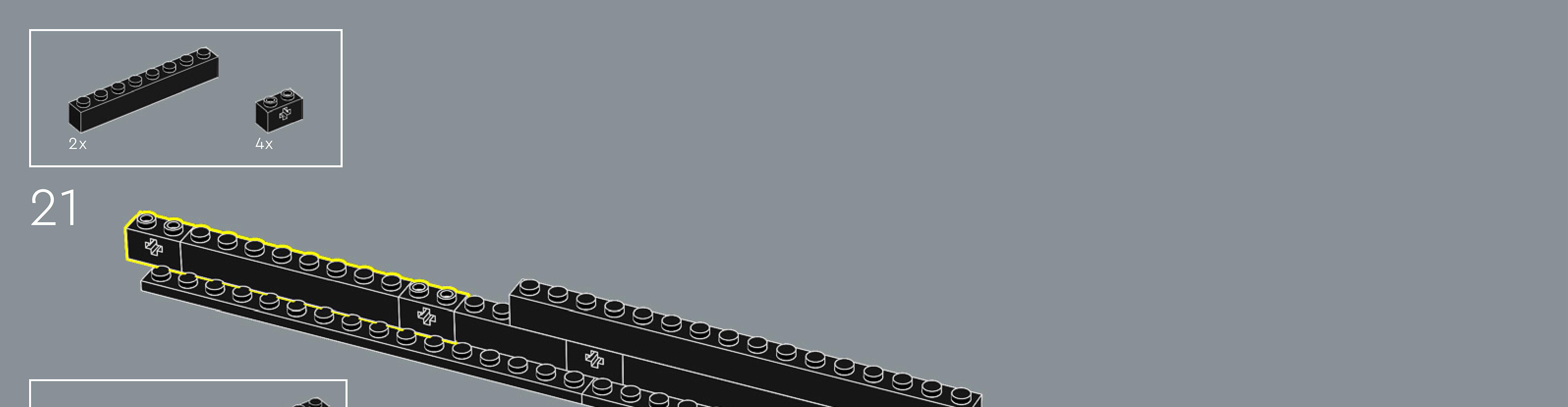
Assembly — page 20
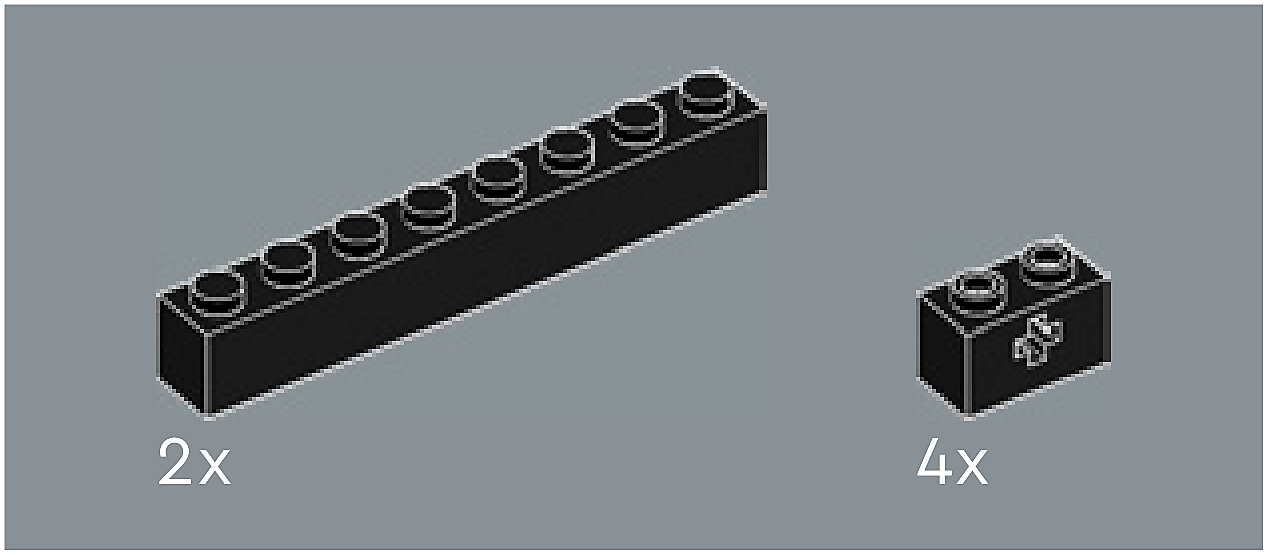
Inset — page 20
Phase 2 — Pieces
What do I do here?
Look at the inset image above. Check that the AI has correctly identified each piece — colour, quantity, and part name. If anything is wrong, edit the table directly. Add any missing pieces using the + row button, or remove incorrect ones with ✕.
When you are satisfied that all pieces are correct, click Save Pieces. This enables Phase 3 to run for this step.
| Qty | Colour | Part name | Part # | |
|---|---|---|---|---|
Phase 3 — Spatial placement
What do I do here?
The AI has described where each piece was placed by comparing the before and after images. Read every description carefully. Check that directions (left, right, front, back) are correct from the builder's perspective, and that stud counts are accurate.
If a description is vague, wrong, or uses the wrong direction — click Edit in that row and correct it. Once every placement description for this step is accurate, click Approve. Approval is required before the accessible prose can be generated.
This is the most important phase — a blind builder will follow these descriptions precisely.
Not yet extracted.
Phase 4 — Accessible prose
What do I do here?
This step is completed by the builder, not the sighted reviewer. The app generates an accessible prose paragraph from the approved Phase 3 descriptions. No action is needed from you here — your work is done once Phase 3 is approved.
Not yet generated. Complete Phase 3 and approve placement first.
Step 22
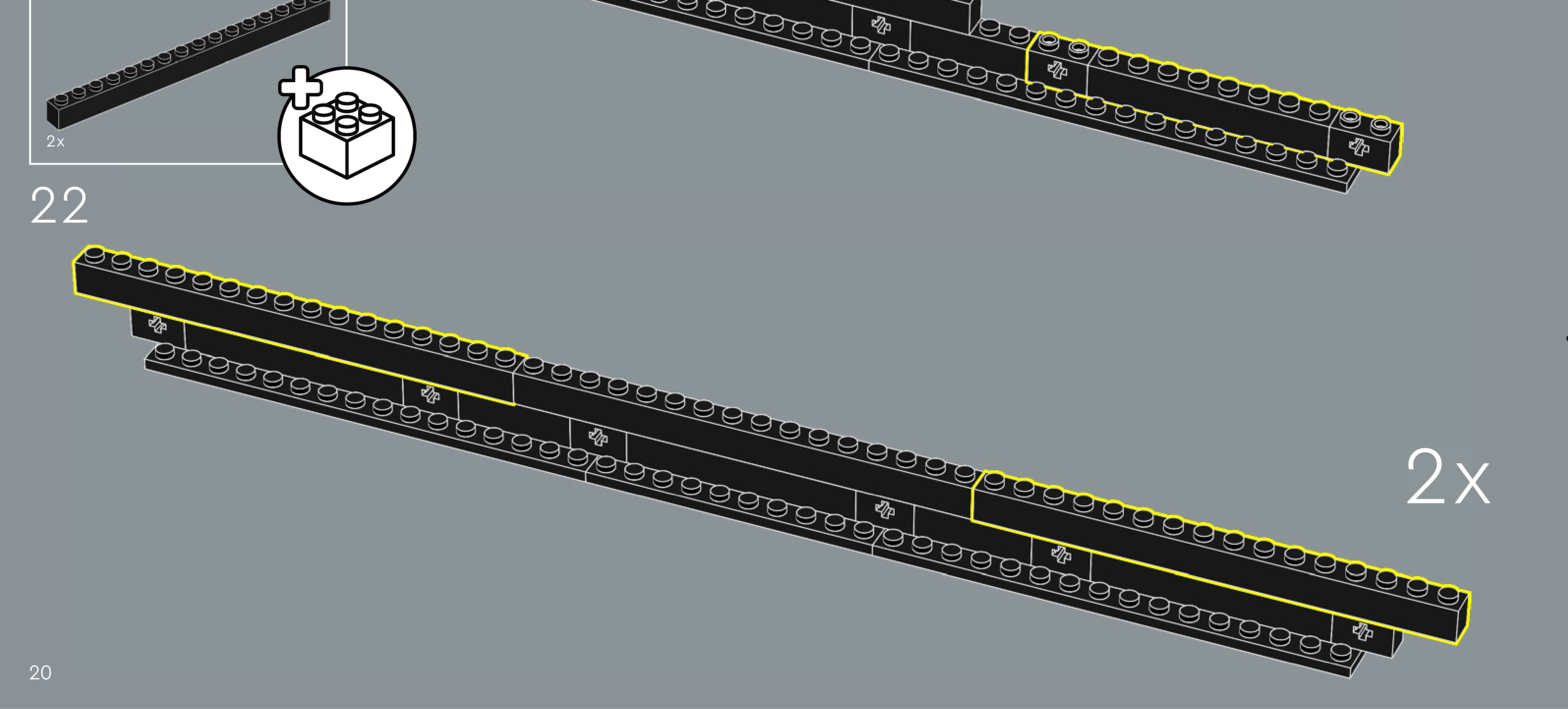
Assembly — page 20
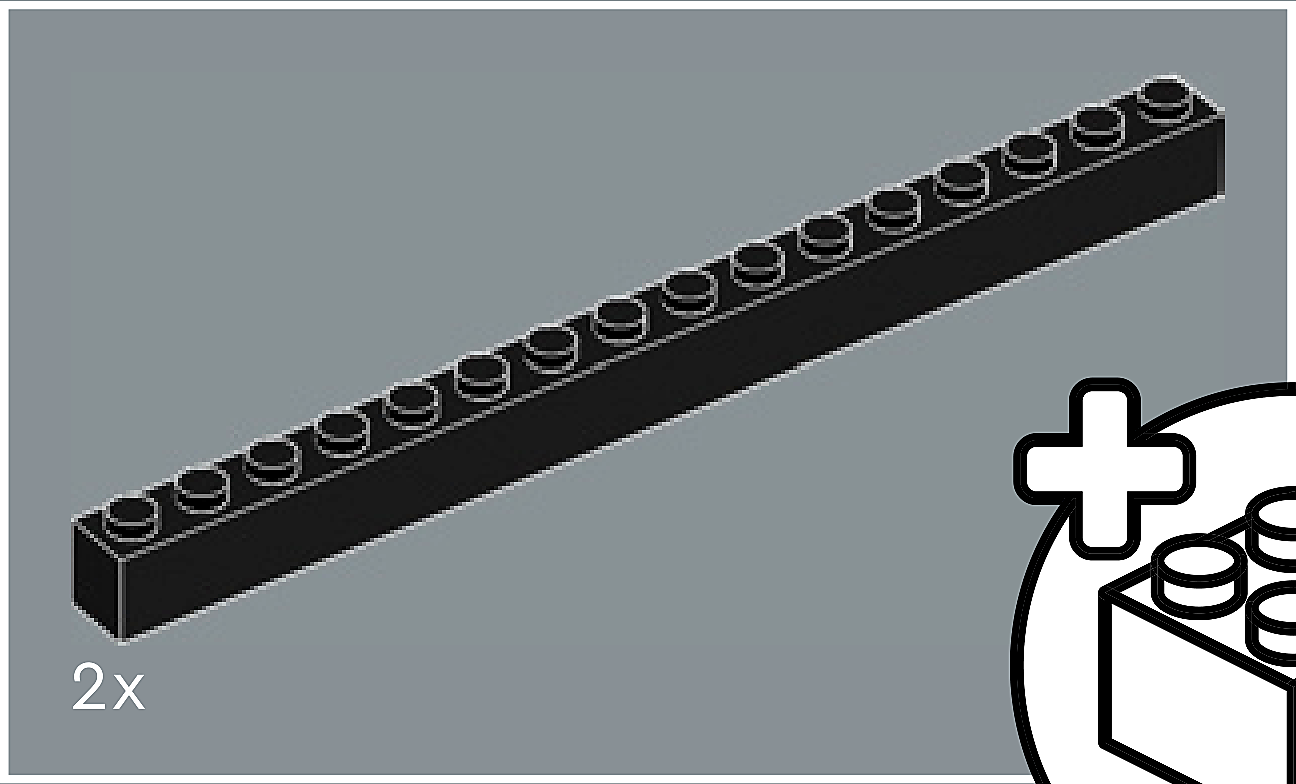
Inset — page 20
Phase 2 — Pieces
What do I do here?
Look at the inset image above. Check that the AI has correctly identified each piece — colour, quantity, and part name. If anything is wrong, edit the table directly. Add any missing pieces using the + row button, or remove incorrect ones with ✕.
When you are satisfied that all pieces are correct, click Save Pieces. This enables Phase 3 to run for this step.
| Qty | Colour | Part name | Part # | |
|---|---|---|---|---|
Phase 3 — Spatial placement
What do I do here?
The AI has described where each piece was placed by comparing the before and after images. Read every description carefully. Check that directions (left, right, front, back) are correct from the builder's perspective, and that stud counts are accurate.
If a description is vague, wrong, or uses the wrong direction — click Edit in that row and correct it. Once every placement description for this step is accurate, click Approve. Approval is required before the accessible prose can be generated.
This is the most important phase — a blind builder will follow these descriptions precisely.
Not yet extracted.
Phase 4 — Accessible prose
What do I do here?
This step is completed by the builder, not the sighted reviewer. The app generates an accessible prose paragraph from the approved Phase 3 descriptions. No action is needed from you here — your work is done once Phase 3 is approved.
Not yet generated. Complete Phase 3 and approve placement first.
Step 23
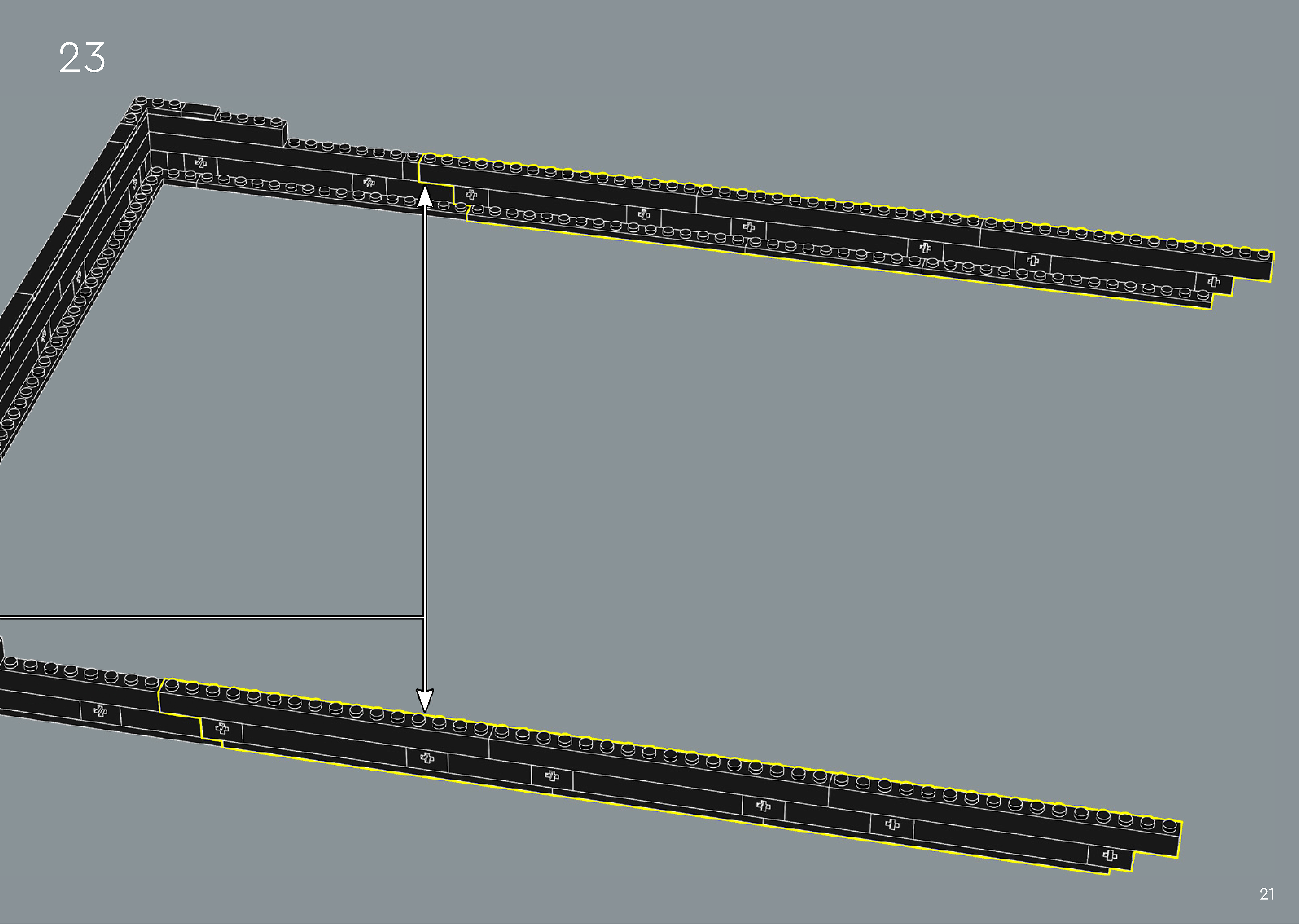
Assembly — page 21
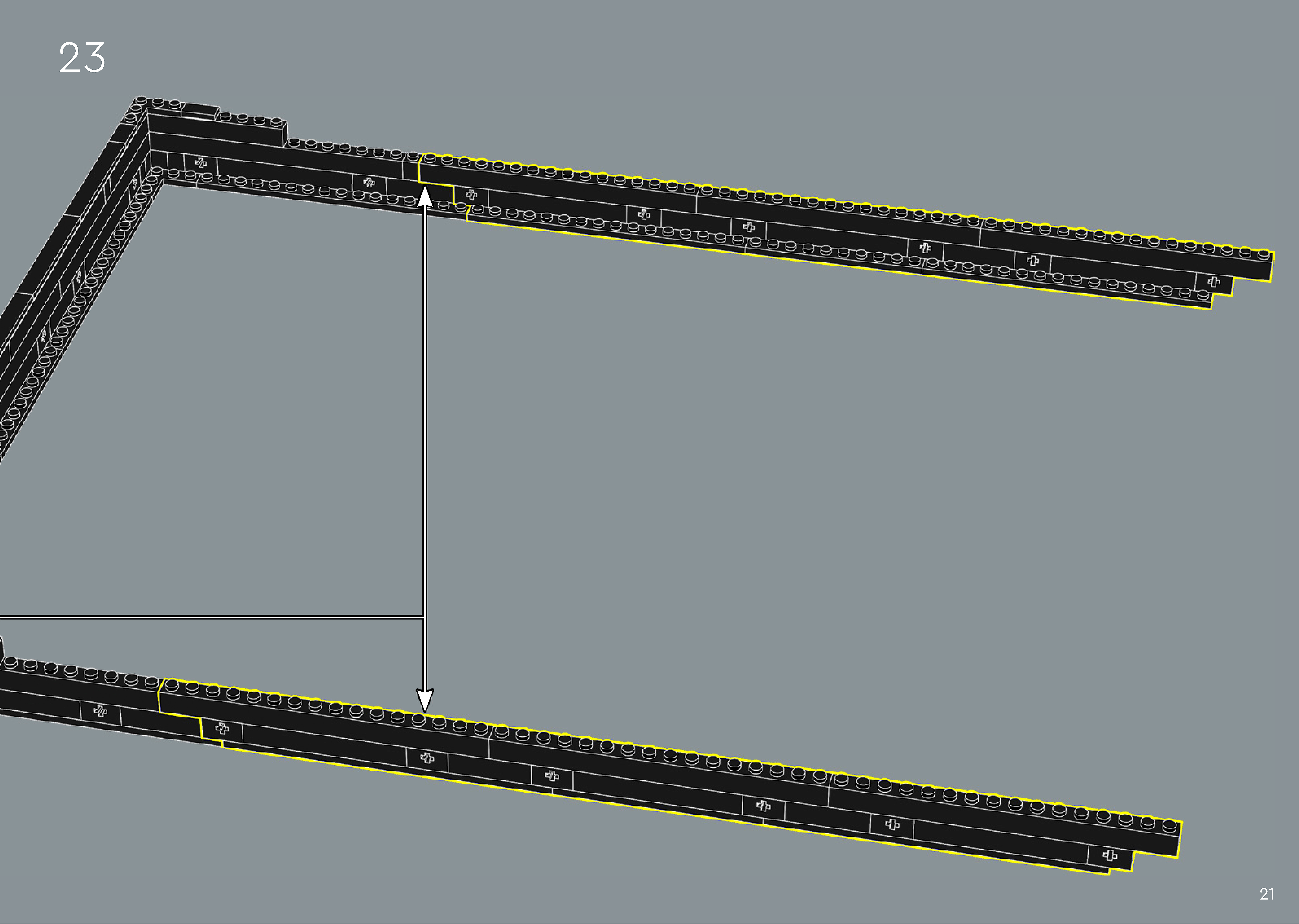
Inset — page 21
Phase 2 — Pieces
What do I do here?
Look at the inset image above. Check that the AI has correctly identified each piece — colour, quantity, and part name. If anything is wrong, edit the table directly. Add any missing pieces using the + row button, or remove incorrect ones with ✕.
When you are satisfied that all pieces are correct, click Save Pieces. This enables Phase 3 to run for this step.
| Qty | Colour | Part name | Part # | |
|---|---|---|---|---|
Phase 3 — Spatial placement
What do I do here?
The AI has described where each piece was placed by comparing the before and after images. Read every description carefully. Check that directions (left, right, front, back) are correct from the builder's perspective, and that stud counts are accurate.
If a description is vague, wrong, or uses the wrong direction — click Edit in that row and correct it. Once every placement description for this step is accurate, click Approve. Approval is required before the accessible prose can be generated.
This is the most important phase — a blind builder will follow these descriptions precisely.
Not yet extracted.
Phase 4 — Accessible prose
What do I do here?
This step is completed by the builder, not the sighted reviewer. The app generates an accessible prose paragraph from the approved Phase 3 descriptions. No action is needed from you here — your work is done once Phase 3 is approved.
Not yet generated. Complete Phase 3 and approve placement first.
Step 24
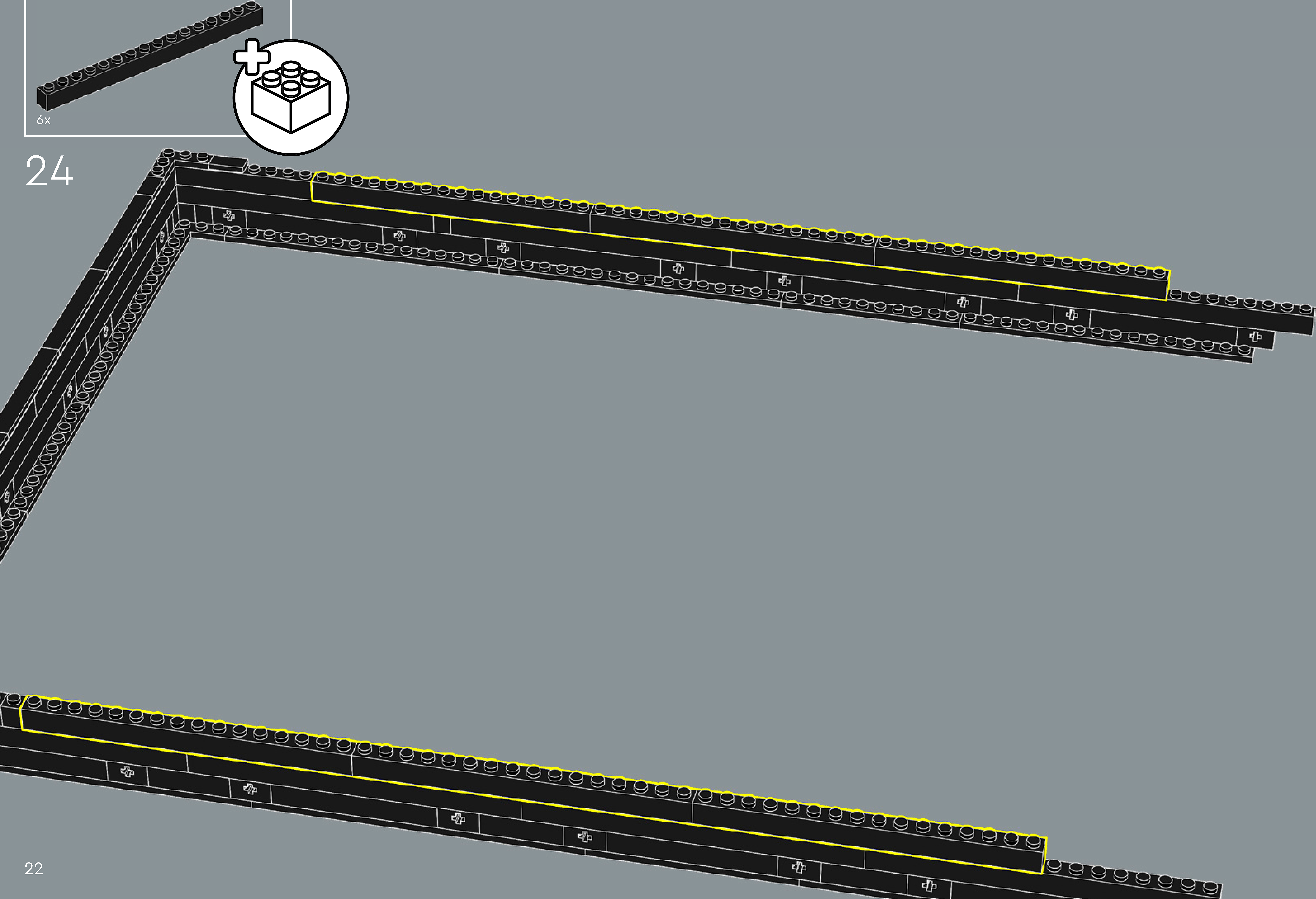
Assembly — page 22
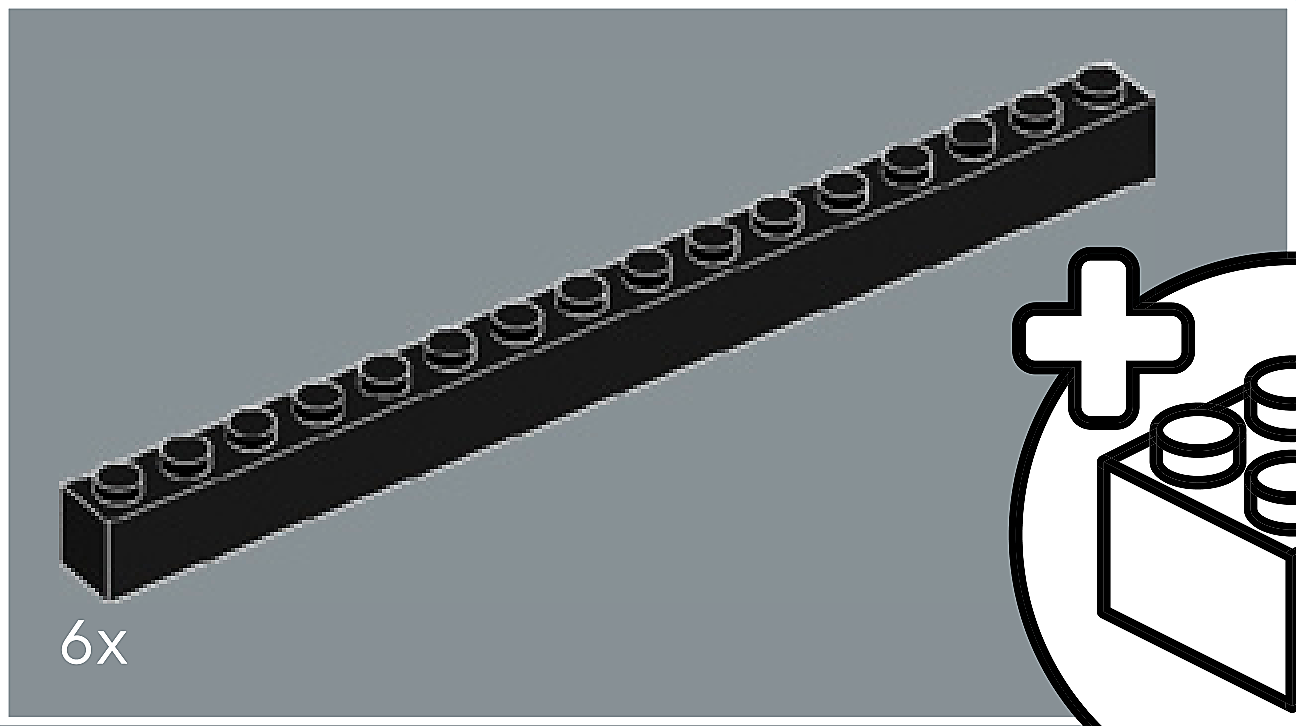
Inset — page 22
Phase 2 — Pieces
What do I do here?
Look at the inset image above. Check that the AI has correctly identified each piece — colour, quantity, and part name. If anything is wrong, edit the table directly. Add any missing pieces using the + row button, or remove incorrect ones with ✕.
When you are satisfied that all pieces are correct, click Save Pieces. This enables Phase 3 to run for this step.
| Qty | Colour | Part name | Part # | |
|---|---|---|---|---|
Phase 3 — Spatial placement
What do I do here?
The AI has described where each piece was placed by comparing the before and after images. Read every description carefully. Check that directions (left, right, front, back) are correct from the builder's perspective, and that stud counts are accurate.
If a description is vague, wrong, or uses the wrong direction — click Edit in that row and correct it. Once every placement description for this step is accurate, click Approve. Approval is required before the accessible prose can be generated.
This is the most important phase — a blind builder will follow these descriptions precisely.
Not yet extracted.
Phase 4 — Accessible prose
What do I do here?
This step is completed by the builder, not the sighted reviewer. The app generates an accessible prose paragraph from the approved Phase 3 descriptions. No action is needed from you here — your work is done once Phase 3 is approved.
Not yet generated. Complete Phase 3 and approve placement first.
Step 25
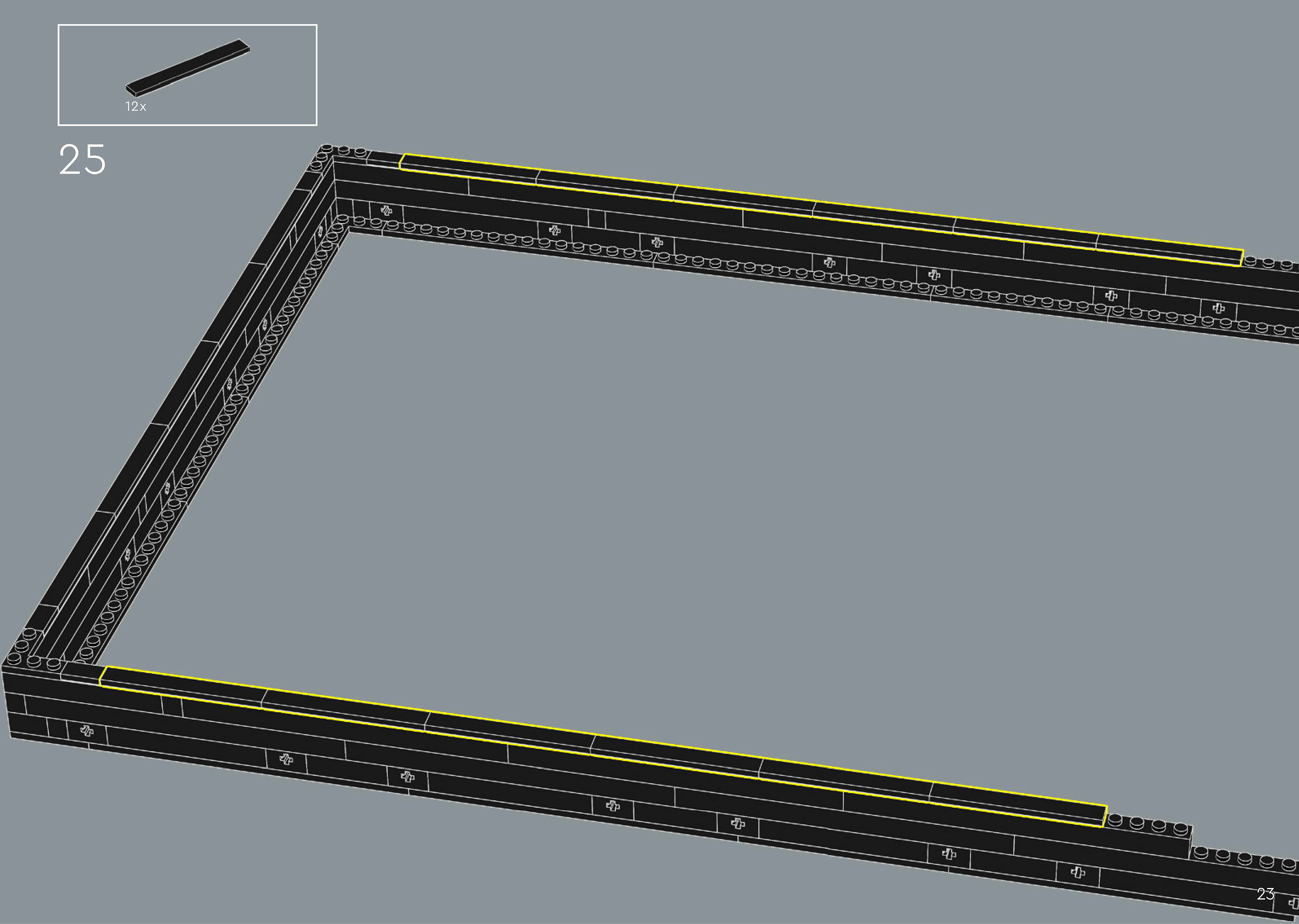
Assembly — page 23
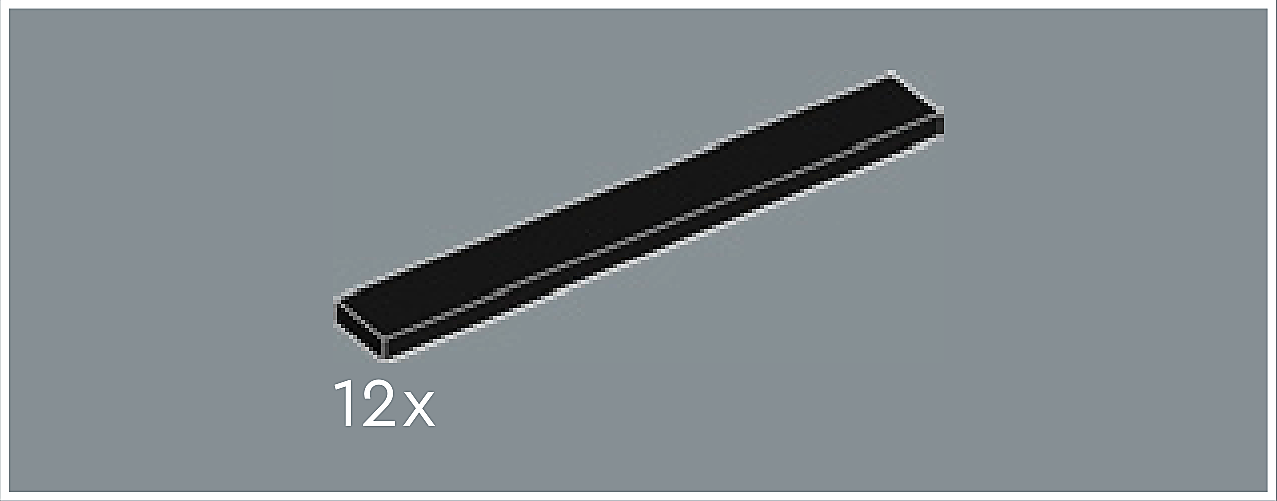
Inset — page 23
Phase 2 — Pieces
What do I do here?
Look at the inset image above. Check that the AI has correctly identified each piece — colour, quantity, and part name. If anything is wrong, edit the table directly. Add any missing pieces using the + row button, or remove incorrect ones with ✕.
When you are satisfied that all pieces are correct, click Save Pieces. This enables Phase 3 to run for this step.
| Qty | Colour | Part name | Part # | |
|---|---|---|---|---|
Phase 3 — Spatial placement
What do I do here?
The AI has described where each piece was placed by comparing the before and after images. Read every description carefully. Check that directions (left, right, front, back) are correct from the builder's perspective, and that stud counts are accurate.
If a description is vague, wrong, or uses the wrong direction — click Edit in that row and correct it. Once every placement description for this step is accurate, click Approve. Approval is required before the accessible prose can be generated.
This is the most important phase — a blind builder will follow these descriptions precisely.
Not yet extracted.
Phase 4 — Accessible prose
What do I do here?
This step is completed by the builder, not the sighted reviewer. The app generates an accessible prose paragraph from the approved Phase 3 descriptions. No action is needed from you here — your work is done once Phase 3 is approved.
Not yet generated. Complete Phase 3 and approve placement first.
Build 3
Step 3
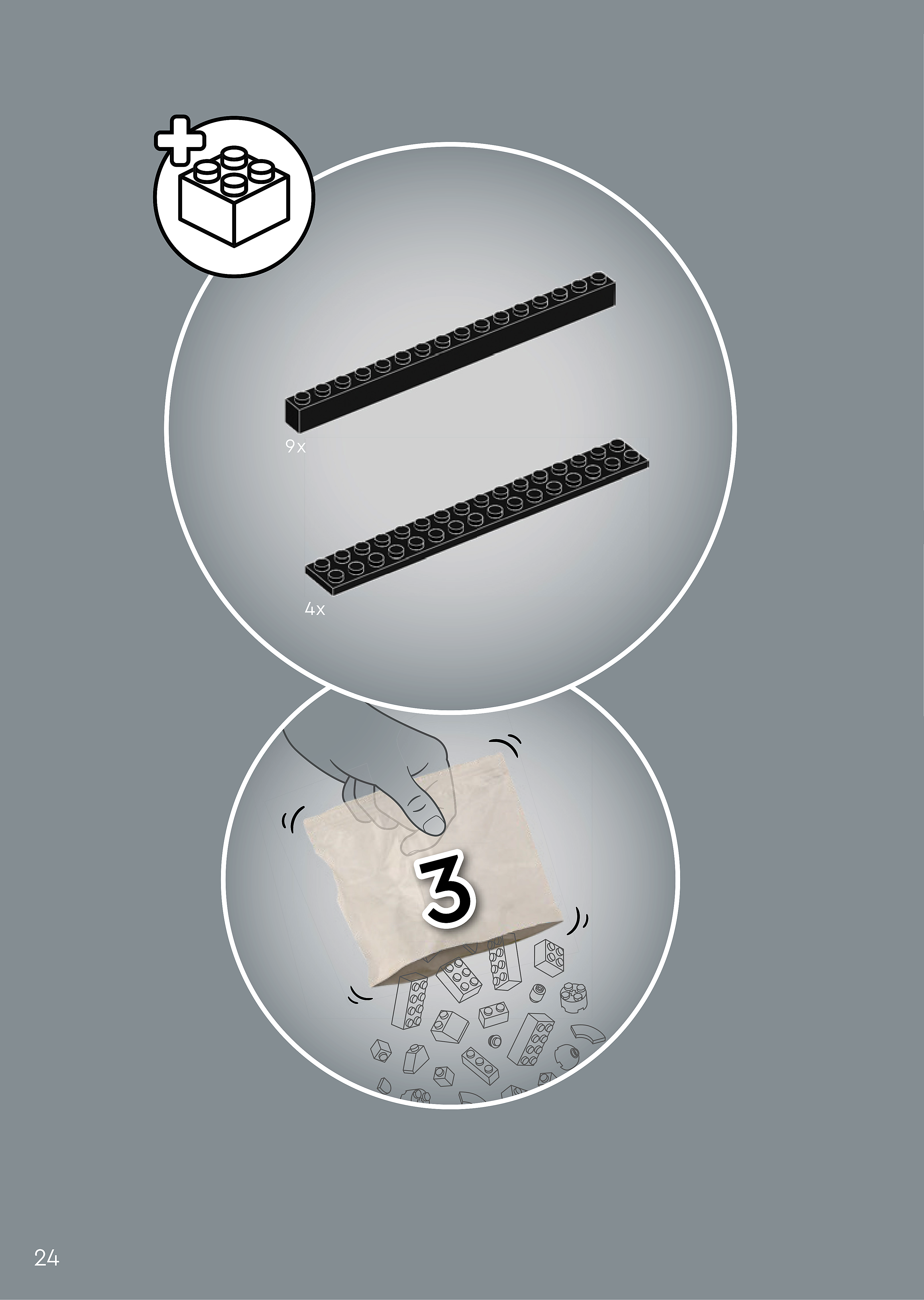
Assembly — page 24
Inset — page 24
Phase 2 — Pieces
What do I do here?
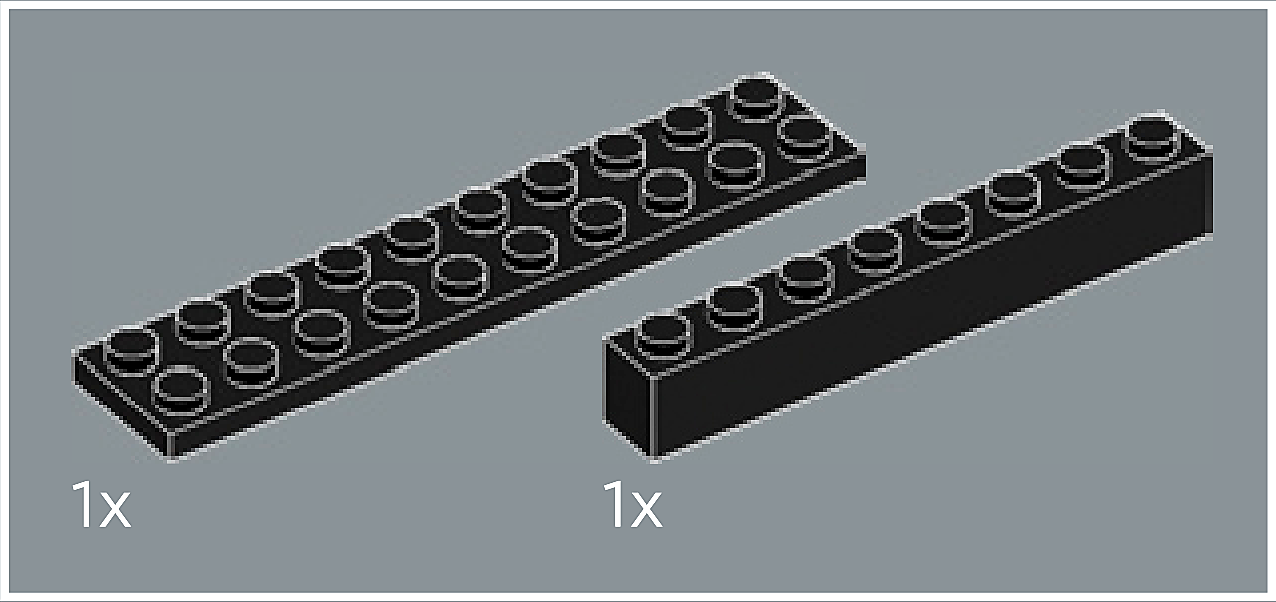
Look at the inset image above. Check that the AI has correctly identified each piece — colour, quantity, and part name. If anything is wrong, edit the table directly. Add any missing pieces using the + row button, or remove incorrect ones with ✕.
When you are satisfied that all pieces are correct, click Save Pieces. This enables Phase 3 to run for this step.
| Qty | Colour | Part name | Part # | |
|---|---|---|---|---|
Phase 3 — Spatial placement
What do I do here?
The AI has described where each piece was placed by comparing the before and after images. Read every description carefully. Check that directions (left, right, front, back) are correct from the builder's perspective, and that stud counts are accurate.
If a description is vague, wrong, or uses the wrong direction — click Edit in that row and correct it. Once every placement description for this step is accurate, click Approve. Approval is required before the accessible prose can be generated.
This is the most important phase — a blind builder will follow these descriptions precisely.
Not yet extracted.
Phase 4 — Accessible prose
What do I do here?
This step is completed by the builder, not the sighted reviewer. The app generates an accessible prose paragraph from the approved Phase 3 descriptions. No action is needed from you here — your work is done once Phase 3 is approved.
Not yet generated. Complete Phase 3 and approve placement first.
Step 26
Assembly — page 24
Inset — page 24
Phase 2 — Pieces
What do I do here?
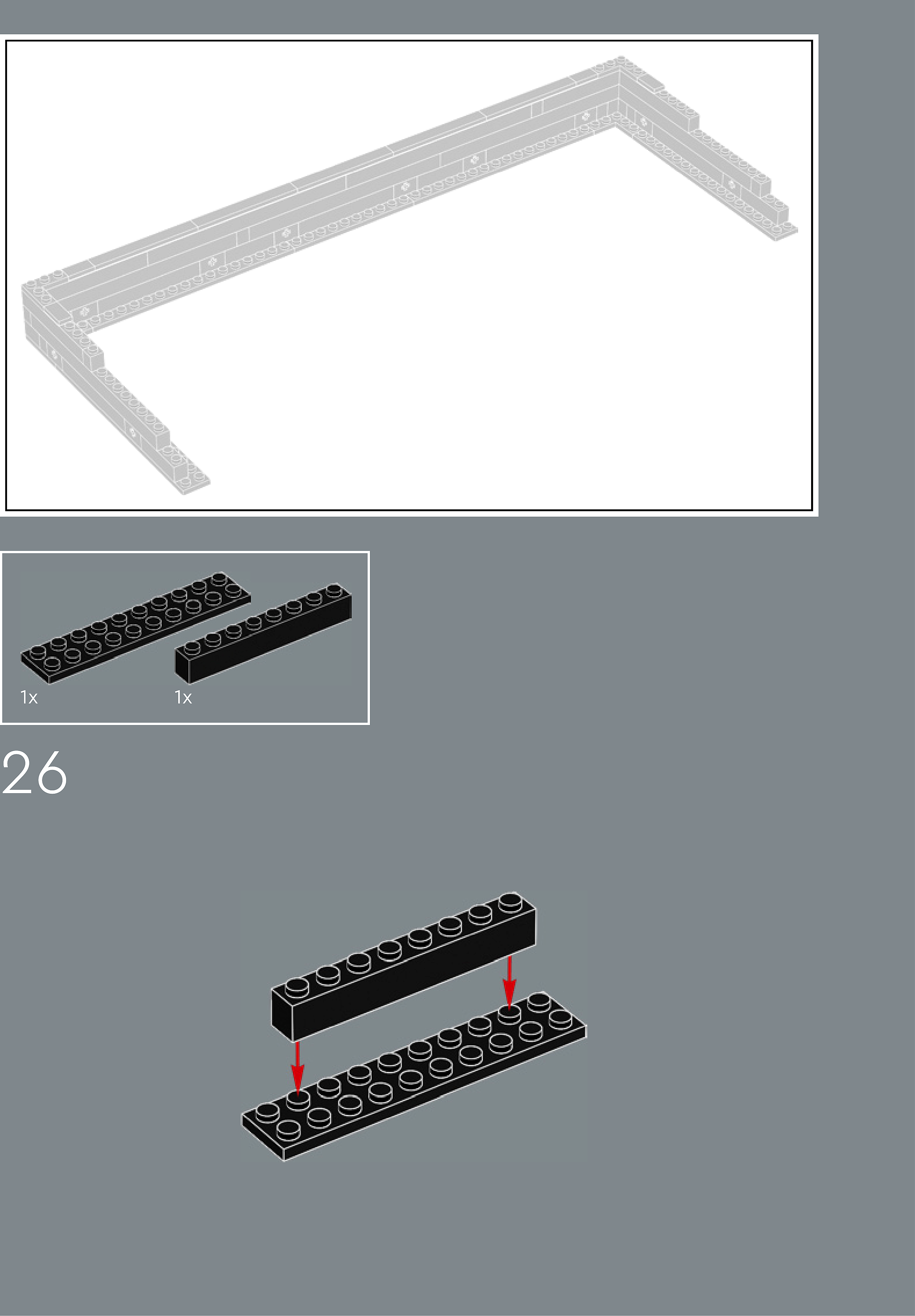
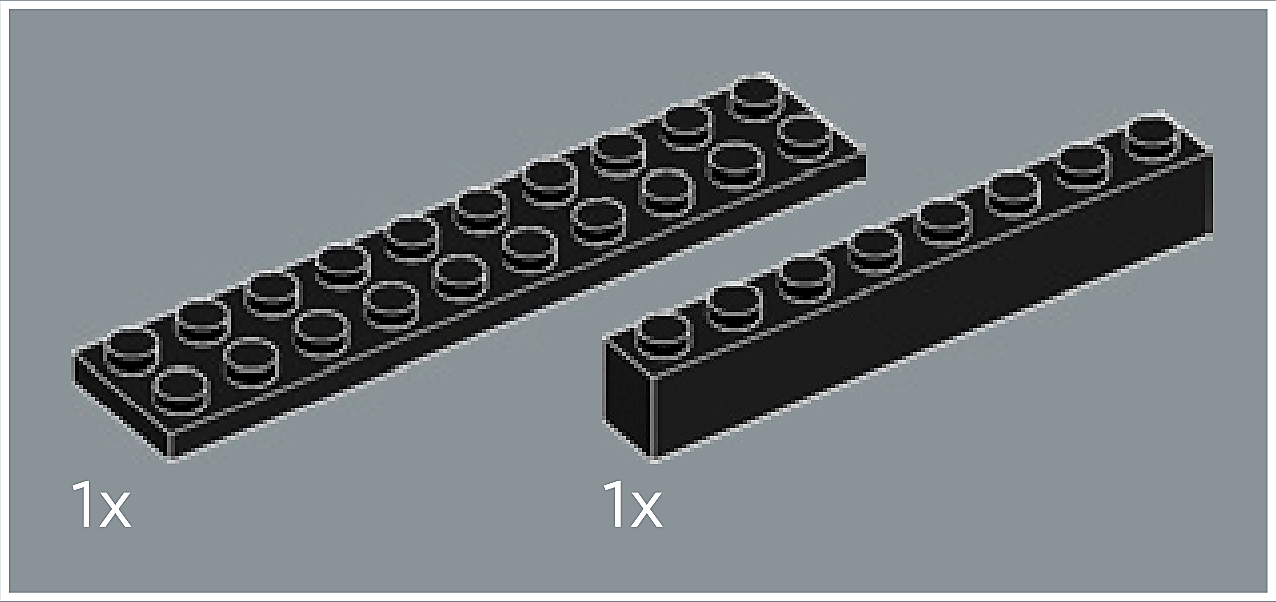
Look at the inset image above. Check that the AI has correctly identified each piece — colour, quantity, and part name. If anything is wrong, edit the table directly. Add any missing pieces using the + row button, or remove incorrect ones with ✕.
When you are satisfied that all pieces are correct, click Save Pieces. This enables Phase 3 to run for this step.
| Qty | Colour | Part name | Part # | |
|---|---|---|---|---|
Phase 3 — Spatial placement
What do I do here?
The AI has described where each piece was placed by comparing the before and after images. Read every description carefully. Check that directions (left, right, front, back) are correct from the builder's perspective, and that stud counts are accurate.
If a description is vague, wrong, or uses the wrong direction — click Edit in that row and correct it. Once every placement description for this step is accurate, click Approve. Approval is required before the accessible prose can be generated.
This is the most important phase — a blind builder will follow these descriptions precisely.
Not yet extracted.
Phase 4 — Accessible prose
What do I do here?
This step is completed by the builder, not the sighted reviewer. The app generates an accessible prose paragraph from the approved Phase 3 descriptions. No action is needed from you here — your work is done once Phase 3 is approved.
Not yet generated. Complete Phase 3 and approve placement first.
Step 27
Assembly — page 25

Inset — page 25
Phase 2 — Pieces
What do I do here?
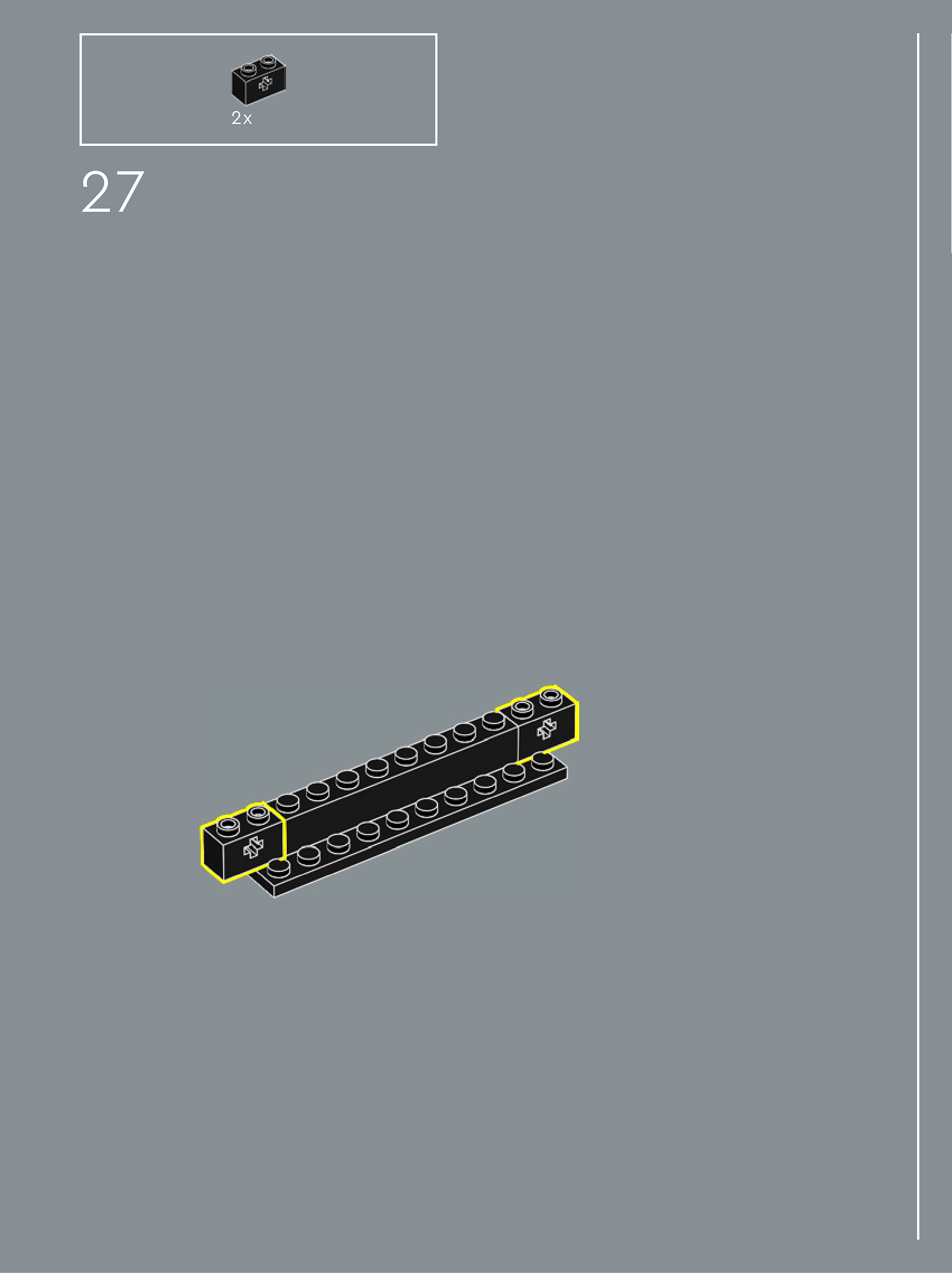
Look at the inset image above. Check that the AI has correctly identified each piece — colour, quantity, and part name. If anything is wrong, edit the table directly. Add any missing pieces using the + row button, or remove incorrect ones with ✕.
When you are satisfied that all pieces are correct, click Save Pieces. This enables Phase 3 to run for this step.
| Qty | Colour | Part name | Part # | |
|---|---|---|---|---|
Phase 3 — Spatial placement
What do I do here?
The AI has described where each piece was placed by comparing the before and after images. Read every description carefully. Check that directions (left, right, front, back) are correct from the builder's perspective, and that stud counts are accurate.
If a description is vague, wrong, or uses the wrong direction — click Edit in that row and correct it. Once every placement description for this step is accurate, click Approve. Approval is required before the accessible prose can be generated.
This is the most important phase — a blind builder will follow these descriptions precisely.
Not yet extracted.
Phase 4 — Accessible prose
What do I do here?
This step is completed by the builder, not the sighted reviewer. The app generates an accessible prose paragraph from the approved Phase 3 descriptions. No action is needed from you here — your work is done once Phase 3 is approved.
Not yet generated. Complete Phase 3 and approve placement first.
Step 28
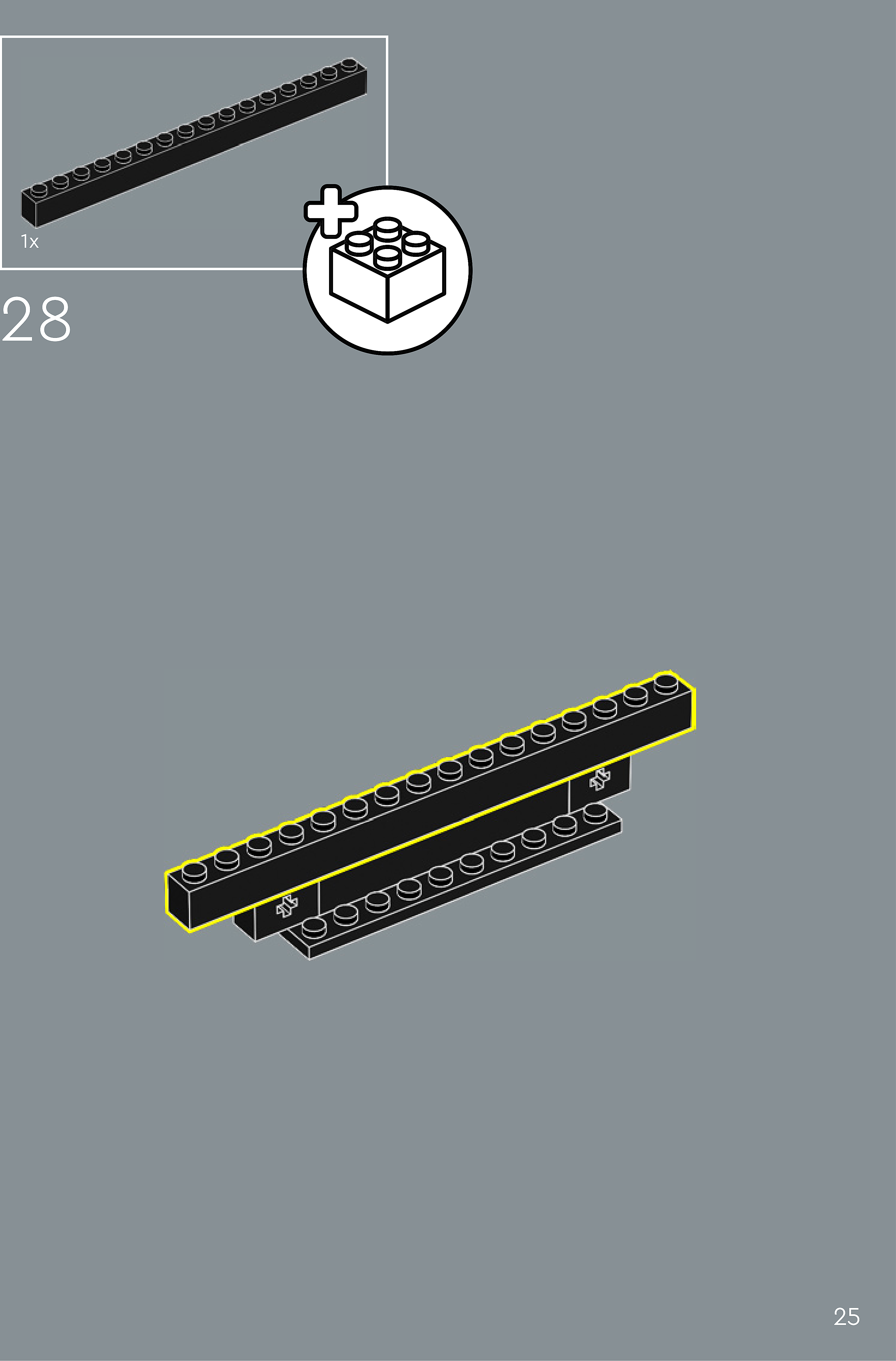
Assembly — page 25
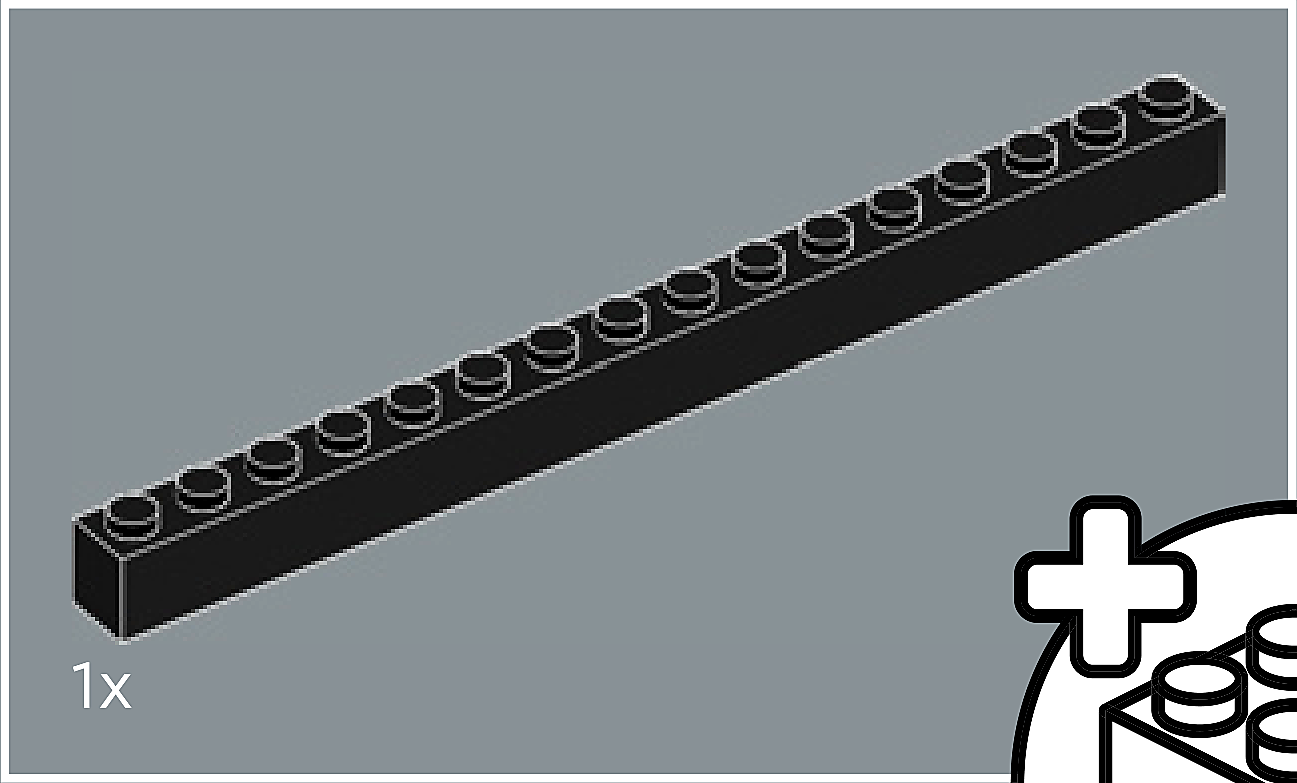
Inset — page 25
Phase 2 — Pieces
What do I do here?
Look at the inset image above. Check that the AI has correctly identified each piece — colour, quantity, and part name. If anything is wrong, edit the table directly. Add any missing pieces using the + row button, or remove incorrect ones with ✕.
When you are satisfied that all pieces are correct, click Save Pieces. This enables Phase 3 to run for this step.
| Qty | Colour | Part name | Part # | |
|---|---|---|---|---|
Phase 3 — Spatial placement
What do I do here?
The AI has described where each piece was placed by comparing the before and after images. Read every description carefully. Check that directions (left, right, front, back) are correct from the builder's perspective, and that stud counts are accurate.
If a description is vague, wrong, or uses the wrong direction — click Edit in that row and correct it. Once every placement description for this step is accurate, click Approve. Approval is required before the accessible prose can be generated.
This is the most important phase — a blind builder will follow these descriptions precisely.
Not yet extracted.
Phase 4 — Accessible prose
What do I do here?
This step is completed by the builder, not the sighted reviewer. The app generates an accessible prose paragraph from the approved Phase 3 descriptions. No action is needed from you here — your work is done once Phase 3 is approved.
Not yet generated. Complete Phase 3 and approve placement first.
Step 29
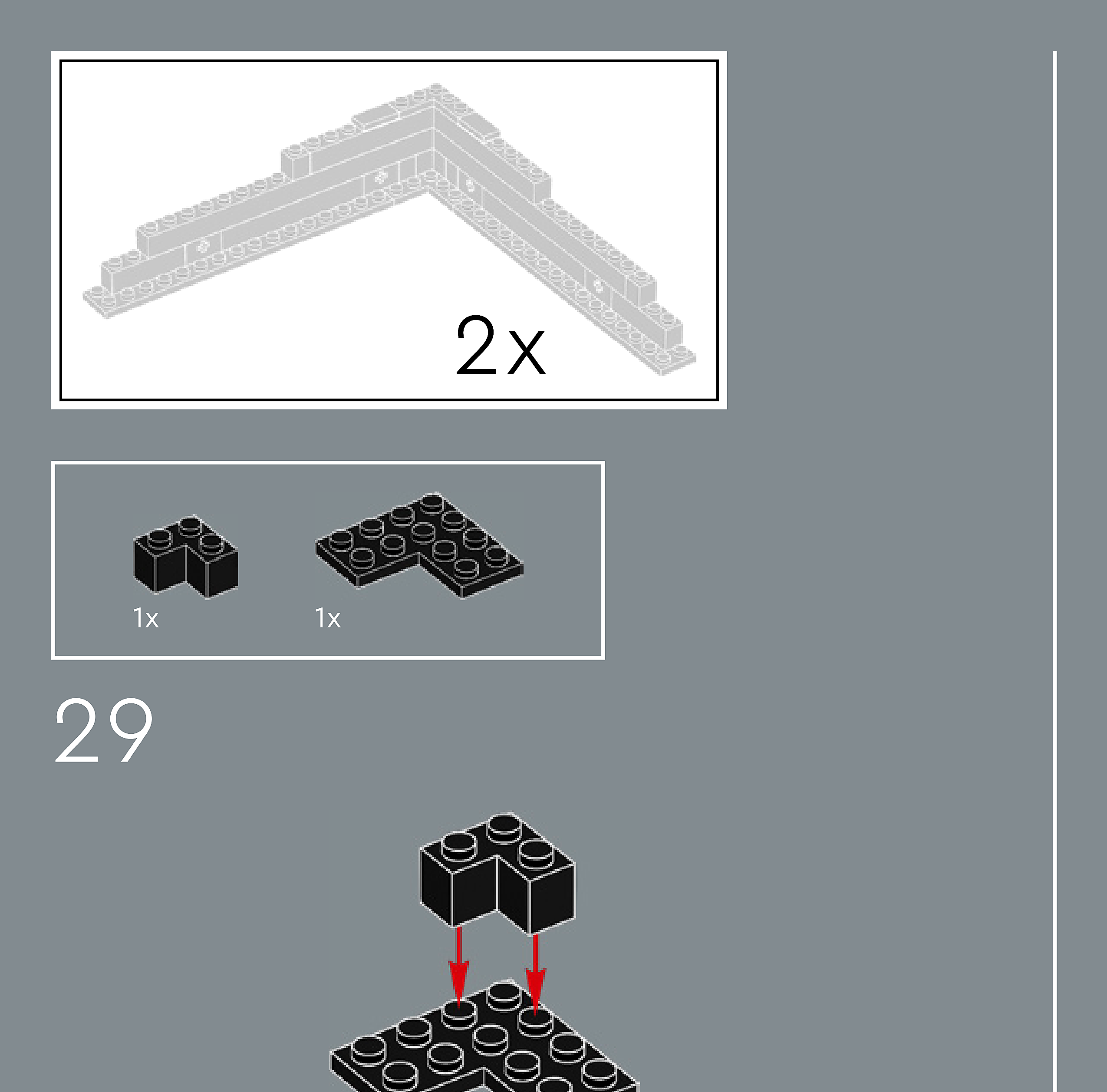
Assembly — page 26
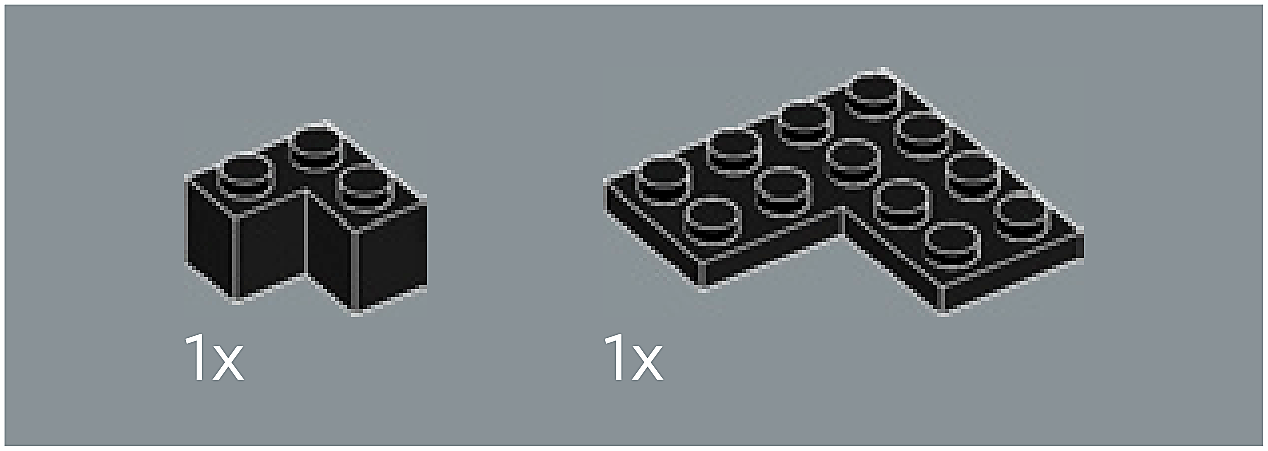
Inset — page 26
Phase 2 — Pieces
What do I do here?
Look at the inset image above. Check that the AI has correctly identified each piece — colour, quantity, and part name. If anything is wrong, edit the table directly. Add any missing pieces using the + row button, or remove incorrect ones with ✕.
When you are satisfied that all pieces are correct, click Save Pieces. This enables Phase 3 to run for this step.
| Qty | Colour | Part name | Part # | |
|---|---|---|---|---|
Phase 3 — Spatial placement
What do I do here?
The AI has described where each piece was placed by comparing the before and after images. Read every description carefully. Check that directions (left, right, front, back) are correct from the builder's perspective, and that stud counts are accurate.
If a description is vague, wrong, or uses the wrong direction — click Edit in that row and correct it. Once every placement description for this step is accurate, click Approve. Approval is required before the accessible prose can be generated.
This is the most important phase — a blind builder will follow these descriptions precisely.
Not yet extracted.
Phase 4 — Accessible prose
What do I do here?
This step is completed by the builder, not the sighted reviewer. The app generates an accessible prose paragraph from the approved Phase 3 descriptions. No action is needed from you here — your work is done once Phase 3 is approved.
Not yet generated. Complete Phase 3 and approve placement first.
Step 30
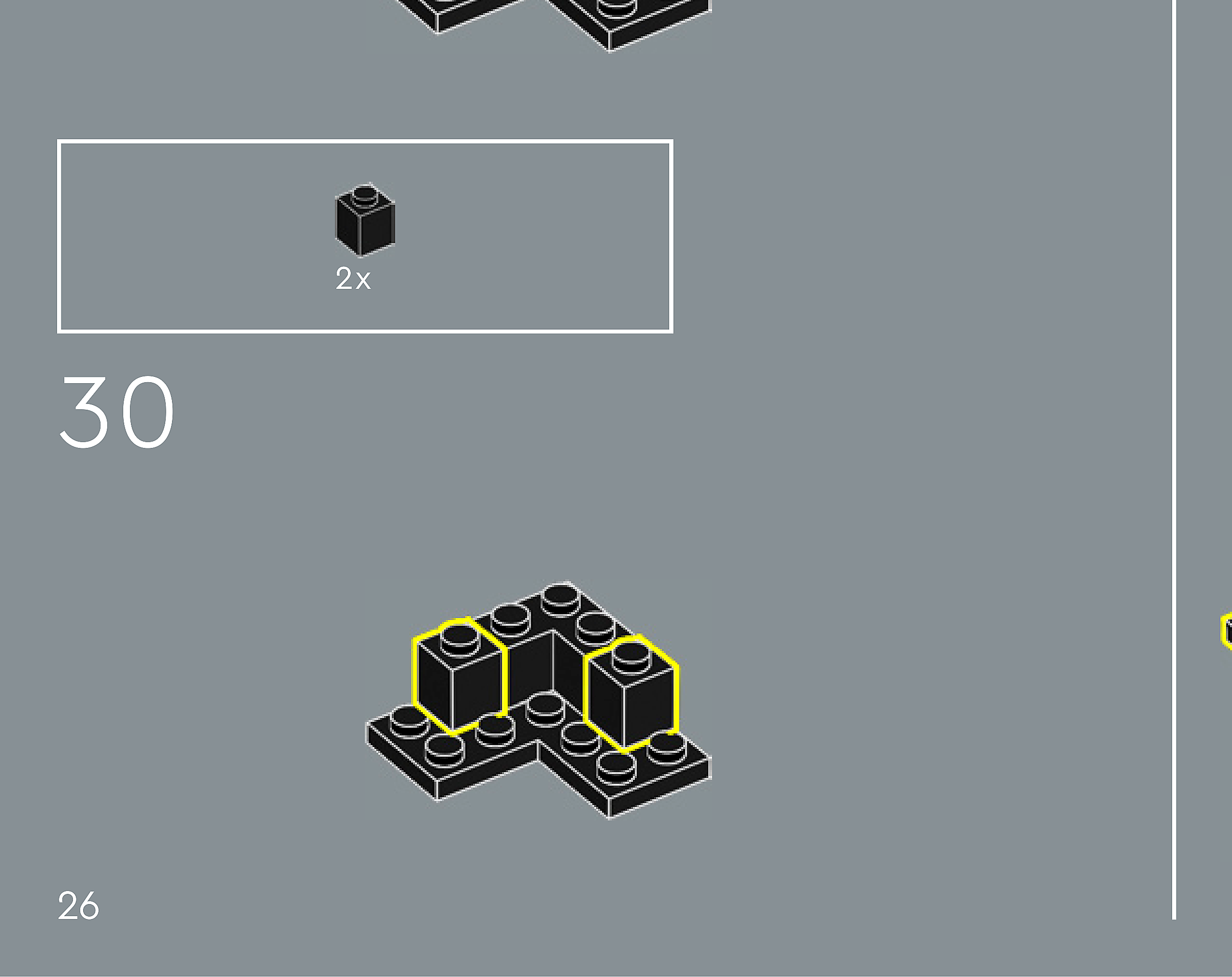
Assembly — page 26

Inset — page 26
Phase 2 — Pieces
What do I do here?
Look at the inset image above. Check that the AI has correctly identified each piece — colour, quantity, and part name. If anything is wrong, edit the table directly. Add any missing pieces using the + row button, or remove incorrect ones with ✕.
When you are satisfied that all pieces are correct, click Save Pieces. This enables Phase 3 to run for this step.
| Qty | Colour | Part name | Part # | |
|---|---|---|---|---|
Phase 3 — Spatial placement
What do I do here?
The AI has described where each piece was placed by comparing the before and after images. Read every description carefully. Check that directions (left, right, front, back) are correct from the builder's perspective, and that stud counts are accurate.
If a description is vague, wrong, or uses the wrong direction — click Edit in that row and correct it. Once every placement description for this step is accurate, click Approve. Approval is required before the accessible prose can be generated.
This is the most important phase — a blind builder will follow these descriptions precisely.
Not yet extracted.
Phase 4 — Accessible prose
What do I do here?
This step is completed by the builder, not the sighted reviewer. The app generates an accessible prose paragraph from the approved Phase 3 descriptions. No action is needed from you here — your work is done once Phase 3 is approved.
Not yet generated. Complete Phase 3 and approve placement first.
Step 31
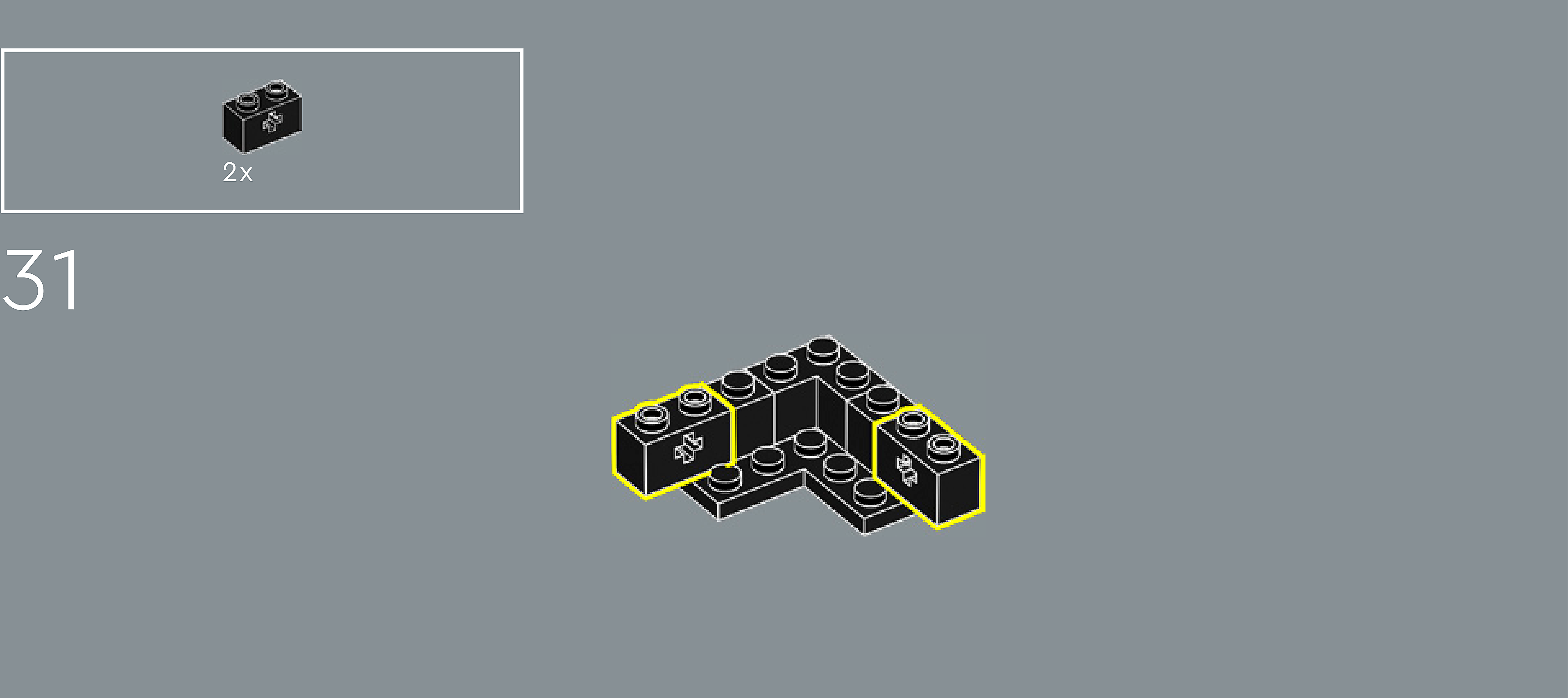
Assembly — page 26

Inset — page 26
Phase 2 — Pieces
What do I do here?
Look at the inset image above. Check that the AI has correctly identified each piece — colour, quantity, and part name. If anything is wrong, edit the table directly. Add any missing pieces using the + row button, or remove incorrect ones with ✕.
When you are satisfied that all pieces are correct, click Save Pieces. This enables Phase 3 to run for this step.
| Qty | Colour | Part name | Part # | |
|---|---|---|---|---|
Phase 3 — Spatial placement
What do I do here?
The AI has described where each piece was placed by comparing the before and after images. Read every description carefully. Check that directions (left, right, front, back) are correct from the builder's perspective, and that stud counts are accurate.
If a description is vague, wrong, or uses the wrong direction — click Edit in that row and correct it. Once every placement description for this step is accurate, click Approve. Approval is required before the accessible prose can be generated.
This is the most important phase — a blind builder will follow these descriptions precisely.
Not yet extracted.
Phase 4 — Accessible prose
What do I do here?
This step is completed by the builder, not the sighted reviewer. The app generates an accessible prose paragraph from the approved Phase 3 descriptions. No action is needed from you here — your work is done once Phase 3 is approved.
Not yet generated. Complete Phase 3 and approve placement first.
Step 32
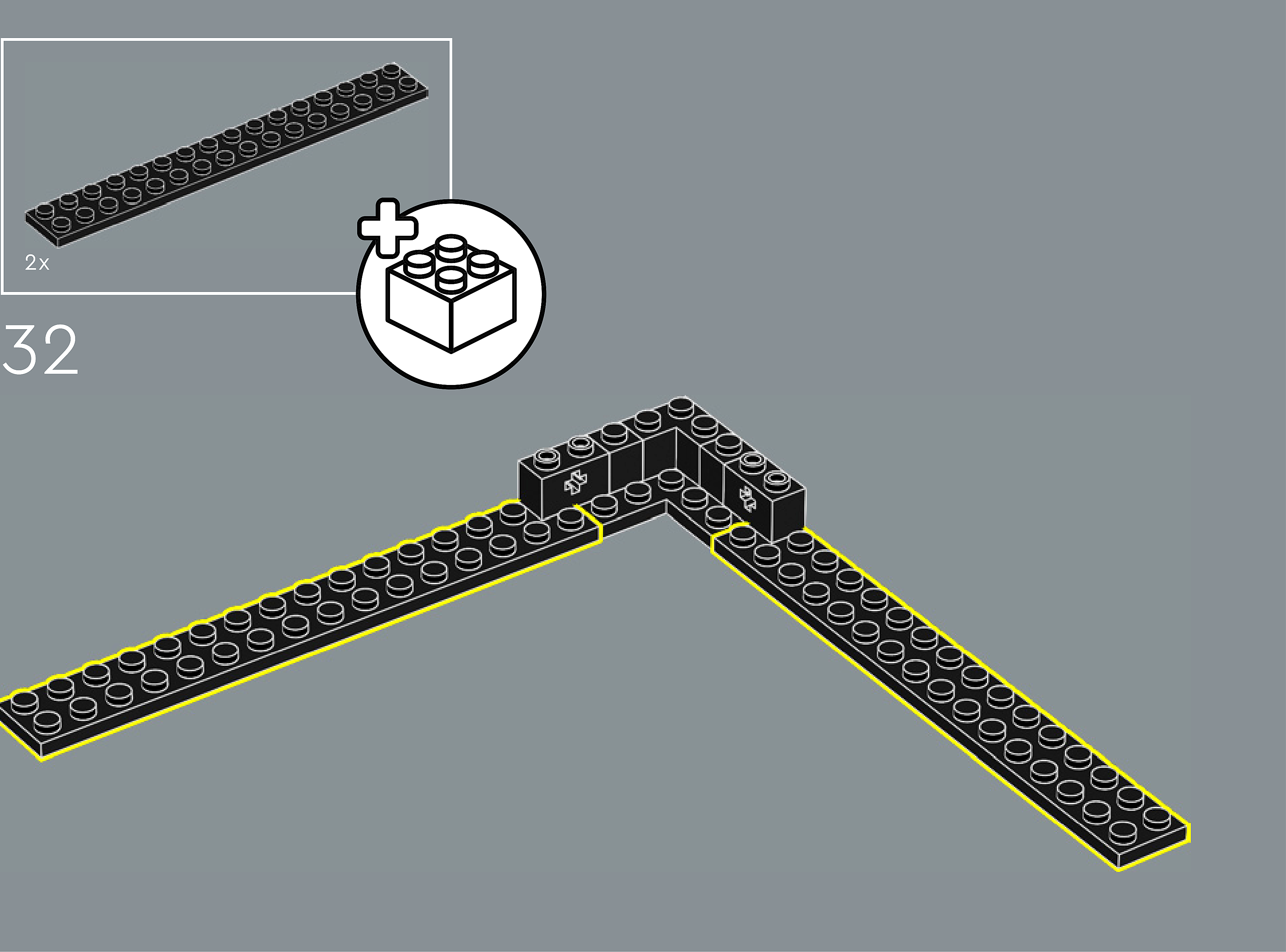
Assembly — page 26
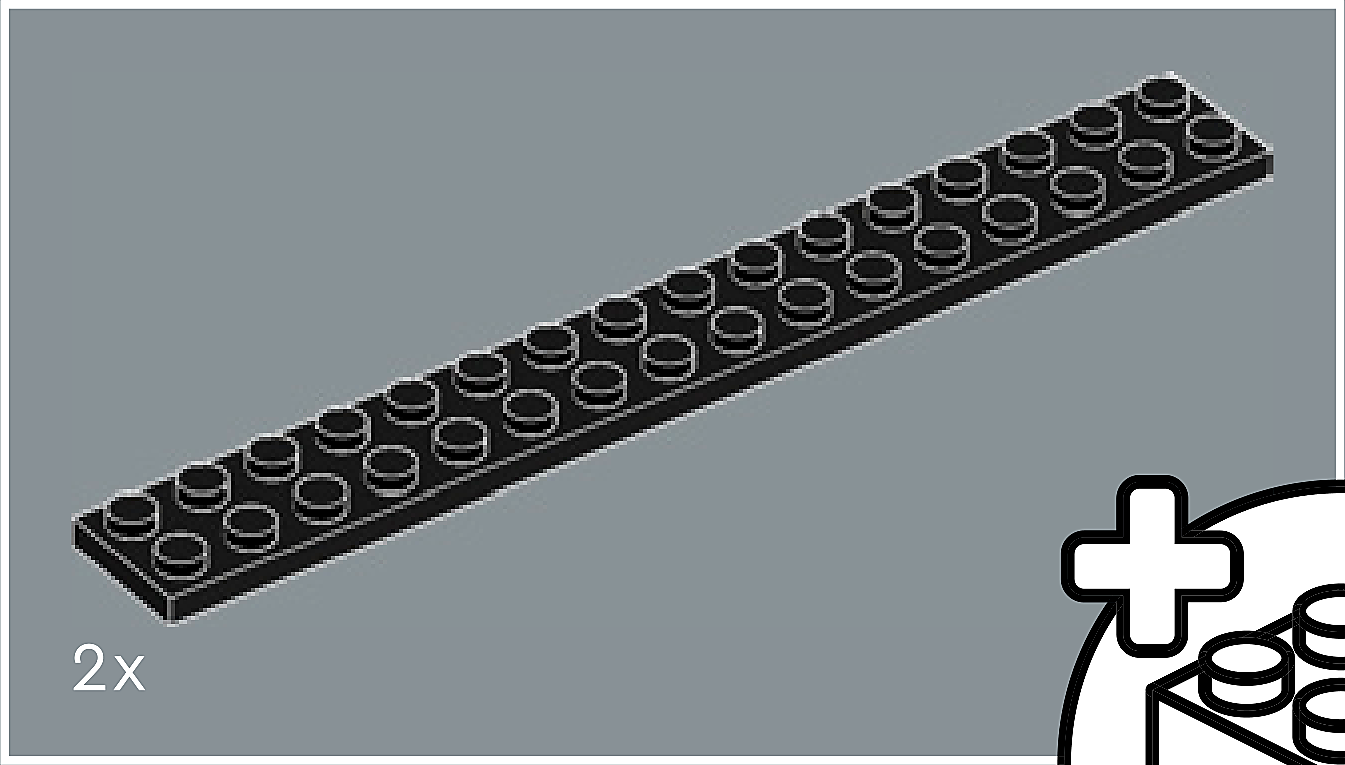
Inset — page 26
Phase 2 — Pieces
What do I do here?
Look at the inset image above. Check that the AI has correctly identified each piece — colour, quantity, and part name. If anything is wrong, edit the table directly. Add any missing pieces using the + row button, or remove incorrect ones with ✕.
When you are satisfied that all pieces are correct, click Save Pieces. This enables Phase 3 to run for this step.
| Qty | Colour | Part name | Part # | |
|---|---|---|---|---|
Phase 3 — Spatial placement
What do I do here?
The AI has described where each piece was placed by comparing the before and after images. Read every description carefully. Check that directions (left, right, front, back) are correct from the builder's perspective, and that stud counts are accurate.
If a description is vague, wrong, or uses the wrong direction — click Edit in that row and correct it. Once every placement description for this step is accurate, click Approve. Approval is required before the accessible prose can be generated.
This is the most important phase — a blind builder will follow these descriptions precisely.
Not yet extracted.
Phase 4 — Accessible prose
What do I do here?
This step is completed by the builder, not the sighted reviewer. The app generates an accessible prose paragraph from the approved Phase 3 descriptions. No action is needed from you here — your work is done once Phase 3 is approved.
Not yet generated. Complete Phase 3 and approve placement first.
Step 33
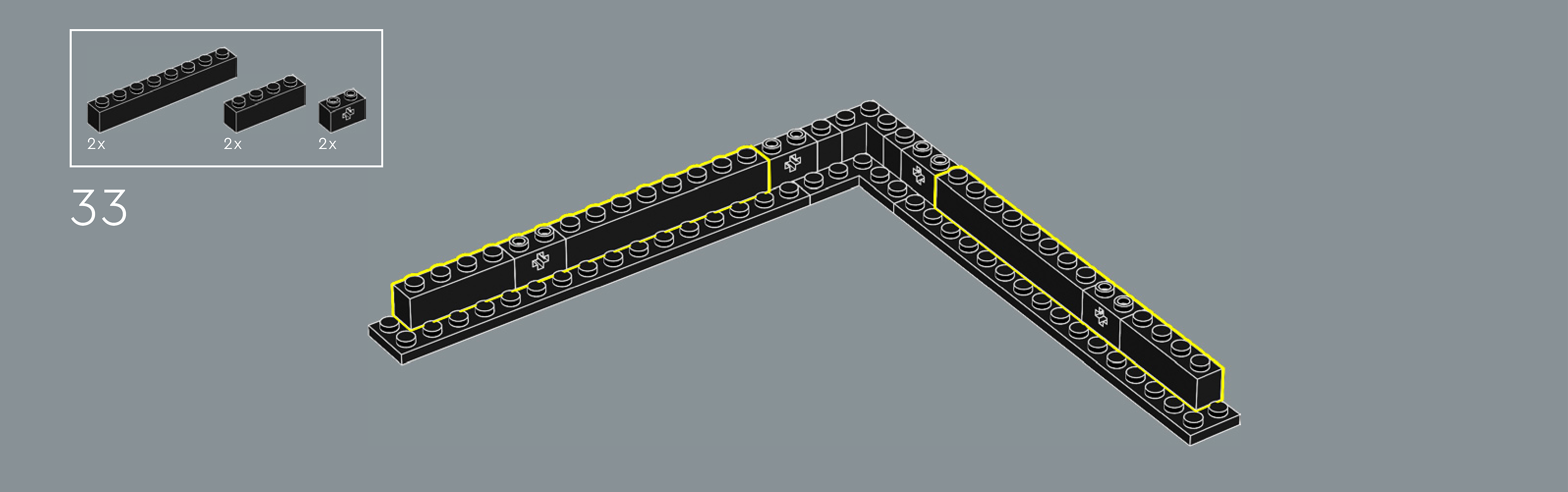
Assembly — page 27
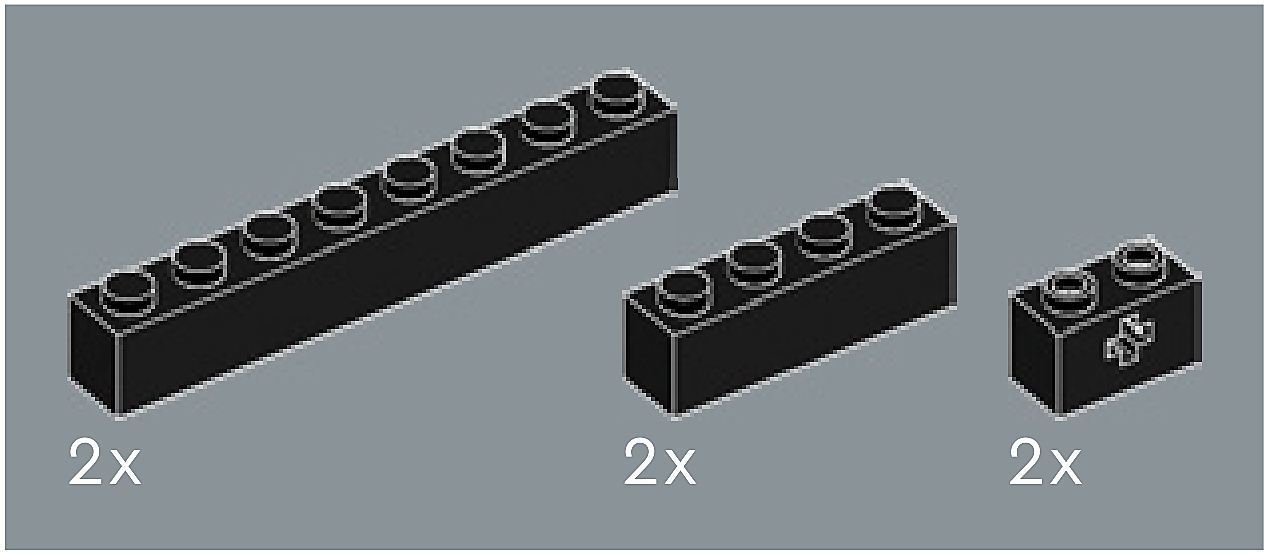
Inset — page 27
Phase 2 — Pieces
What do I do here?
Look at the inset image above. Check that the AI has correctly identified each piece — colour, quantity, and part name. If anything is wrong, edit the table directly. Add any missing pieces using the + row button, or remove incorrect ones with ✕.
When you are satisfied that all pieces are correct, click Save Pieces. This enables Phase 3 to run for this step.
| Qty | Colour | Part name | Part # | |
|---|---|---|---|---|
Phase 3 — Spatial placement
What do I do here?
The AI has described where each piece was placed by comparing the before and after images. Read every description carefully. Check that directions (left, right, front, back) are correct from the builder's perspective, and that stud counts are accurate.
If a description is vague, wrong, or uses the wrong direction — click Edit in that row and correct it. Once every placement description for this step is accurate, click Approve. Approval is required before the accessible prose can be generated.
This is the most important phase — a blind builder will follow these descriptions precisely.
Not yet extracted.
Phase 4 — Accessible prose
What do I do here?
This step is completed by the builder, not the sighted reviewer. The app generates an accessible prose paragraph from the approved Phase 3 descriptions. No action is needed from you here — your work is done once Phase 3 is approved.
Not yet generated. Complete Phase 3 and approve placement first.
Step 34
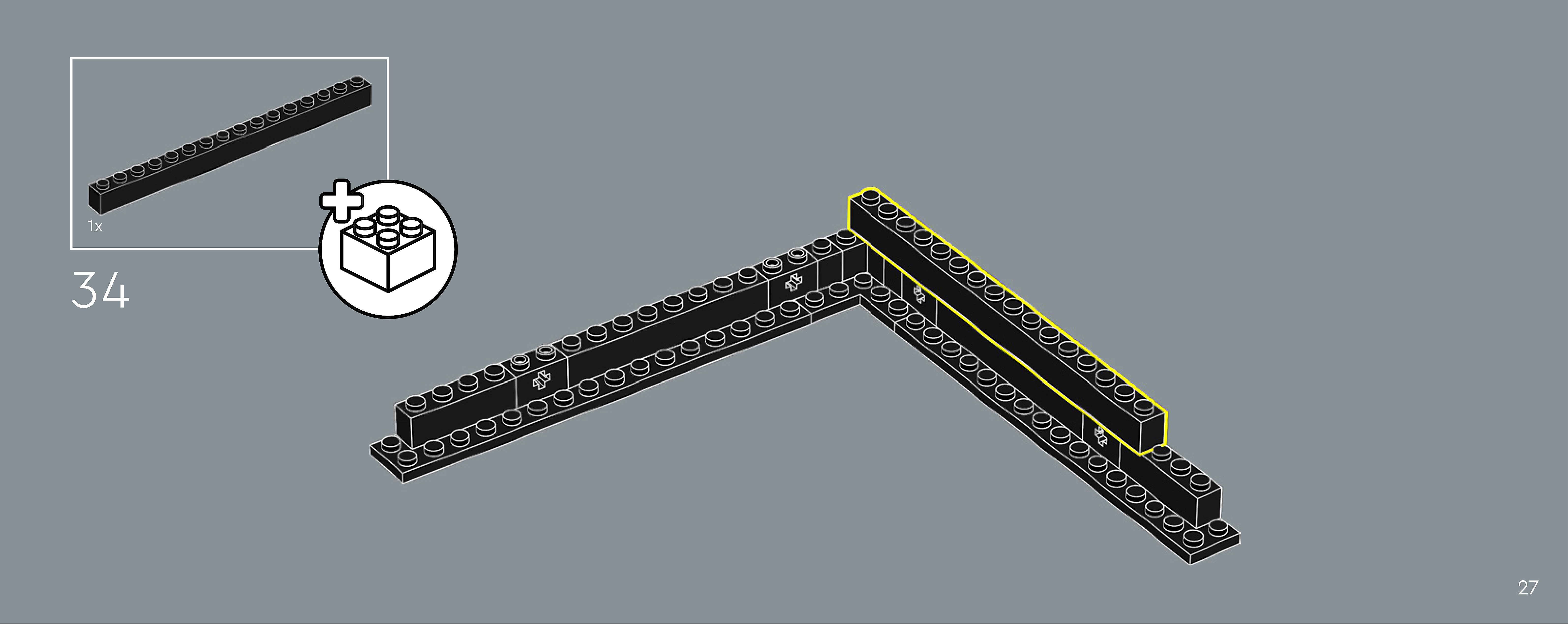
Assembly — page 27
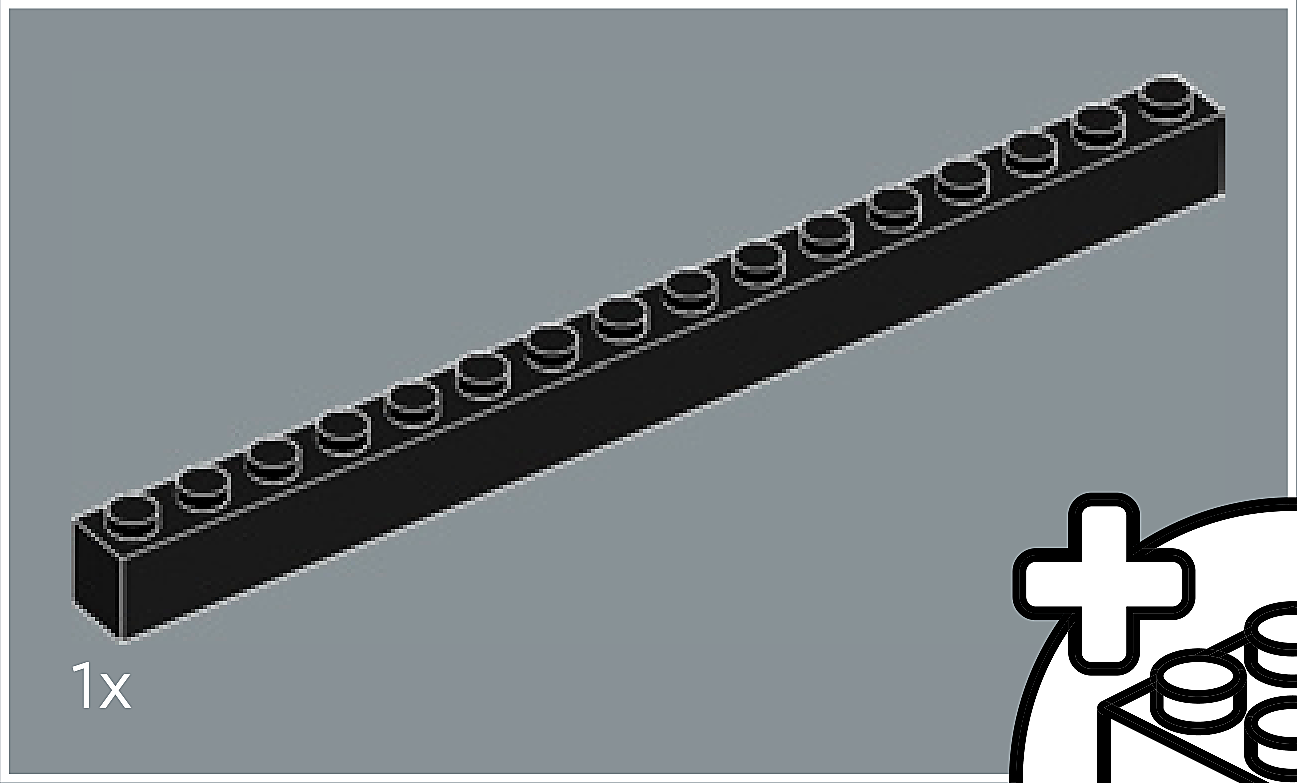
Inset — page 27
Phase 2 — Pieces
What do I do here?
Look at the inset image above. Check that the AI has correctly identified each piece — colour, quantity, and part name. If anything is wrong, edit the table directly. Add any missing pieces using the + row button, or remove incorrect ones with ✕.
When you are satisfied that all pieces are correct, click Save Pieces. This enables Phase 3 to run for this step.
| Qty | Colour | Part name | Part # | |
|---|---|---|---|---|
Phase 3 — Spatial placement
What do I do here?
The AI has described where each piece was placed by comparing the before and after images. Read every description carefully. Check that directions (left, right, front, back) are correct from the builder's perspective, and that stud counts are accurate.
If a description is vague, wrong, or uses the wrong direction — click Edit in that row and correct it. Once every placement description for this step is accurate, click Approve. Approval is required before the accessible prose can be generated.
This is the most important phase — a blind builder will follow these descriptions precisely.
Not yet extracted.
Phase 4 — Accessible prose
What do I do here?
This step is completed by the builder, not the sighted reviewer. The app generates an accessible prose paragraph from the approved Phase 3 descriptions. No action is needed from you here — your work is done once Phase 3 is approved.
Not yet generated. Complete Phase 3 and approve placement first.
Step 35
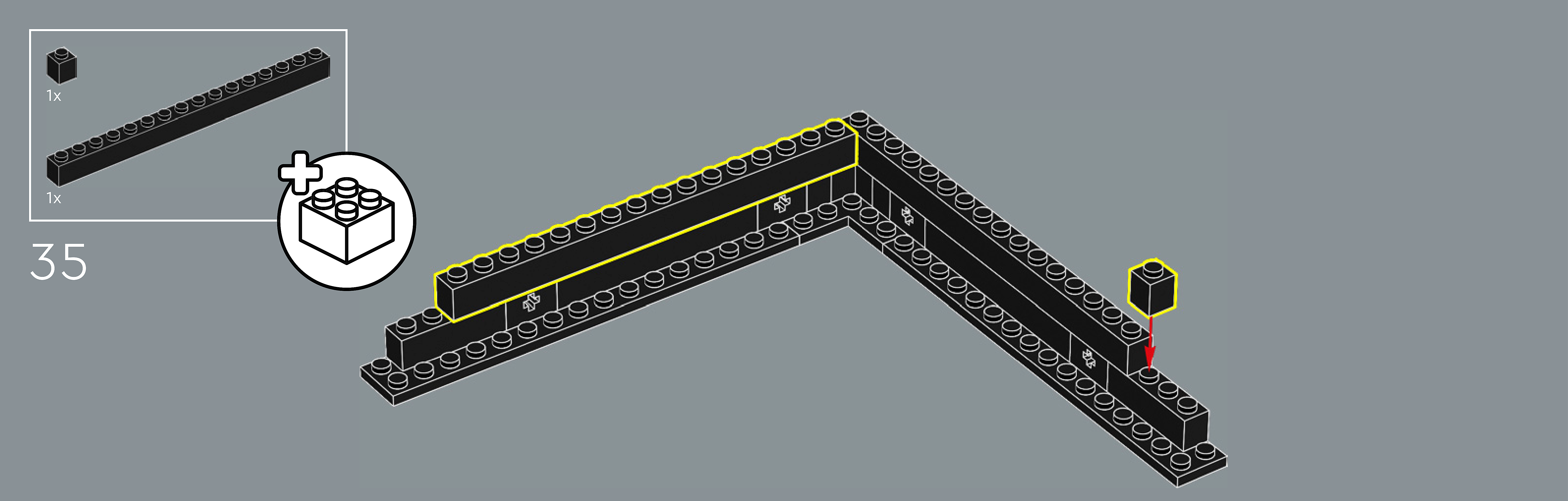
Assembly — page 28
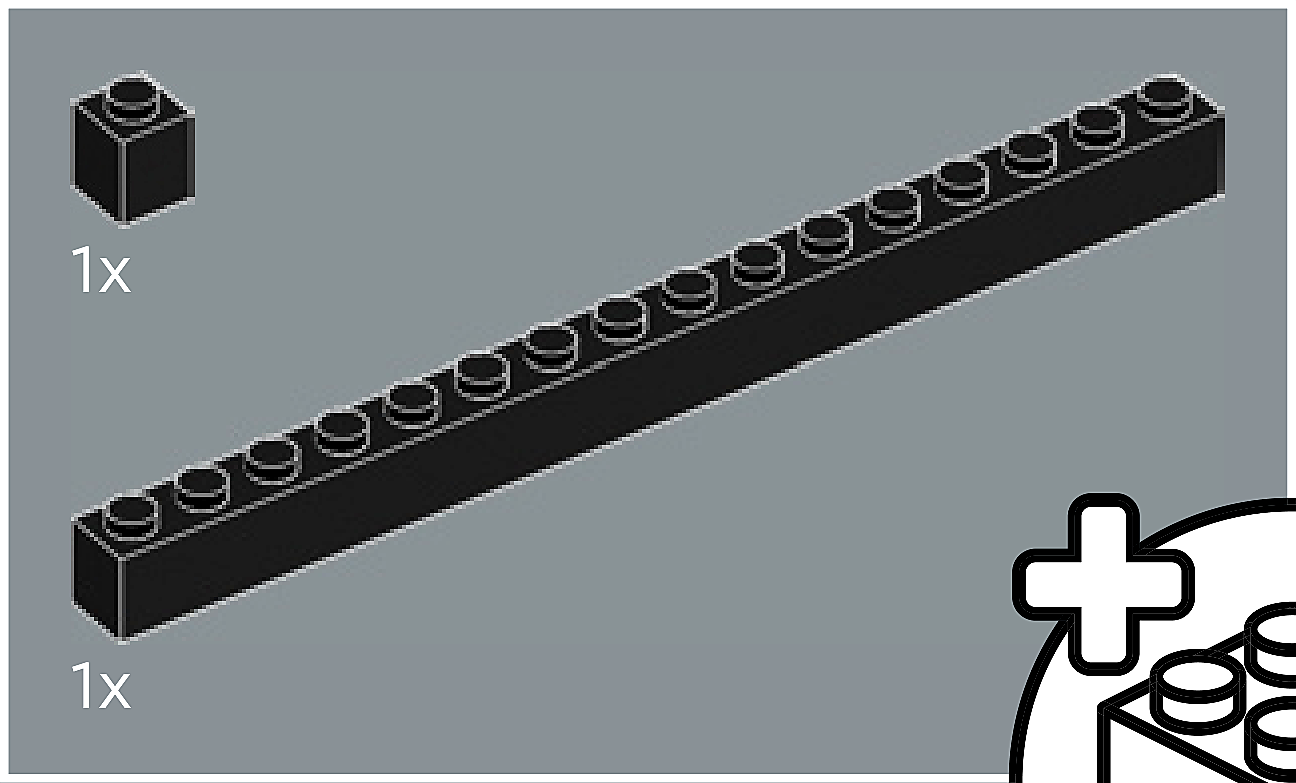
Inset — page 28
Phase 2 — Pieces
What do I do here?
Look at the inset image above. Check that the AI has correctly identified each piece — colour, quantity, and part name. If anything is wrong, edit the table directly. Add any missing pieces using the + row button, or remove incorrect ones with ✕.
When you are satisfied that all pieces are correct, click Save Pieces. This enables Phase 3 to run for this step.
| Qty | Colour | Part name | Part # | |
|---|---|---|---|---|
Phase 3 — Spatial placement
What do I do here?
The AI has described where each piece was placed by comparing the before and after images. Read every description carefully. Check that directions (left, right, front, back) are correct from the builder's perspective, and that stud counts are accurate.
If a description is vague, wrong, or uses the wrong direction — click Edit in that row and correct it. Once every placement description for this step is accurate, click Approve. Approval is required before the accessible prose can be generated.
This is the most important phase — a blind builder will follow these descriptions precisely.
Not yet extracted.
Phase 4 — Accessible prose
What do I do here?
This step is completed by the builder, not the sighted reviewer. The app generates an accessible prose paragraph from the approved Phase 3 descriptions. No action is needed from you here — your work is done once Phase 3 is approved.
Not yet generated. Complete Phase 3 and approve placement first.
Step 36
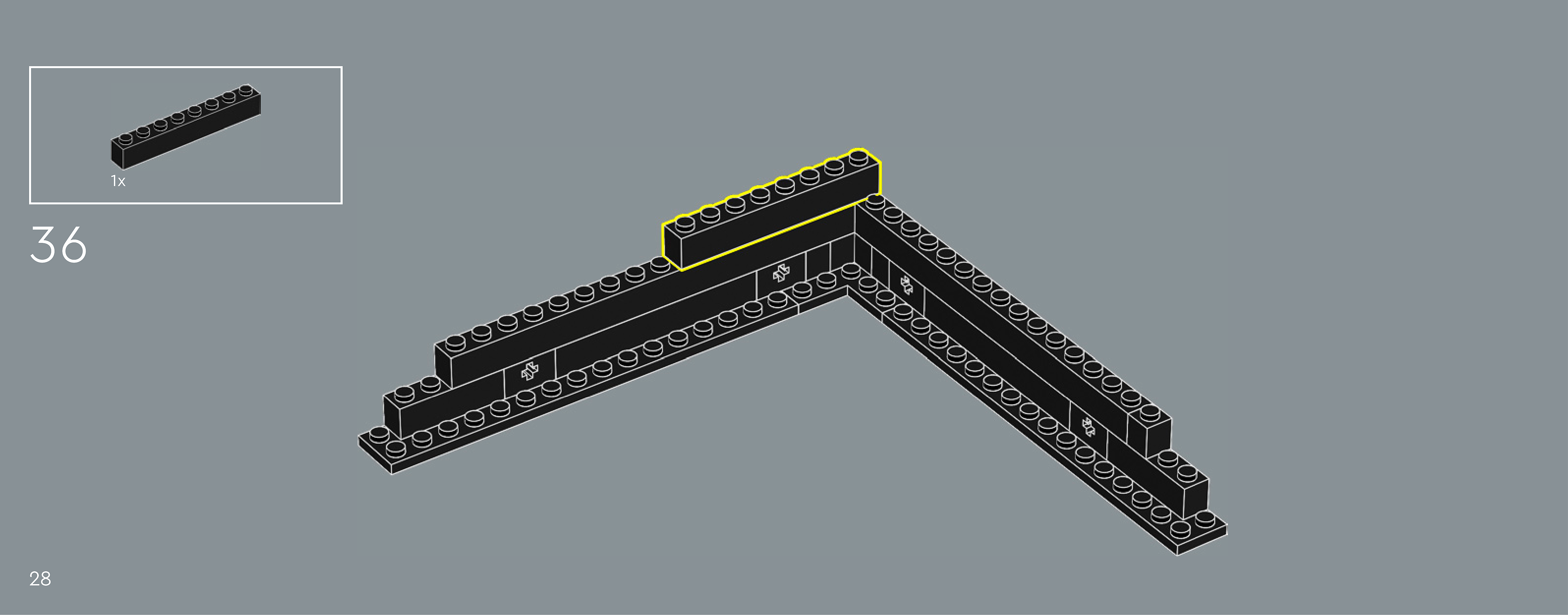
Assembly — page 28
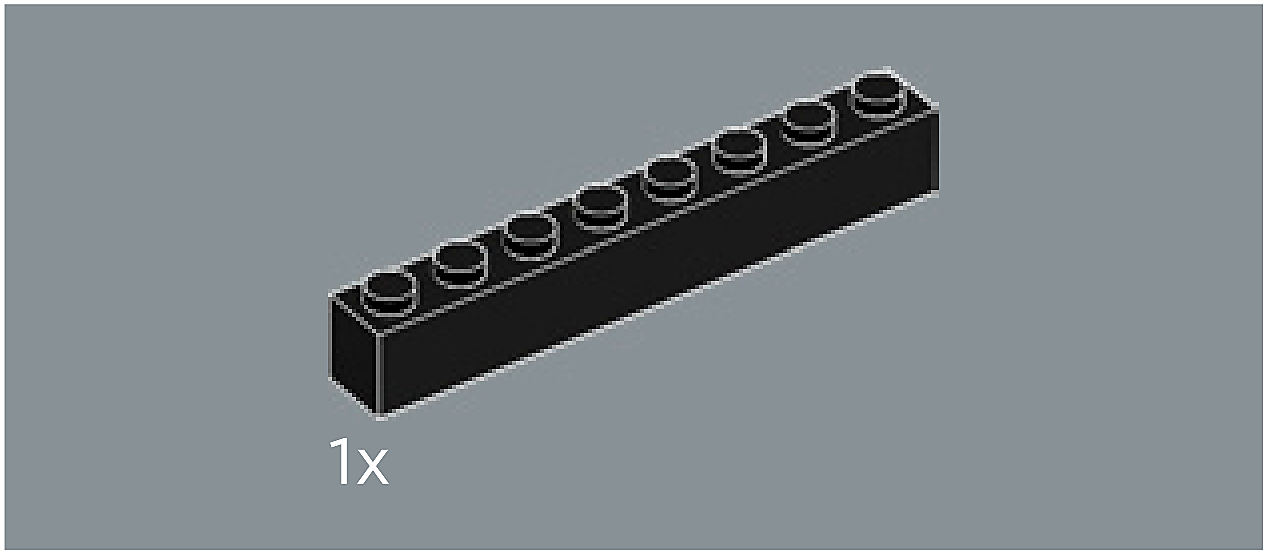
Inset — page 28
Phase 2 — Pieces
What do I do here?
Look at the inset image above. Check that the AI has correctly identified each piece — colour, quantity, and part name. If anything is wrong, edit the table directly. Add any missing pieces using the + row button, or remove incorrect ones with ✕.
When you are satisfied that all pieces are correct, click Save Pieces. This enables Phase 3 to run for this step.
| Qty | Colour | Part name | Part # | |
|---|---|---|---|---|
Phase 3 — Spatial placement
What do I do here?
The AI has described where each piece was placed by comparing the before and after images. Read every description carefully. Check that directions (left, right, front, back) are correct from the builder's perspective, and that stud counts are accurate.
If a description is vague, wrong, or uses the wrong direction — click Edit in that row and correct it. Once every placement description for this step is accurate, click Approve. Approval is required before the accessible prose can be generated.
This is the most important phase — a blind builder will follow these descriptions precisely.
Not yet extracted.
Phase 4 — Accessible prose
What do I do here?
This step is completed by the builder, not the sighted reviewer. The app generates an accessible prose paragraph from the approved Phase 3 descriptions. No action is needed from you here — your work is done once Phase 3 is approved.
Not yet generated. Complete Phase 3 and approve placement first.
Step 37
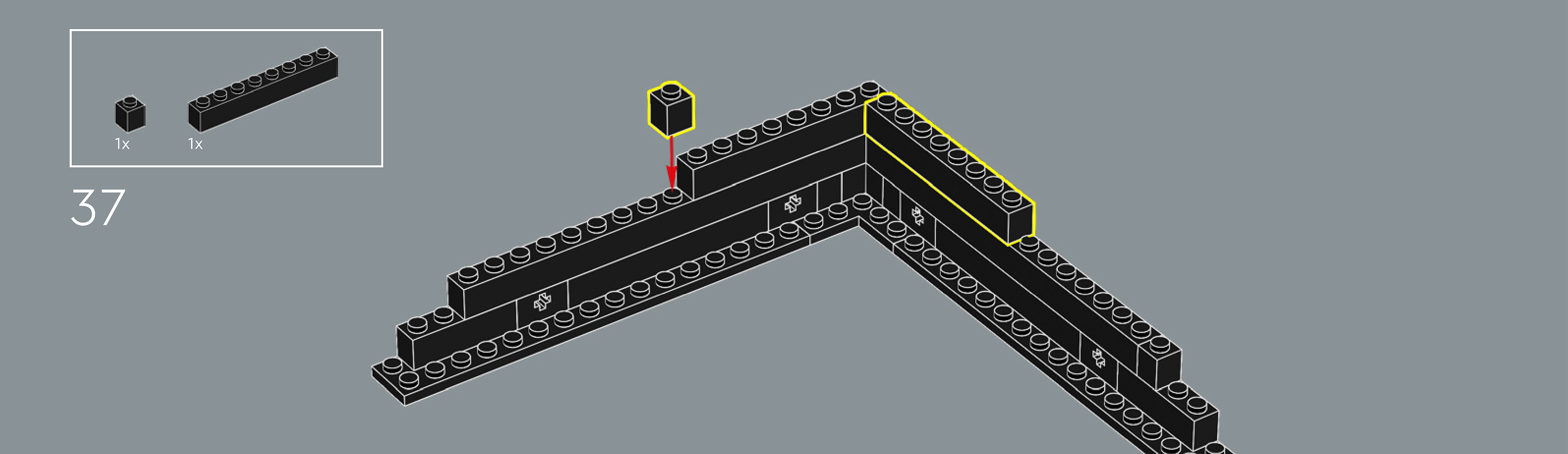
Assembly — page 29
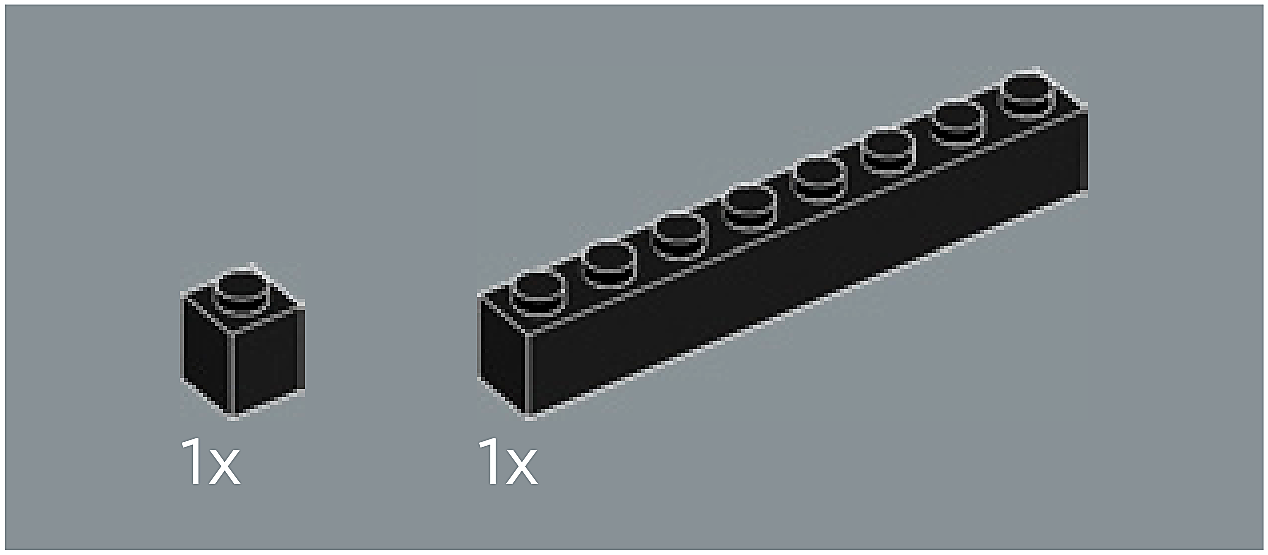
Inset — page 29
Phase 2 — Pieces
What do I do here?
Look at the inset image above. Check that the AI has correctly identified each piece — colour, quantity, and part name. If anything is wrong, edit the table directly. Add any missing pieces using the + row button, or remove incorrect ones with ✕.
When you are satisfied that all pieces are correct, click Save Pieces. This enables Phase 3 to run for this step.
| Qty | Colour | Part name | Part # | |
|---|---|---|---|---|
Phase 3 — Spatial placement
What do I do here?
The AI has described where each piece was placed by comparing the before and after images. Read every description carefully. Check that directions (left, right, front, back) are correct from the builder's perspective, and that stud counts are accurate.
If a description is vague, wrong, or uses the wrong direction — click Edit in that row and correct it. Once every placement description for this step is accurate, click Approve. Approval is required before the accessible prose can be generated.
This is the most important phase — a blind builder will follow these descriptions precisely.
Not yet extracted.
Phase 4 — Accessible prose
What do I do here?
This step is completed by the builder, not the sighted reviewer. The app generates an accessible prose paragraph from the approved Phase 3 descriptions. No action is needed from you here — your work is done once Phase 3 is approved.
Not yet generated. Complete Phase 3 and approve placement first.
Step 38
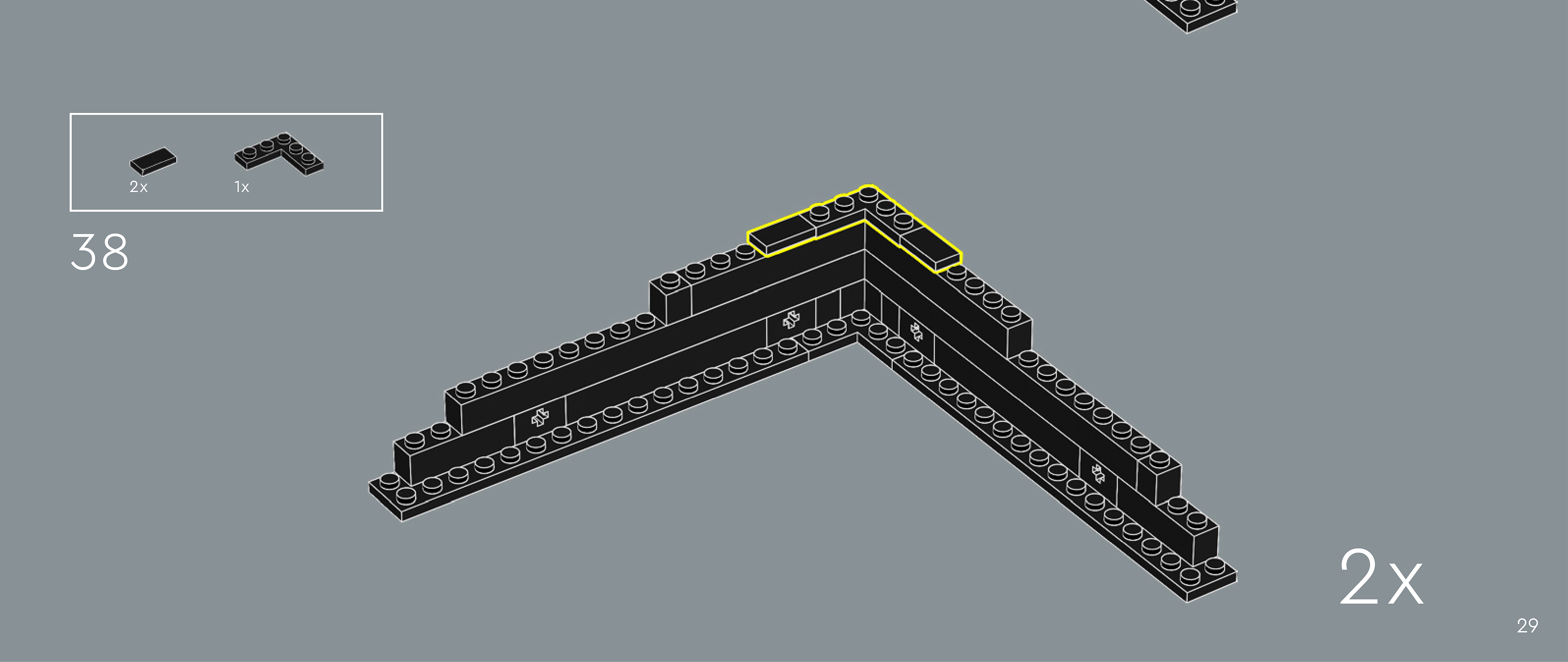
Assembly — page 29
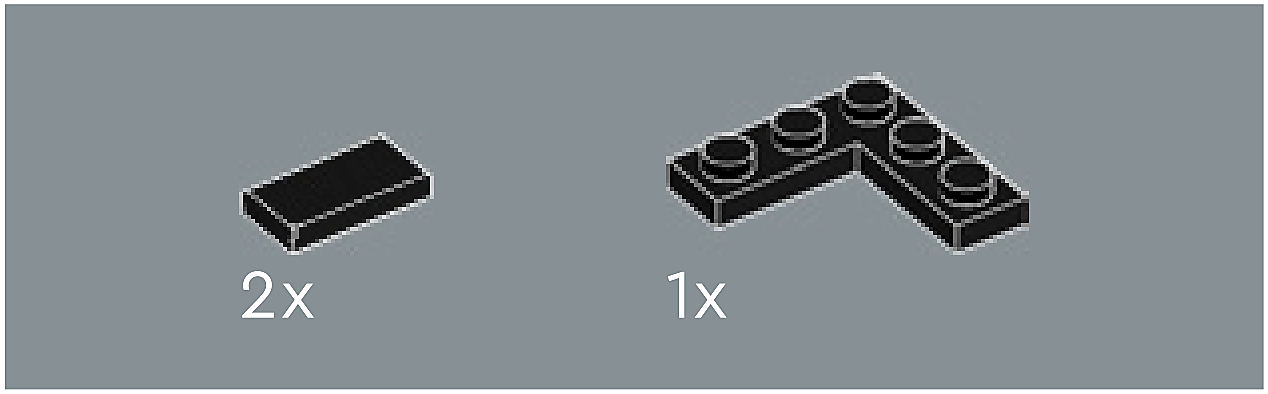
Inset — page 29
Phase 2 — Pieces
What do I do here?
Look at the inset image above. Check that the AI has correctly identified each piece — colour, quantity, and part name. If anything is wrong, edit the table directly. Add any missing pieces using the + row button, or remove incorrect ones with ✕.
When you are satisfied that all pieces are correct, click Save Pieces. This enables Phase 3 to run for this step.
| Qty | Colour | Part name | Part # | |
|---|---|---|---|---|
Phase 3 — Spatial placement
What do I do here?
The AI has described where each piece was placed by comparing the before and after images. Read every description carefully. Check that directions (left, right, front, back) are correct from the builder's perspective, and that stud counts are accurate.
If a description is vague, wrong, or uses the wrong direction — click Edit in that row and correct it. Once every placement description for this step is accurate, click Approve. Approval is required before the accessible prose can be generated.
This is the most important phase — a blind builder will follow these descriptions precisely.
Not yet extracted.
Phase 4 — Accessible prose
What do I do here?
This step is completed by the builder, not the sighted reviewer. The app generates an accessible prose paragraph from the approved Phase 3 descriptions. No action is needed from you here — your work is done once Phase 3 is approved.
Not yet generated. Complete Phase 3 and approve placement first.
Step 39
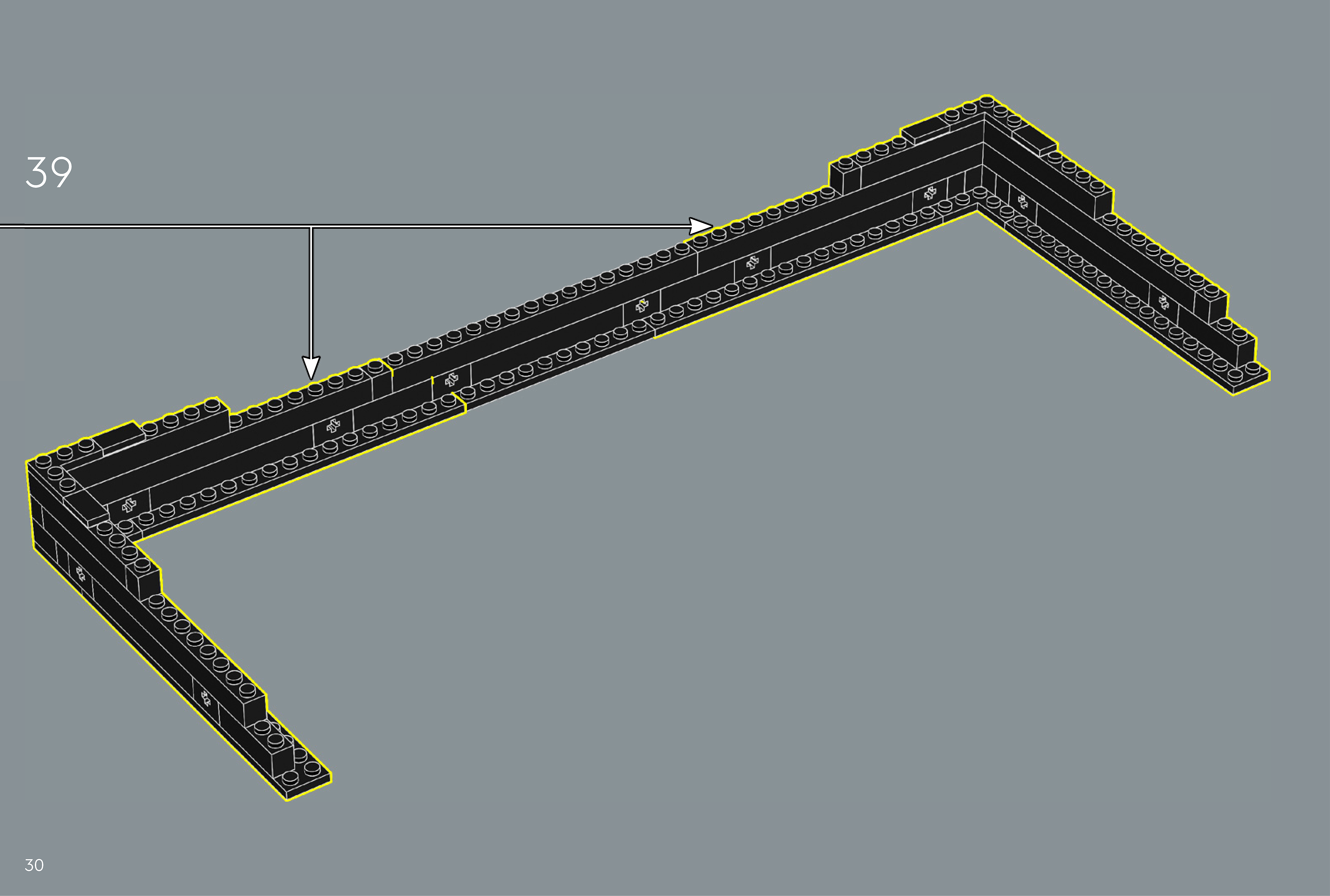
Assembly — page 30
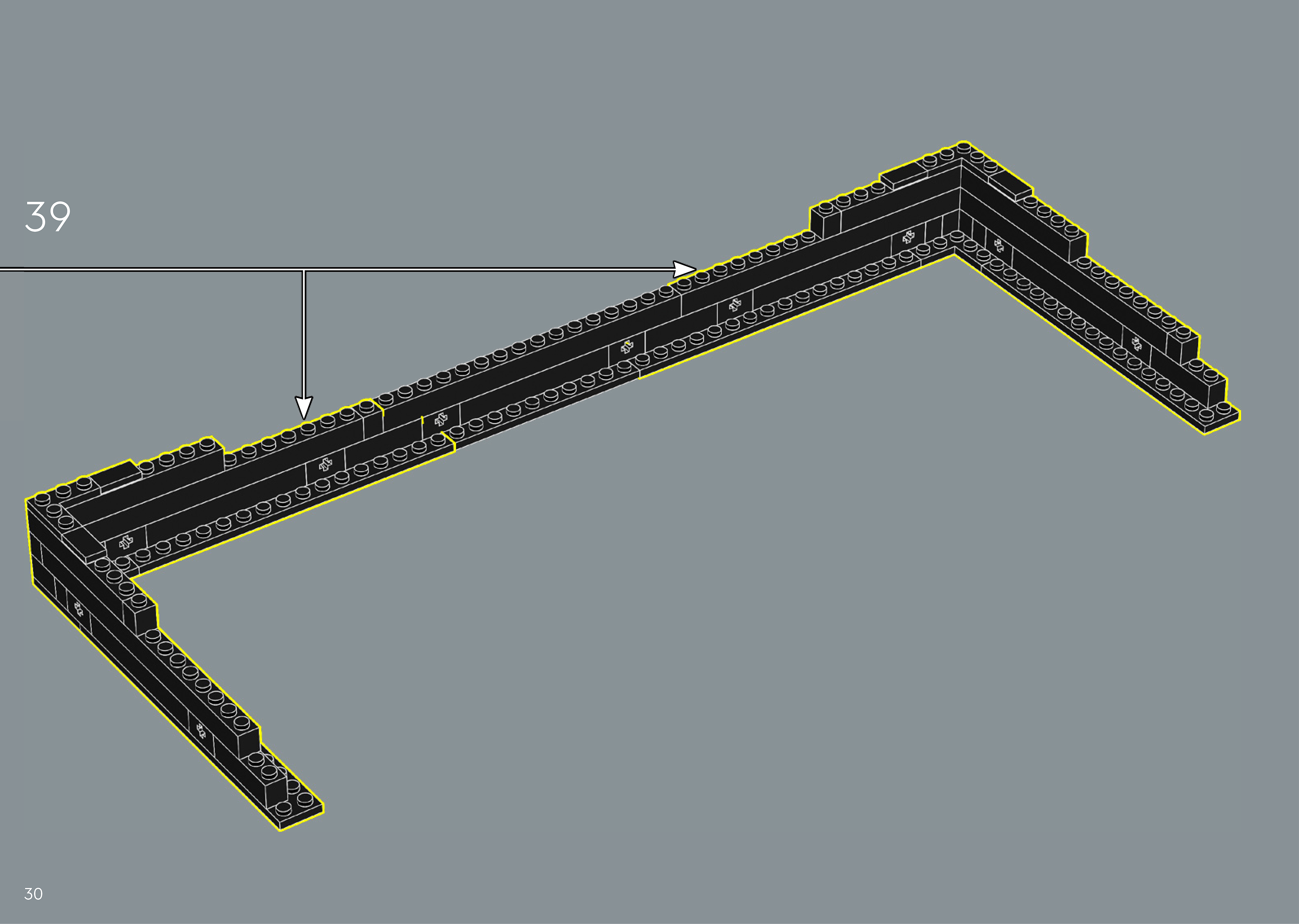
Inset — page 30
Phase 2 — Pieces
What do I do here?
Look at the inset image above. Check that the AI has correctly identified each piece — colour, quantity, and part name. If anything is wrong, edit the table directly. Add any missing pieces using the + row button, or remove incorrect ones with ✕.
When you are satisfied that all pieces are correct, click Save Pieces. This enables Phase 3 to run for this step.
| Qty | Colour | Part name | Part # | |
|---|---|---|---|---|
Phase 3 — Spatial placement
What do I do here?
The AI has described where each piece was placed by comparing the before and after images. Read every description carefully. Check that directions (left, right, front, back) are correct from the builder's perspective, and that stud counts are accurate.
If a description is vague, wrong, or uses the wrong direction — click Edit in that row and correct it. Once every placement description for this step is accurate, click Approve. Approval is required before the accessible prose can be generated.
This is the most important phase — a blind builder will follow these descriptions precisely.
Not yet extracted.
Phase 4 — Accessible prose
What do I do here?
This step is completed by the builder, not the sighted reviewer. The app generates an accessible prose paragraph from the approved Phase 3 descriptions. No action is needed from you here — your work is done once Phase 3 is approved.
Not yet generated. Complete Phase 3 and approve placement first.
Step 40
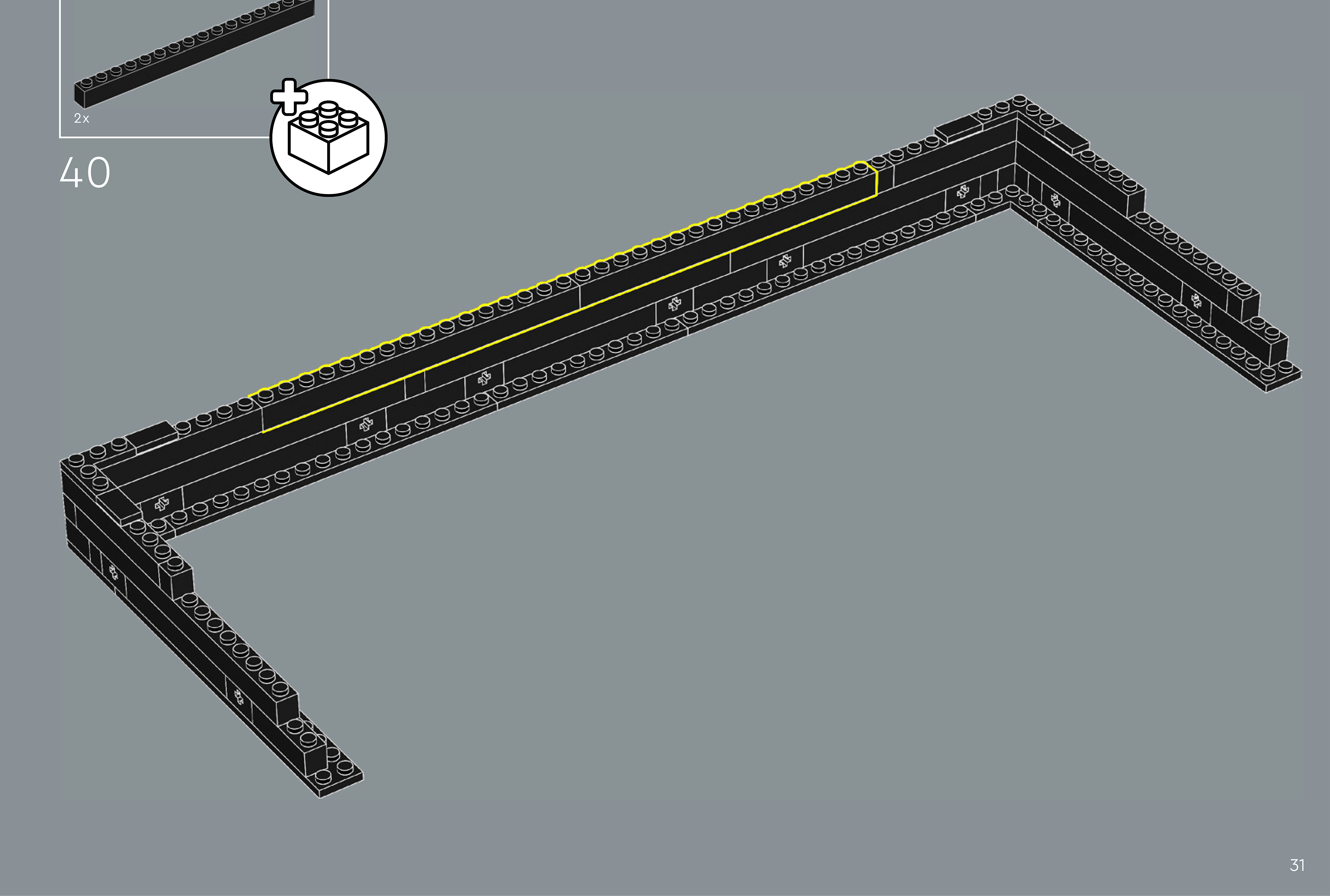
Assembly — page 31
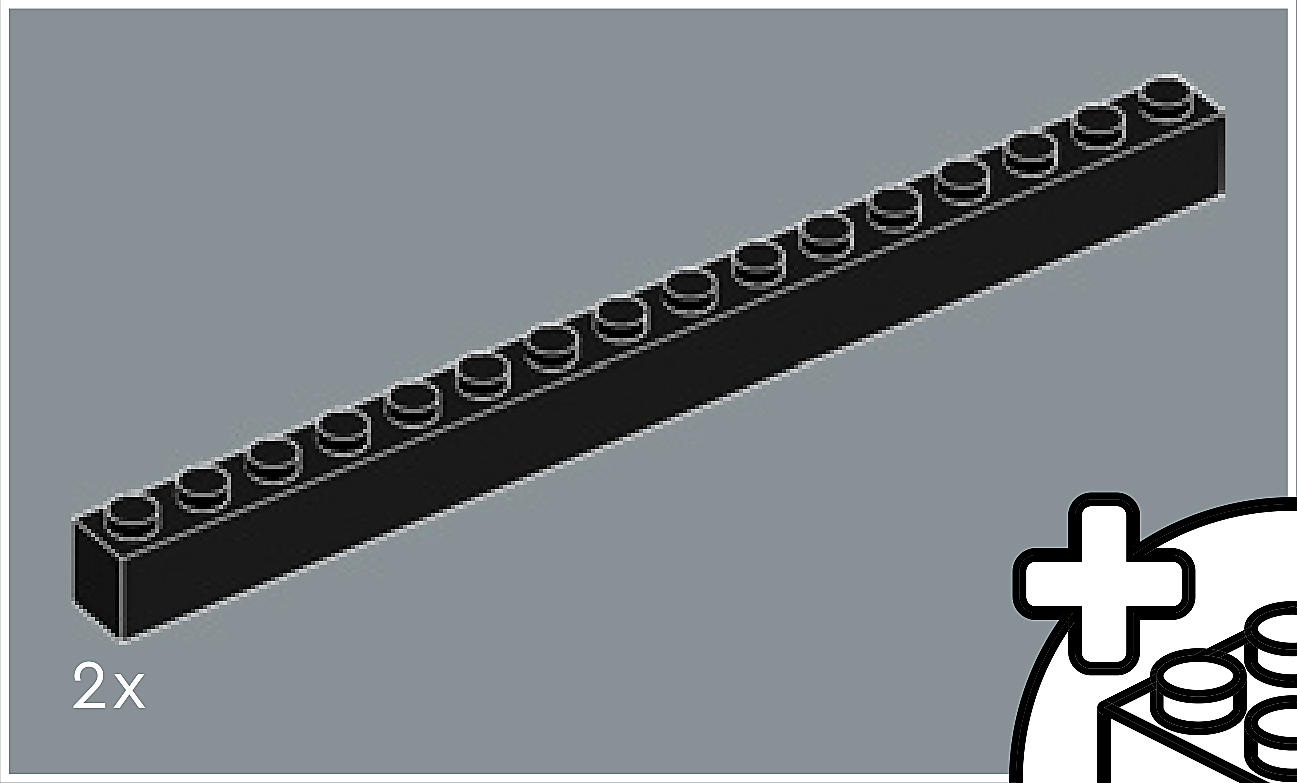
Inset — page 31
Phase 2 — Pieces
What do I do here?
Look at the inset image above. Check that the AI has correctly identified each piece — colour, quantity, and part name. If anything is wrong, edit the table directly. Add any missing pieces using the + row button, or remove incorrect ones with ✕.
When you are satisfied that all pieces are correct, click Save Pieces. This enables Phase 3 to run for this step.
| Qty | Colour | Part name | Part # | |
|---|---|---|---|---|
Phase 3 — Spatial placement
What do I do here?
The AI has described where each piece was placed by comparing the before and after images. Read every description carefully. Check that directions (left, right, front, back) are correct from the builder's perspective, and that stud counts are accurate.
If a description is vague, wrong, or uses the wrong direction — click Edit in that row and correct it. Once every placement description for this step is accurate, click Approve. Approval is required before the accessible prose can be generated.
This is the most important phase — a blind builder will follow these descriptions precisely.
Not yet extracted.
Phase 4 — Accessible prose
What do I do here?
This step is completed by the builder, not the sighted reviewer. The app generates an accessible prose paragraph from the approved Phase 3 descriptions. No action is needed from you here — your work is done once Phase 3 is approved.
Not yet generated. Complete Phase 3 and approve placement first.
Step 41
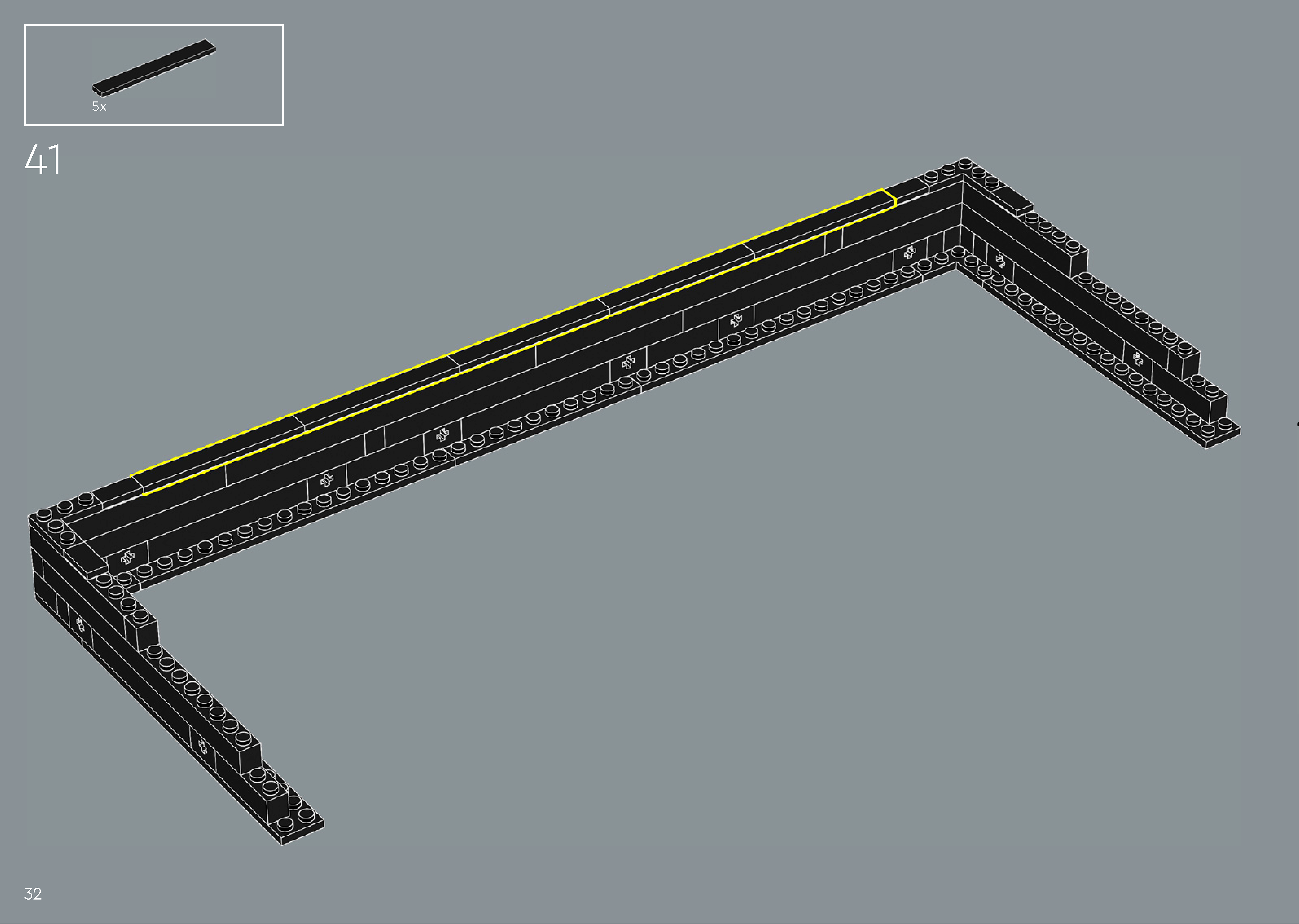
Assembly — page 32
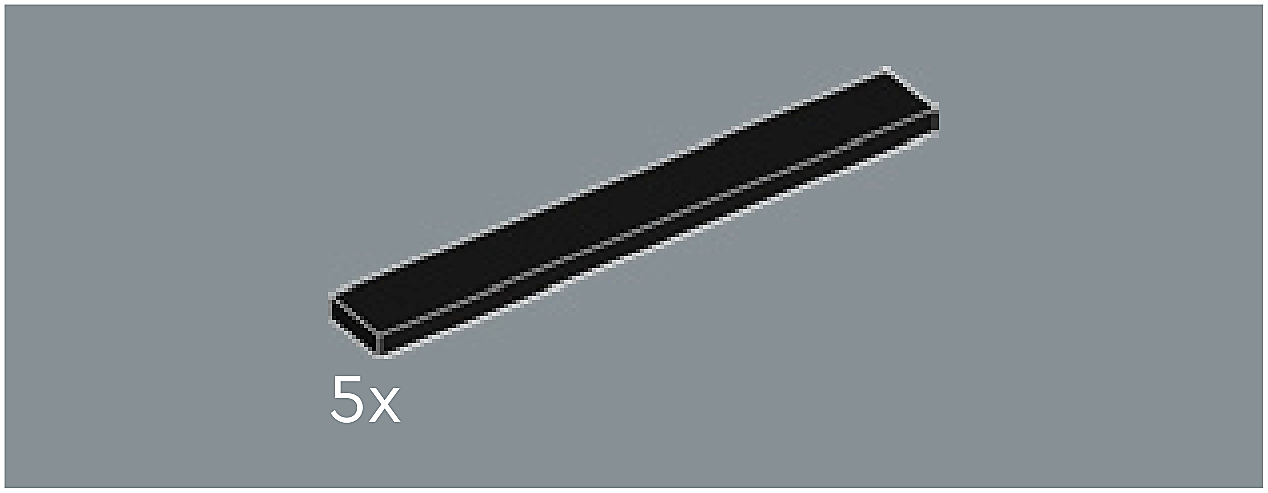
Inset — page 32
Phase 2 — Pieces
What do I do here?
Look at the inset image above. Check that the AI has correctly identified each piece — colour, quantity, and part name. If anything is wrong, edit the table directly. Add any missing pieces using the + row button, or remove incorrect ones with ✕.
When you are satisfied that all pieces are correct, click Save Pieces. This enables Phase 3 to run for this step.
| Qty | Colour | Part name | Part # | |
|---|---|---|---|---|
Phase 3 — Spatial placement
What do I do here?
The AI has described where each piece was placed by comparing the before and after images. Read every description carefully. Check that directions (left, right, front, back) are correct from the builder's perspective, and that stud counts are accurate.
If a description is vague, wrong, or uses the wrong direction — click Edit in that row and correct it. Once every placement description for this step is accurate, click Approve. Approval is required before the accessible prose can be generated.
This is the most important phase — a blind builder will follow these descriptions precisely.
Not yet extracted.
Phase 4 — Accessible prose
What do I do here?
This step is completed by the builder, not the sighted reviewer. The app generates an accessible prose paragraph from the approved Phase 3 descriptions. No action is needed from you here — your work is done once Phase 3 is approved.
Not yet generated. Complete Phase 3 and approve placement first.
Step 42
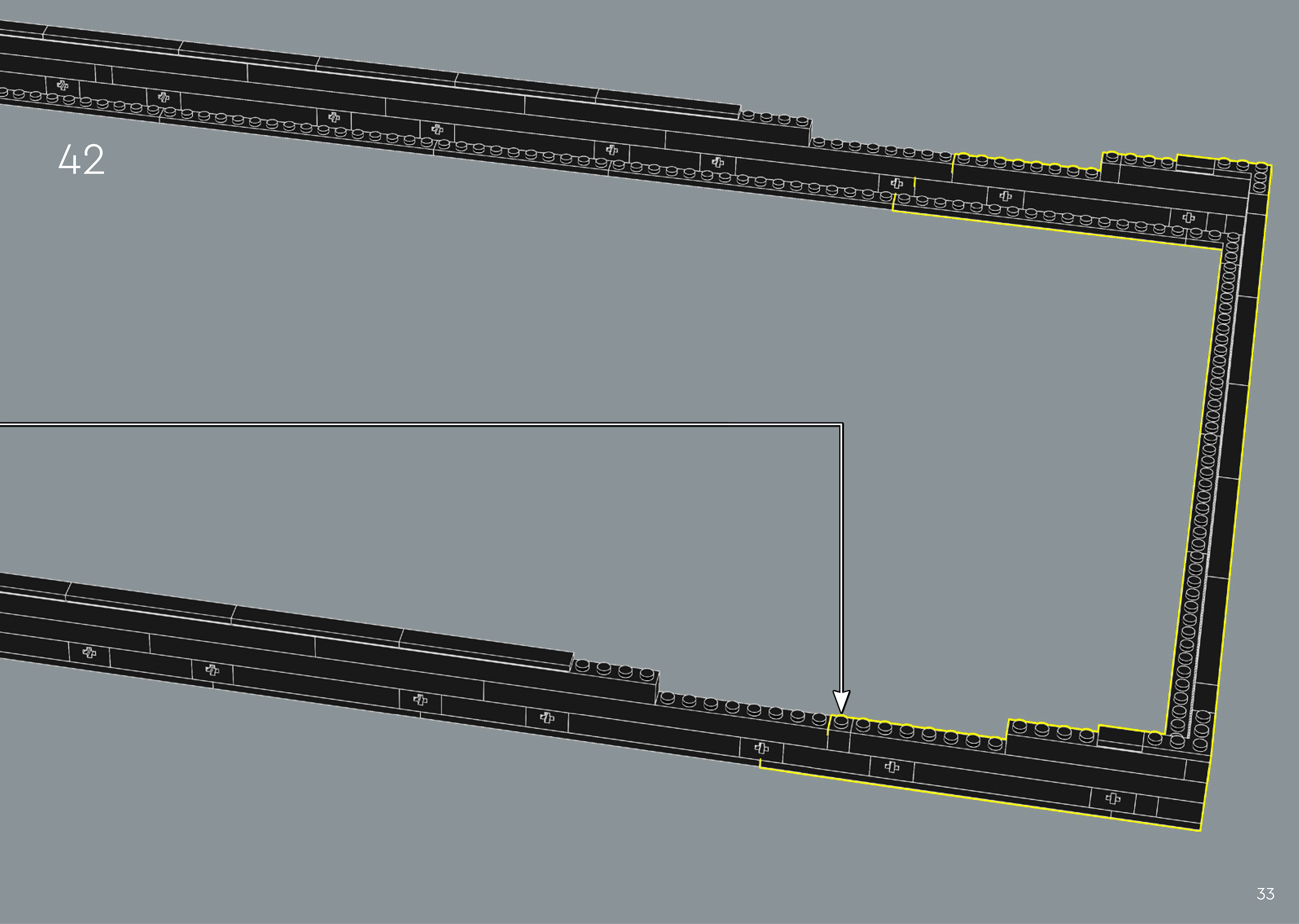
Assembly — page 33
Inset — page 33
Phase 2 — Pieces
What do I do here?
Look at the inset image above. Check that the AI has correctly identified each piece — colour, quantity, and part name. If anything is wrong, edit the table directly. Add any missing pieces using the + row button, or remove incorrect ones with ✕.
When you are satisfied that all pieces are correct, click Save Pieces. This enables Phase 3 to run for this step.
| Qty | Colour | Part name | Part # | |
|---|---|---|---|---|
Phase 3 — Spatial placement
What do I do here?
The AI has described where each piece was placed by comparing the before and after images. Read every description carefully. Check that directions (left, right, front, back) are correct from the builder's perspective, and that stud counts are accurate.
If a description is vague, wrong, or uses the wrong direction — click Edit in that row and correct it. Once every placement description for this step is accurate, click Approve. Approval is required before the accessible prose can be generated.
This is the most important phase — a blind builder will follow these descriptions precisely.
Not yet extracted.
Phase 4 — Accessible prose
What do I do here?
This step is completed by the builder, not the sighted reviewer. The app generates an accessible prose paragraph from the approved Phase 3 descriptions. No action is needed from you here — your work is done once Phase 3 is approved.
Not yet generated. Complete Phase 3 and approve placement first.
Step 43
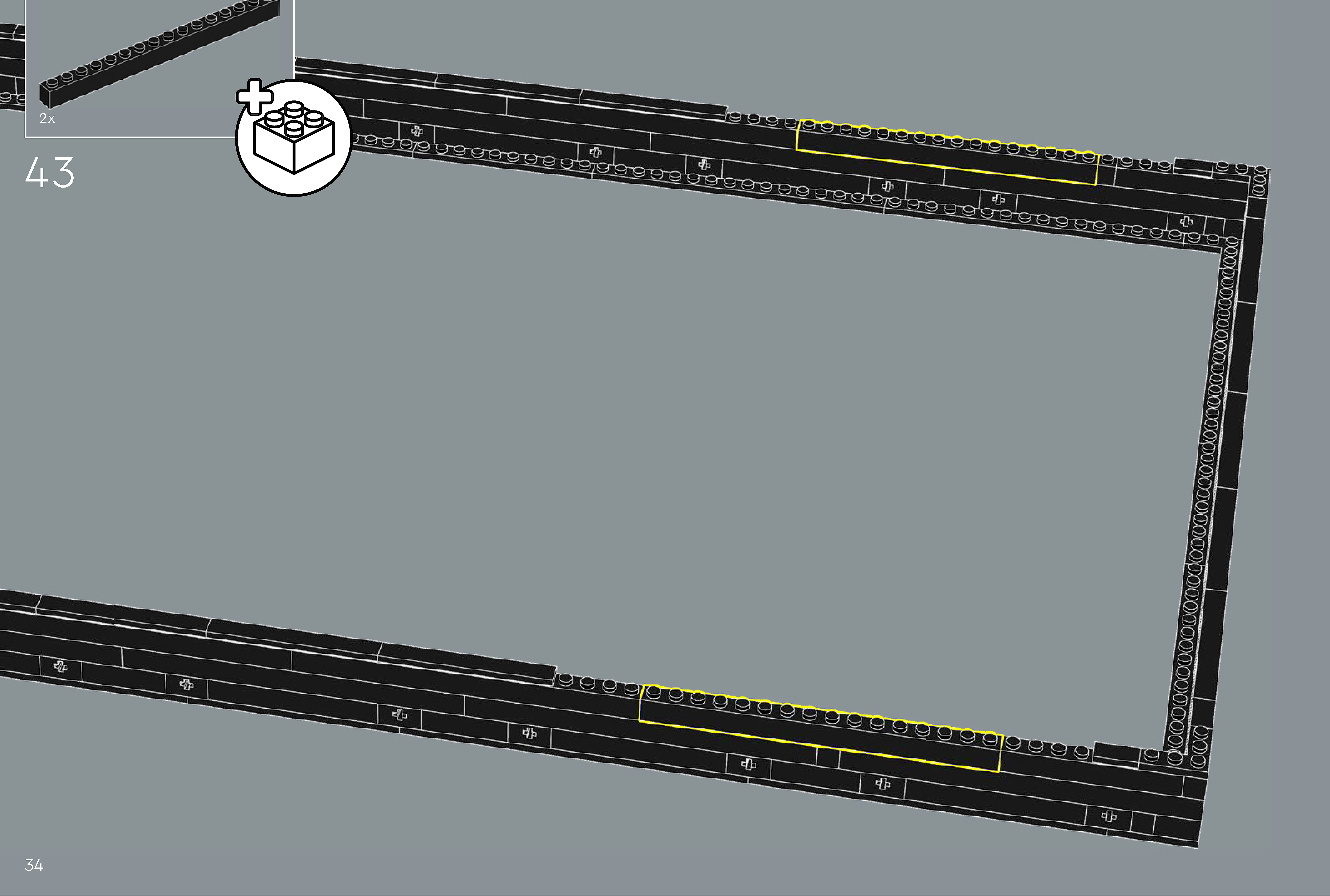
Assembly — page 34
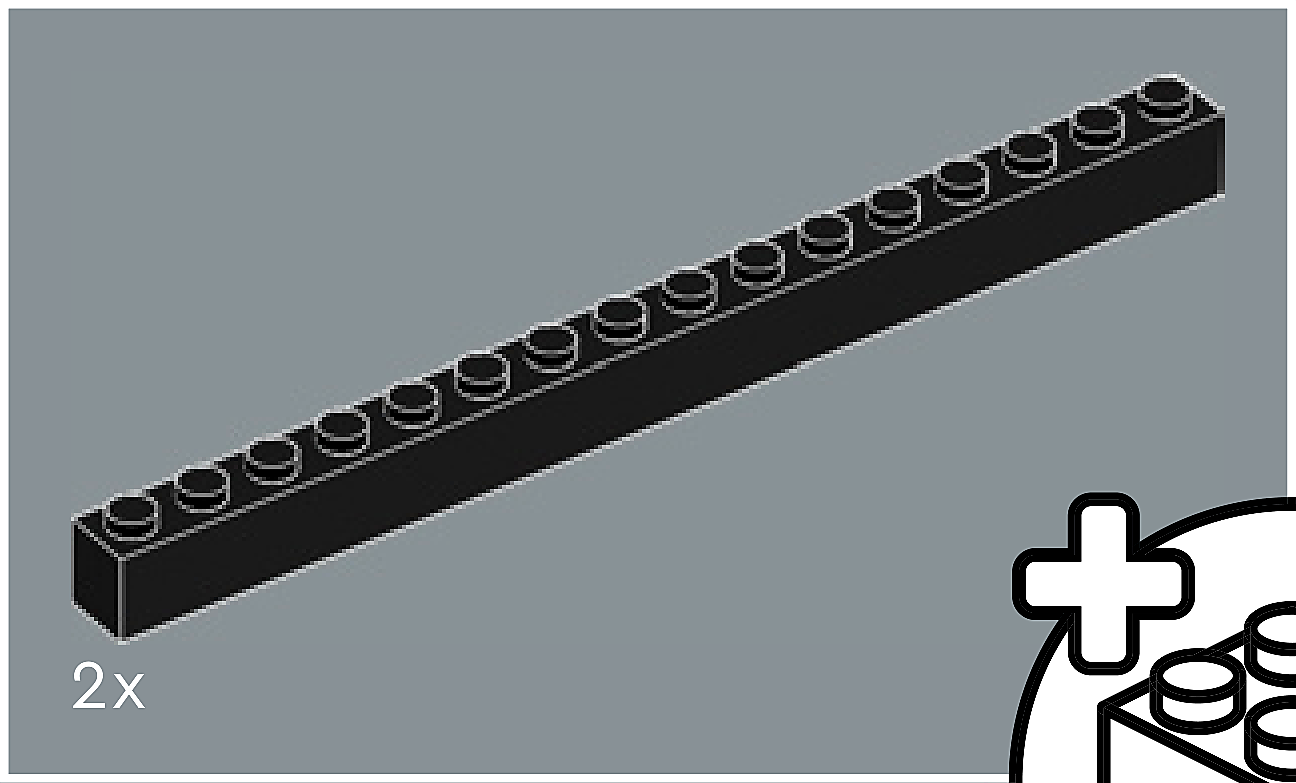
Inset — page 34
Phase 2 — Pieces
What do I do here?
Look at the inset image above. Check that the AI has correctly identified each piece — colour, quantity, and part name. If anything is wrong, edit the table directly. Add any missing pieces using the + row button, or remove incorrect ones with ✕.
When you are satisfied that all pieces are correct, click Save Pieces. This enables Phase 3 to run for this step.
| Qty | Colour | Part name | Part # | |
|---|---|---|---|---|
Phase 3 — Spatial placement
What do I do here?
The AI has described where each piece was placed by comparing the before and after images. Read every description carefully. Check that directions (left, right, front, back) are correct from the builder's perspective, and that stud counts are accurate.
If a description is vague, wrong, or uses the wrong direction — click Edit in that row and correct it. Once every placement description for this step is accurate, click Approve. Approval is required before the accessible prose can be generated.
This is the most important phase — a blind builder will follow these descriptions precisely.
Not yet extracted.
Phase 4 — Accessible prose
What do I do here?
This step is completed by the builder, not the sighted reviewer. The app generates an accessible prose paragraph from the approved Phase 3 descriptions. No action is needed from you here — your work is done once Phase 3 is approved.
Not yet generated. Complete Phase 3 and approve placement first.
Step 44
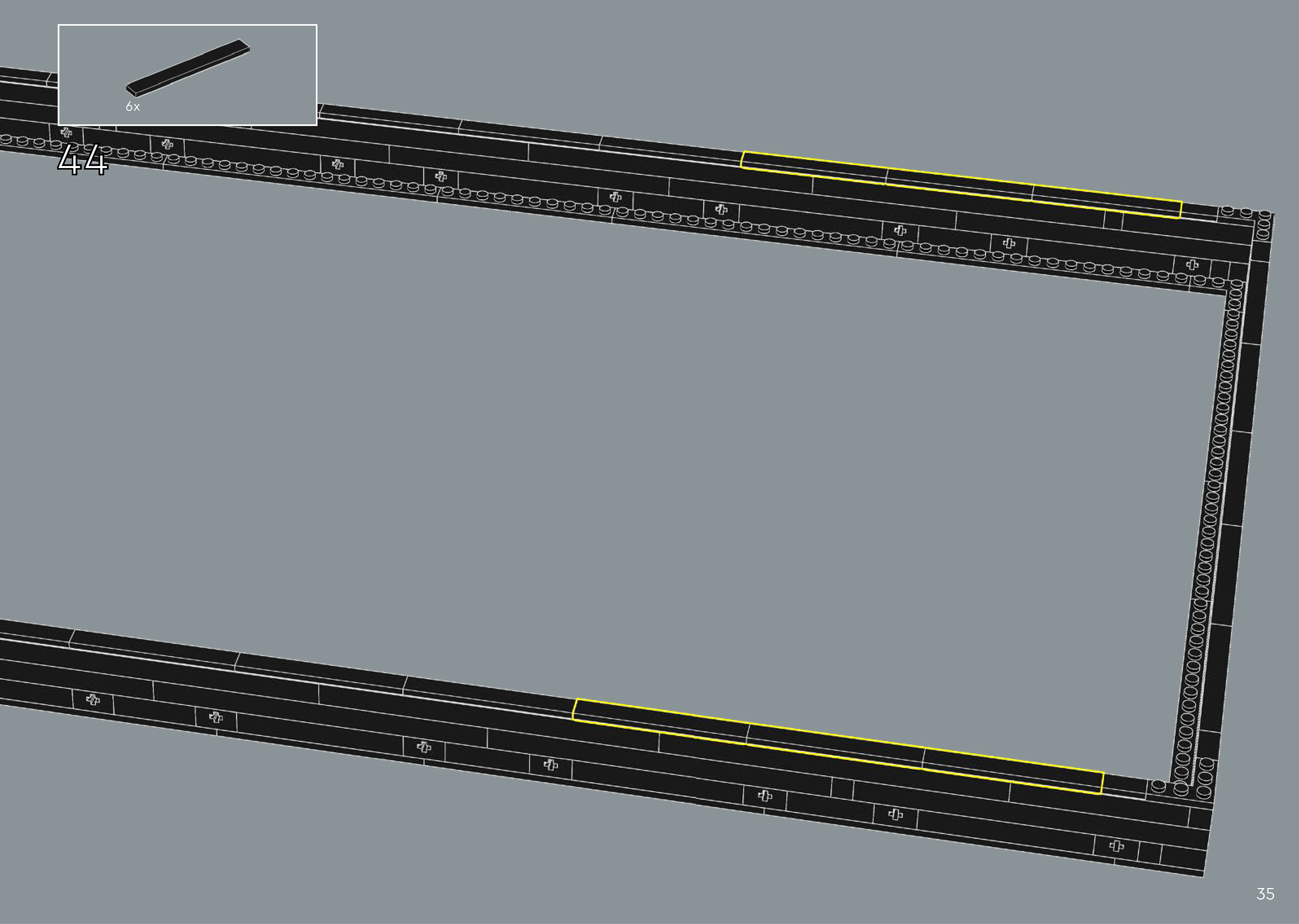
Assembly — page 35
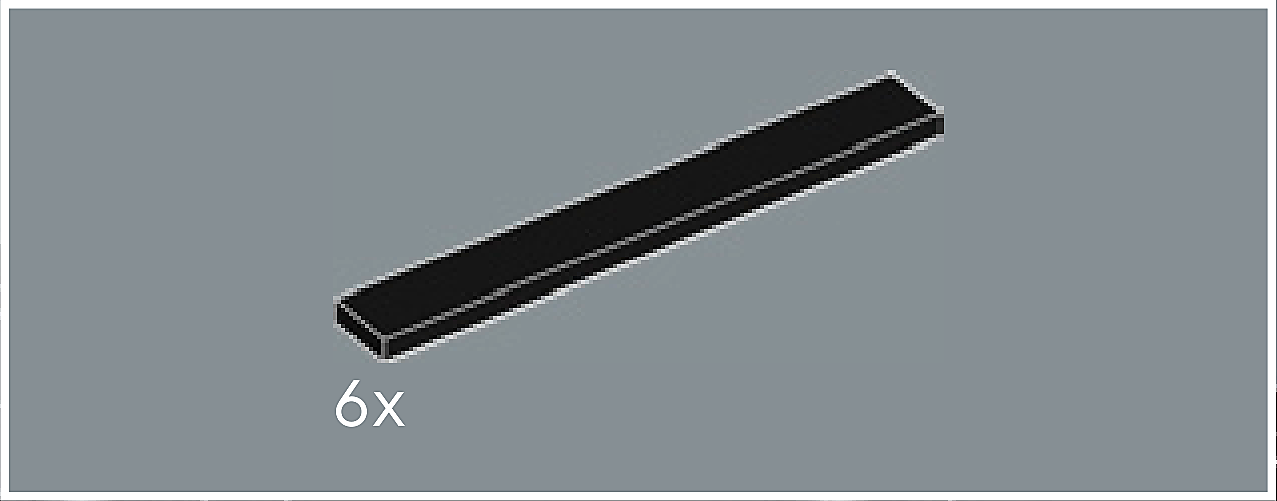
Inset — page 35
Phase 2 — Pieces
What do I do here?
Look at the inset image above. Check that the AI has correctly identified each piece — colour, quantity, and part name. If anything is wrong, edit the table directly. Add any missing pieces using the + row button, or remove incorrect ones with ✕.
When you are satisfied that all pieces are correct, click Save Pieces. This enables Phase 3 to run for this step.
| Qty | Colour | Part name | Part # | |
|---|---|---|---|---|
Phase 3 — Spatial placement
What do I do here?
The AI has described where each piece was placed by comparing the before and after images. Read every description carefully. Check that directions (left, right, front, back) are correct from the builder's perspective, and that stud counts are accurate.
If a description is vague, wrong, or uses the wrong direction — click Edit in that row and correct it. Once every placement description for this step is accurate, click Approve. Approval is required before the accessible prose can be generated.
This is the most important phase — a blind builder will follow these descriptions precisely.
Not yet extracted.
Phase 4 — Accessible prose
What do I do here?
This step is completed by the builder, not the sighted reviewer. The app generates an accessible prose paragraph from the approved Phase 3 descriptions. No action is needed from you here — your work is done once Phase 3 is approved.
Not yet generated. Complete Phase 3 and approve placement first.